
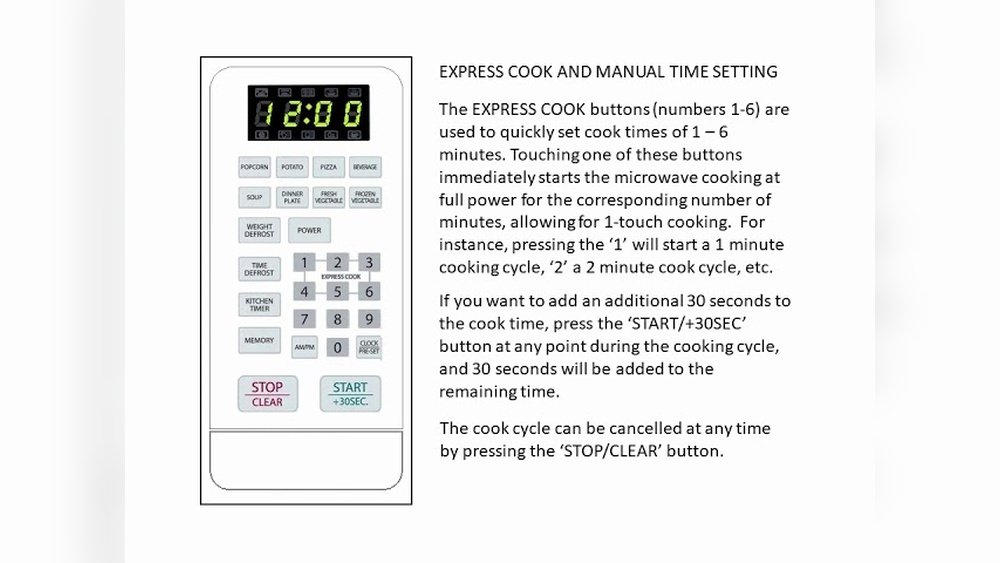
Changing the time on a Magic Chef oven can seem confusing, especially if you’ve never done it before or lost your manual. But setting the correct time is important: it helps with accurate baking, keeps your kitchen routine smooth, and ensures timed features like delayed start work properly. If you just moved into a new home, had a power outage, or daylight savings has changed, you’ll need to know how to adjust your oven’s clock quickly. This guide explains every step for both digital and older analog Magic Chef ovens. You’ll find helpful tips, common problems, and troubleshooting advice, plus answers to the questions that most users have. By the end, you’ll feel confident handling your oven’s clock—no matter what model you own.
Understanding Your Magic Chef Oven Model
Before changing the time, it’s helpful to know which Magic Chef oven model you have. Ovens come in a few types:
- Digital control panel: These use buttons or touchpads.
- Analog/dial models: Older ovens use rotary knobs.
- Double ovens or wall ovens: These sometimes have separate clocks.
You can usually find the model number inside the oven door frame or on the back panel. Knowing your model can help you find specific instructions or contact support if needed.
Some ovens have extra features like timers, delayed start, or Sabbath mode. These can affect how you set the clock or how the oven responds to time changes.
Non-obvious insight: Many people don’t realize power surges or outages can reset the clock, even if the oven works normally otherwise. Always check your clock after an outage.
Safety First: Basic Precautions
Working with appliances means staying safe. Here are a few key steps:
- Check the oven is off. Never try to change the clock while the oven is running.
- Dry hands. Digital panels may not respond if your fingers are wet.
- Unplug if necessary. For older analog models, you might need to unplug or reset the oven.
Remember, you won’t be working with wiring or dangerous parts, so there’s no need to open the oven or remove panels.
Changing Time On Digital Magic Chef Ovens
Most Magic Chef ovens made after 2000 use a digital display. The process is usually simple, but button labels and layouts can change between models.
Step 1: Locate The Clock Or Time Button
Look for a button labeled Clock, Time, or sometimes Set Clock. On some models, this button may have a small clock icon.
- If you see a button labeled Settings or Options, press it until you reach the clock menu.
Step 2: Enter Clock Setting Mode
Press and hold the Clock button for 3–5 seconds. On some ovens, you may need to press Clock and another button (like Bake or Start) together.
- The display should start blinking or show “SET TIME.”
- If nothing happens, check your manual or try a different button combination.
Pro tip: If your panel is unresponsive, make sure the oven is not in Sabbath mode (see troubleshooting below).
Step 3: Adjust The Time
Use the +/- buttons or the Up/Down arrows to set the correct hour and minute.
- Some ovens require you to set hours first, then press Clock again to set minutes.
- For 24-hour formats, you may need to press Clock twice.
Step 4: Confirm And Exit
Press Start, Clock, or Enter to save your changes. The display should stop blinking and show the new time.
If you make a mistake, just repeat the process.
Non-obvious insight: On some models, if you don’t press “Start” after setting the time, the oven may not save the new time—even if the display stops blinking.
Example: Setting Time On A Digital Magic Chef Oven
Suppose your oven has a Clock button, and +/- buttons for time.
- Press and hold Clock for 3 seconds.
- The time display blinks.
- Press + or – to select the hour.
- Press Clock again, then use + or – to set minutes.
- Press Start to confirm.
If your oven’s buttons look different, check for a label or icon showing a clock.
Setting Time On Analog (dial) Magic Chef Ovens
Older Magic Chef ovens use a dial or knob to set the clock. These clocks are mechanical, not digital, and the process is different.
Step 1: Find The Clock Knob
Locate the small round dial with clock numbers, usually on the front control panel. Sometimes it’s labeled Timer/Clock.
Step 2: Pull Out The Knob
Gently pull the knob outward. You should feel a small “click. ” This lets you adjust the clock.
- If the knob doesn’t pull out, check for a small lever or button nearby.
Step 3: Turn To Set The Time
Slowly turn the knob clockwise or counterclockwise to set the correct time.
- Align the hour and minute hands with the correct time.
- If the dial moves stiffly, don’t force it—older parts can break.
Step 4: Push The Knob Back In
When the time is correct, push the knob back in to lock the setting. The clock should now run normally.
Non-obvious insight: Some analog clocks only move forward—never force the dial backwards or you may damage the mechanism.
Example: Setting Time On An Analog Magic Chef Oven
If your oven has a Timer/Clock dial:
- Pull the dial out until it clicks.
- Turn the dial to the current time.
- Push the dial back in.
That’s it—the oven clock is now set.
Setting Time After A Power Outage
Most Magic Chef oven clocks reset after a power outage. The display often flashes “12:00” or “PF” (Power Failure).
- If your clock is flashing, follow the regular digital or analog process above to set the time.
- Some models require you to press Clear/Off before entering clock mode.
Tip: If your oven is plugged into a surge protector, this can reduce the chance of resets.
Practical example: You get home after a storm, and your oven flashes “PF 12:00.” Just press Clock, set the time, and press Start.
Daylight Saving Time And Your Magic Chef Oven
Magic Chef ovens don’t change for daylight saving time automatically. You’ll need to set the clock forward or back one hour, twice a year.
- Repeat the digital or analog process above.
- If you forget, your baking times may be off by an hour!
Some newer smart ovens can sync with your smartphone or Wi-Fi for auto-updates, but this is rare for Magic Chef.

Credit: www.youtube.com
Common Problems When Changing The Clock
Changing the time is usually simple, but sometimes things don’t work as expected. Here’s how to handle common problems.
The Clock Button Doesn’t Work
- Make sure the oven is in standby mode (not baking or cleaning).
- Check for Control Lock or Child Lock; you may need to unlock the panel.
- If the button is stuck or not responding, unplug the oven for 1 minute to reset it.
The Display Is Blank Or Dim
- Check that the oven is plugged in and the breaker is on.
- Some ovens have a Display On/Off setting—try pressing Clock or Settings.
Time Resets Frequently
- Power surges or unstable outlets can cause this. Try plugging the oven into a different outlet or use a surge protector.
- For hardwired ovens, call an electrician if you see frequent resets.
Oven Stuck In Sabbath Mode
- Sabbath mode disables some controls, including the clock.
- To exit, press and hold Bake and Start for 5 seconds (check your manual for your model’s steps).
Clock Runs Too Fast Or Slow
- Analog clocks can drift over time. Set the time every few months.
- For digital ovens, try a factory reset (see your manual).
How To Reset Your Magic Chef Oven Clock
If you’ve tried everything and the clock still won’t set, a full reset may help.
Step 1: Turn Off The Oven
Press Clear/Off or unplug the oven.
Step 2: Wait One Minute
Leave it unplugged for at least 60 seconds.
Step 3: Plug Back In
When power is restored, the clock should flash “12:00” or “PF.”
Step 4: Set The Clock
Follow the steps for your model to set the correct time.
Note: If the display is still blank or buttons don’t work after a reset, the control panel may need service.
Comparing Magic Chef Oven Clock Features
Here’s a quick comparison of common Magic Chef oven clock types:
| Feature | Digital Models | Analog Models |
|---|---|---|
| Setting Method | Button press | Turn dial |
| Power Outage Recovery | Needs reset | Usually keeps time |
| Accuracy | Very accurate | May drift over time |
| Extra Features | Timer, delay start, Sabbath mode | Rarely any extras |
Key takeaway: Digital clocks offer more features, but analog clocks are simpler and less likely to lose settings.
Practical Tips For Accurate Oven Time
If you want your Magic Chef oven clock to always show the correct time:
- Set your oven clock to match your phone or a radio-controlled clock.
- Check the oven time every few months, especially after power outages.
- Use a surge protector for digital ovens to avoid resets.
- Write down your oven’s clock setting steps and keep them in a drawer for quick reference.
Pro tip: If you’re using the oven’s timer for long recipes, double-check the clock before starting. Even a small error can ruin precise baking.
How To Use Timers And Delayed Start Features
Many Magic Chef ovens let you set a timer or use delayed start for baking. These features depend on the clock being set correctly.
Setting The Kitchen Timer
- Press the Timer button.
- Use +/- to set the number of minutes.
- Press Start or Timer again to begin.
When time runs out, the oven will beep, but it won’t turn off the oven unless you’re using a cook time feature.
Setting Delayed Start
- Set the clock first.
- Enter your desired bake temperature and time.
- Press Delay Start and enter the time you want the oven to begin.
- Press Start.
The oven will wait until the set time, then turn on and start baking.
Warning: Delayed start should not be used for foods that spoil quickly at room temperature (like eggs, dairy, or meats).
Troubleshooting: When You Can’t Change The Time
Sometimes, you may follow all the steps and still can’t change the clock. Here’s what to do:
Check For Control Lock
Some Magic Chef ovens have a control lock feature:
- Look for a small padlock icon on the display.
- To unlock, press and hold Start or Cancel for 3–5 seconds.
Check For Factory Reset
If the clock still won’t set, a factory reset can sometimes fix the problem. This process resets all settings to default.
- Unplug the oven for 5–10 minutes.
- Plug it back in and set the clock.
If problems continue, the control board may be faulty.
Contacting Support
If you can’t set the clock after trying all tips, contact Magic Chef customer support. Have your model and serial number ready.
- Phone support is often fastest.
- You can also check the official Magic Chef support site for manuals and FAQs.
Real-life example: If your oven is new and the clock won’t set, there may be a factory defect. Call support for a replacement or repair.
Maintenance Tips For Long-lasting Oven Clocks
Keeping your oven clock working well is mostly about regular checks and gentle use.
- Clean the control panel with a soft, damp cloth. Don’t use harsh cleaners.
- Don’t press buttons too hard—gentle pressure is enough.
- If your home has frequent outages, consider a whole-house surge protector.
- For analog clocks, avoid turning the dial backwards.
Fact: Most digital oven clocks last 10–15 years if used gently and protected from power surges.
How Magic Chef Ovens Compare To Other Brands
Wondering how Magic Chef stacks up to other oven brands for clock features? Here’s a simple comparison:
| Brand | Clock Type | Automatic Daylight Saving | Common Issue |
|---|---|---|---|
| Magic Chef | Digital/Analog | No | Power resets |
| GE | Digital | Some models | Touchpad failure |
| Whirlpool | Digital | Rare | Control lock confusion |
| Samsung | Digital/Smart | Yes (Wi-Fi models) | Software bugs |
Insight: Magic Chef is reliable but doesn’t offer automatic time changes. If you prefer a simple, no-fuss clock, it’s a solid choice.
Real-world Examples: When Setting Oven Time Matters
- Baking bread: Timing is critical. If your oven clock is off, your bread may underbake or overbake.
- Holiday meals: Cooking a turkey or roast for a family event? Double-check the clock to avoid early or late meals.
- Busy mornings: Using delayed start for breakfast? A wrong clock means cold food or missed meals.
Tip: Make it a habit to check your oven clock whenever you reset your microwave or wall clocks.
What To Avoid When Setting Magic Chef Oven Time
- Don’t force buttons or dials. If something feels stuck, check the manual.
- Don’t skip the final “Start” or “Enter” press. The clock may not save your setting.
- Don’t use delayed start for perishable foods unless you’re sure about food safety.
- Don’t ignore flashing displays. A flashing clock means the time is not set.
Expert advice: If you’re unsure, it’s better to reset and repeat the process than to guess.

Credit: www.walmart.com
Advanced Features: Smart Ovens And Wi-fi Clocks
Most Magic Chef ovens are not Wi-Fi enabled, but if you have a newer “smart” model, it may sync with your phone or home network.
- Download the Magic Chef app if available.
- Pair your oven with your Wi-Fi.
- Set the time through the app or let it auto-sync with internet time.
Important: If your oven can connect to Wi-Fi but the time is still wrong, check your router and app settings.
When To Call For Professional Help
If your Magic Chef oven clock:
- Won’t set after all steps above
- Has a blank or flickering display
- Resets every day even after using a surge protector
- Buttons or dials are broken or loose
…it’s time to call a technician. Some problems require replacement of the control board or clock unit.
Cost tip: Replacing a digital clock panel can cost $100–$300. If your oven is old, compare the repair cost to the price of a new oven.
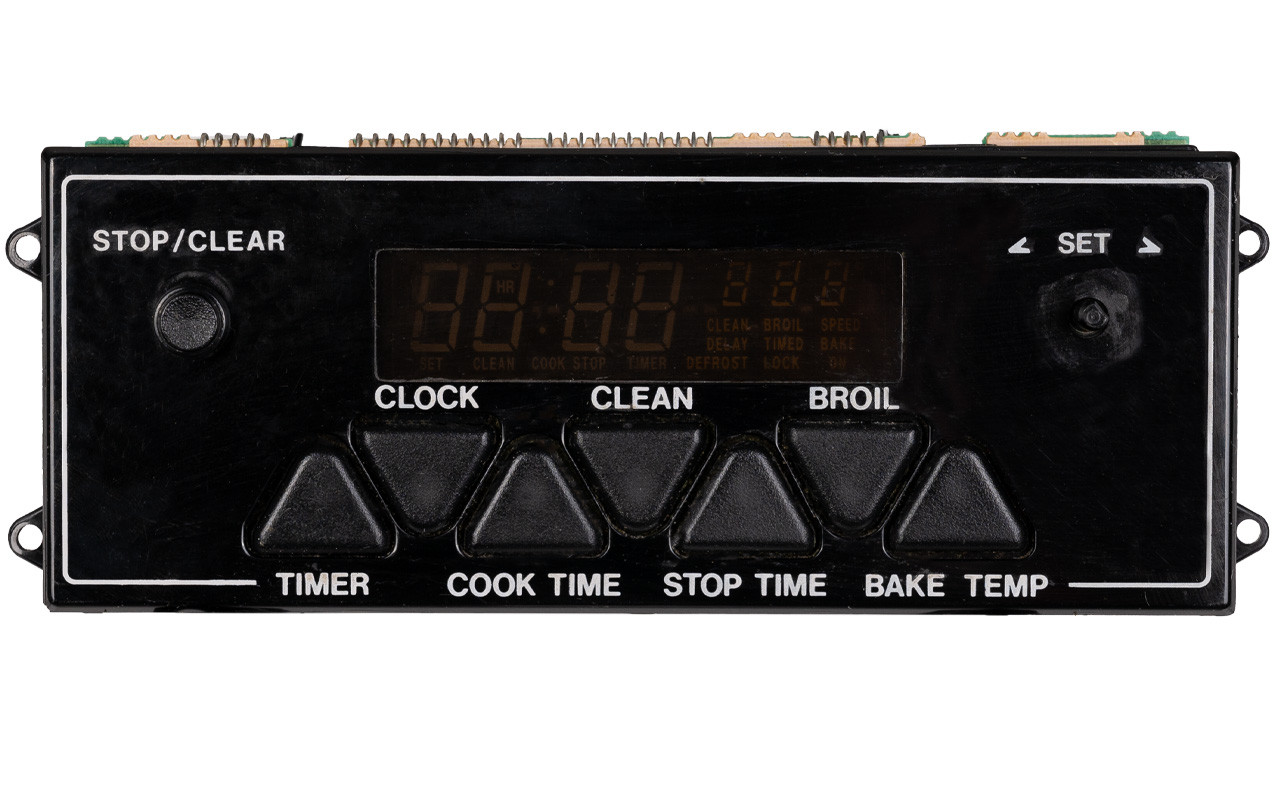
Credit: circuitboardmedics.com
Frequently Asked Questions
How Do I Unlock My Magic Chef Oven Controls To Change The Clock?
Most Magic Chef ovens have a control lock feature. If you see a padlock symbol, press and hold the Start or Cancel button for 3–5 seconds to unlock the controls. Once unlocked, you can set the clock as usual. If this doesn’t work, check your user manual for your specific model’s unlock instructions.
What Does “pf” Mean On My Magic Chef Oven Display?
“PF” stands for Power Failure. This means your oven lost power (from an outage or unplugging) and the clock needs to be reset. To clear the message, press Clock, set the correct time, and then press Start. The oven should return to normal operation.
Can I Set The Clock On My Magic Chef Oven Without The Manual?
Yes, most Magic Chef ovens use standard methods. For digital models, press and hold Clock or Time, set the hours and minutes, then press Start. For analog models, pull out and turn the clock dial. If unsure, check the oven door frame for a model number and look up the manual online, or visit the official Magic Chef support site.
Why Does My Magic Chef Oven Clock Keep Resetting?
Frequent clock resets are usually caused by power surges, unstable outlets, or a failing control board. Try plugging the oven into a surge protector. If it’s hardwired, you may need an electrician. If the oven is old, the internal clock battery or board may need replacement.
Is There A Way To Make My Magic Chef Oven Change For Daylight Saving Time Automatically?
Most Magic Chef ovens do not have an automatic daylight saving feature. You’ll need to adjust the clock manually twice a year. Some newer smart ovens (rare for Magic Chef) may sync with Wi-Fi and update the time, but this is not common. Always check your oven manual to confirm.
Setting the right time on your Magic Chef oven is a simple task that pays off every day in accurate baking and easy kitchen routines. With the tips above, you’ll never worry about a wrong clock again. If you run into trouble, don’t hesitate to call support or check the official Magic Chef resources for more help.