
Using your oven efficiently can save time and help you enjoy hot meals when you want them. If you own a GE oven, you may have noticed a feature called Delay Start. This function lets you set up your oven to begin cooking at a later time—even if you’re not in the kitchen. For many, the Delay Start feature is a game changer, especially for busy families and anyone who wants dinner ready right when they walk in the door. But using it correctly is important for both safety and food quality. In this guide, you’ll find clear steps, practical tips, and all the details you need to confidently use Delay Start on your GE oven, whether you’re a new user or want to get more from your appliance.
What Is Delay Start On A Ge Oven?
The Delay Start function allows you to program your oven to begin cooking at a specific time in the future. Instead of starting your oven right away, you can set it up in the morning and have it turn on later in the day. This is ideal if you want a meal ready when you come home or need to coordinate cooking with other tasks.
For example, you might prepare a casserole before leaving for work. By using Delay Start, the oven will turn on later in the afternoon and cook your meal so it’s hot and ready when you arrive. The feature is available on many GE ovens, both gas and electric, and works for different cooking modes like Bake, Convection Bake, and sometimes Broil.
Key Benefits Of Delay Start
- Convenience: Set it and forget it—your meal cooks itself while you’re busy.
- Time Management: Plan meals around your schedule, not the other way around.
- Energy Efficiency: Avoid running the oven when you don’t need it.
- Meal Coordination: Sync your cooking so everything is hot at the right time.
Types Of Ge Ovens With Delay Start
Not every GE oven has the same Delay Start feature. Older models may use knobs, while modern ones often have digital controls and even smart features. Here’s a quick look at the main types:
| Oven Type | Control System | Delay Start Availability |
|---|---|---|
| Standard Electric | Touchpad or Knob | Most Models |
| Standard Gas | Touchpad | Some Models |
| Convection Ovens | Touchscreen or Buttons | Most Models |
| Smart Ovens (Wi-Fi) | App & Touchscreen | Yes, with App Control |
Insight: Some entry-level GE ovens do not include Delay Start. Always check your user manual or the model’s specifications to confirm.
How Delay Start Works: Step-by-step Process
Using Delay Start is simple, but you need to understand the sequence to avoid mistakes. Here’s what you need to do:
1. Prepare Your Food Safely
Before setting Delay Start, prepare your dish and place it in an oven-safe container. For meals with meat or eggs, minimize the time they spend at room temperature. It’s best to refrigerate your prepared dish until the oven begins preheating.
This helps prevent bacteria growth and food safety issues.
2. Select Cooking Mode
Choose the desired cooking mode on your GE oven. This could be Bake, Convection Bake, or another setting. Make sure to set the correct temperature for your recipe.
3. Set The Cook Time
Most GE ovens require you to enter the Cook Time (how long you want your food to cook). For example, if your recipe says to bake for 45 minutes at 350°F, enter 45 minutes.
4. Set The Delay Start Time
Now, enter the time you want the oven to start cooking. If it’s 2:00 PM and you want the oven to start at 5:00 PM, set Delay Start for 5:00 PM. The oven will stay off until this time, then automatically begin preheating and start the cook time countdown.
5. Confirm Settings
Double-check all settings on the display. Make sure the temperature, cook time, and Delay Start time are correct. Press Start to activate the function. The oven will often display a message like “Delay” or “Delayed Start” to confirm.
6. Safety Check
Keep your dish refrigerated if it contains perishable ingredients. Only place it in the oven just before the Delay Start cycle will begin, or use an oven with a “cold start” that’s designed to keep food safe.
7. Leave The Oven Door Closed
After you set Delay Start, avoid opening the oven door. Opening the door can interrupt the timing and affect preheating.
Non-obvious Insight: On some GE ovens, the Delay Start function will not work if the oven clock is not set correctly. Always check that your oven’s clock shows the right time before using Delay Start.
Step-by-step Example: Baking With Delay Start
Let’s say you want to bake a lasagna that needs 40 minutes at 375°F, and you want it ready by 6:30 PM.
- Prepare your lasagna in a baking dish and refrigerate it.
- At 3: 30 PM, place the lasagna in the oven (if your oven keeps the dish cold until it starts).
- Set the oven to Bake at 375°F.
- Enter Cook Time as 40 minutes.
- Set Delay Start for 5: 50 PM (so it finishes at 6:30 PM).
- Press Start.
- The oven will begin preheating at 5: 50 PM, cook for 40 minutes, and turn off at 6:30 PM.
Tip: If your oven does not keep food cold, only place the dish inside just before the preheat begins.
Credit: www.appliancecity.info
Common Delay Start Features And Controls
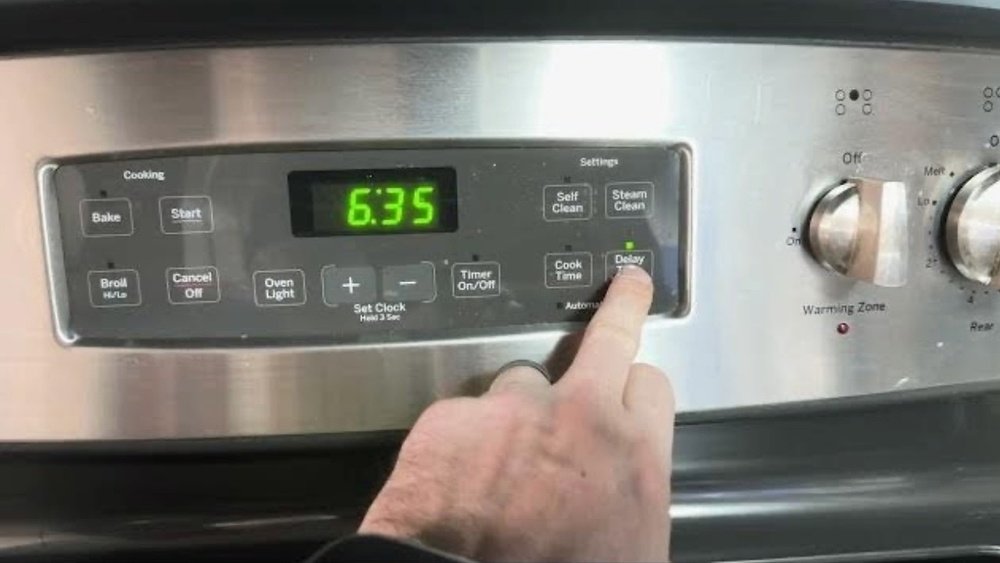
GE ovens have different control panels, but there are some common buttons and functions you will see:
- Bake: Selects the baking mode.
- Cook Time: Sets the length of time for baking.
- Delay Start: Programs the delayed start time.
- Start: Confirms and begins the programmed settings.
- Clear/Off: Cancels all settings.
- Clock/Time Set: Adjusts the oven’s clock.
On some newer models, you might find a touchscreen with icons instead of buttons. For smart ovens, you can use the GE Appliances app on your phone to set Delay Start remotely.
Non-obvious Insight: If your home loses power, most GE ovens will reset Delay Start settings. If you expect power interruptions, double-check your settings before leaving.
Delay Start Vs. Timer Vs. Cook Time
These terms can be confusing for new users. Here’s a quick comparison to help you understand each function:
| Feature | What It Does | When to Use |
|---|---|---|
| Delay Start | Starts cooking at a future time | When you want food ready later |
| Timer | Counts down and beeps, but does not control oven | Reminders or timing other tasks |
| Cook Time | Controls how long the oven stays on | To automatically turn off oven after set time |
Practical Example: If you set only the Timer, the oven will not turn off automatically. But with Cook Time (and Delay Start), the oven will shut down when done.

Credit: www.youtube.com
Setting Delay Start On Different Ge Oven Models
Let’s look at how to set Delay Start on the most common GE oven types:
Touchpad/keypad Models
- Press Bake and set the desired temperature.
- Press Cook Time, enter how long to cook.
- Press Delay Start and enter the time you want cooking to begin.
- Press Start.
Touchscreen Models
- Tap Bake, choose temperature.
- Tap Options or More Settings.
- Select Cook Time, enter time.
- Tap Delay Start, enter start time.
- Tap Start.
Knob-style Models
Older ovens may require you to set the time with a dial, then press a button to confirm. Always check your manual if unsure.
Smart/wi-fi Models
- Open the GE Appliances app on your phone.
- Choose your oven.
- Select cooking mode and temperature.
- Set Cook Time and Delay Start from the app.
- Tap Start to send instructions to your oven.
Tip: Smart ovens may allow you to adjust settings remotely, but always follow safety guidelines for food storage.
Important Safety Tips When Using Delay Start
Using Delay Start can be convenient, but there are important safety rules to follow:
- Avoid Room Temperature Storage: Never let meat, dairy, eggs, or other perishable foods sit at room temperature for long. Bacteria can grow quickly, making food unsafe.
- Use Cold Start Ovens Carefully: Some ovens keep food cold until cooking begins, but most do not. If your oven doesn’t, refrigerate food until the oven is about to start.
- Double-Check the Clock: Delay Start depends on the oven’s clock. If it’s incorrect, your meal may not cook as planned.
- Child Lock: If you have young children, use the oven’s lock feature to prevent accidental changes to settings.
- No Delay with Broil: Most GE ovens do not allow Delay Start with Broil, for safety reasons.
- Clean Oven Before Use: Spills and grease can cause smoke or fire during Delay Start cycles if left in the oven.
- Keep Flammable Items Away: Make sure oven mitts, towels, or paper are not near the oven during Delay Start.
Non-obvious Insight: Some recipes, like breads or cakes with yeast, may not work well with Delay Start because they need to rise or rest before baking. Choose recipes that can sit before cooking.
Troubleshooting Delay Start Problems
Like any appliance feature, Delay Start can sometimes behave unexpectedly. Here’s how to solve common issues:
Delay Start Not Working
- Check the Oven Clock: If the clock isn’t set or is wrong, Delay Start won’t work correctly.
- Power Loss: A power outage resets the oven, canceling Delay Start.
- Incorrect Sequence: Make sure you enter Cook Time before Delay Start on most models.
- Locked Controls: If the oven is locked, Delay Start may not activate.
- Door Not Closed: The oven will not start if the door is open or not fully latched.
Oven Starts At Wrong Time
- AM/PM Confusion: Make sure you’re entering the correct time of day.
- Time Zone/Daylight Savings: Adjust the oven clock for daylight savings if necessary.
Delay Start With Self-cleaning
Most GE ovens do not allow Delay Start for self-cleaning cycles, for safety.
Food Not Cooked Properly
- Wrong Cook Time or Temperature: Double-check your recipe and settings.
- Opening Door During Delay: Opening the door before cooking starts can change the oven temperature or delay the start.
Tip: If you continue to have problems, consult the user manual or contact GE customer support.
Best Practices For Cooking With Delay Start
Getting the most from Delay Start means planning ahead. Here are some practical steps for better results:
- Choose the Right Recipes: Stews, casseroles, and baked pasta dishes work best. Avoid foods that spoil easily.
- Prepare Ingredients in Advance: Chop, season, and assemble your dish before work or school.
- Cover Your Food: Use foil or a lid to prevent drying out during the wait.
- Set a Reminder: Use your phone or an alarm to remind you when Delay Start will activate.
- Clean Your Oven: A clean oven works more efficiently and safely.
- Test with Simple Dishes: Try Delay Start with easy recipes first to get comfortable.
- Label Your Food: If you have multiple people at home, label your dish with cooking instructions.
Non-obvious Insight: If you have a busy household, communicate Delay Start plans so no one accidentally opens the oven or changes settings while you’re gone.

Credit: www.applianceworld.com
Comparing Delay Start To Other Oven Brands
How does GE’s Delay Start compare with other brands? Here’s a simple comparison:
| Brand | Delay Start Feature | Ease of Use | App Control |
|---|---|---|---|
| GE | Available on most models | Simple controls | Yes, with GE Appliances app |
| Whirlpool | Available on mid/high-end | Similar to GE | Yes, on select models |
| LG | Available on newer models | User-friendly | Yes, via LG ThinQ app |
| Samsung | Available on smart ovens | Touchscreen interface | Yes, via SmartThings |
GE’s Delay Start is competitive, easy to use, and offers app integration for smart models. Simplicity and reliability are strong points.
Mistakes To Avoid With Delay Start
Even experienced users can make errors. Here’s what to watch for:
- Forgetting to Set the Clock: The Delay Start depends on the correct time.
- Placing Food in Too Early: Don’t let perishable foods sit out; refrigerate until ready to cook.
- Incorrect Sequence: You usually need to enter Cook Time before Delay Start.
- Ignoring Power Outages: If your home loses power, re-check your oven’s settings.
- Overestimating Cook Time: Overcooked food dries out. Set accurate times for best results.
- Using Delay Start for All Recipes: Not all foods can wait before cooking. Avoid using with seafood, eggs, or other highly perishable items.
- Forgetting to Cover Dishes: Food can dry out or form a crust if left uncovered.
Pro Tip: Always check your oven’s user manual for model-specific instructions. Manuals are available on the GE Appliances website.
Food Safety And Delay Start: What You Need To Know
Food safety is the most important consideration when using Delay Start. Here’s what experts recommend:
- Keep Food Cold: Only place perishable foods in the oven just before the cooking cycle starts if your oven doesn’t keep food cold.
- Limit Delay Time: The longer food sits uncooked, the higher the risk of bacteria. Try to keep the delay as short as possible.
- Use Safe Recipes: Casseroles, baked pasta, and roasted vegetables are safest.
- Avoid Raw Meat and Dairy: These spoil quickly at room temperature.
- Check Internal Temperature: Use a food thermometer to make sure meat and poultry reach safe temperatures (e.g., 165°F for chicken).
Non-obvious Insight: Some newer GE ovens have a “Keep Warm” or “Proof” setting, but these are not meant for long-term food storage before cooking.
For more on food safety, visit the USDA Food Safety and Inspection Service.
Real-life Examples: Delay Start In Action
Family Dinner
You want a hot casserole ready after the kids’ soccer practice. In the morning, you prepare the dish, refrigerate it, and program Delay Start so the oven begins at 5:00 PM. By the time you get home at 6:00 PM, dinner is fresh and hot.
Holiday Baking
During a busy holiday, you set your oven to bake cookies at 3:00 PM while you’re out shopping. The Delay Start function helps you return to fresh cookies without waiting for the oven to preheat.
Busy Professionals
You need to work late but want to eat as soon as you get home. You prepare roasted vegetables, set Delay Start, and walk into a house that smells like dinner.
Non-obvious Insight: Some GE ovens allow you to link Delay Start with your home smart system (like Alexa or Google Home). You can check oven status from your phone.
Cleaning And Maintenance After Using Delay Start
Keeping your oven in good shape helps Delay Start work reliably:
- Wipe Spills Immediately: Leftover food can burn and cause smoke or odors.
- Check Door Seals: A tight seal keeps heat in and ensures proper cooking.
- Clean Control Panel: Wipe buttons or touchscreen regularly.
- Run Self-Clean: Use self-cleaning only when you’re home (Delay Start is not available for this).
- Inspect Power Supply: Power surges or outages can affect settings.
Maximizing Efficiency With Delay Start
Save energy and time with these tips:
- Batch Cooking: Prepare multiple dishes and schedule Delay Start for each.
- Plan Around Your Day: Use Delay Start to coordinate with work, school, or events.
- Use with App: Smart GE ovens allow you to monitor and adjust Delay Start from your phone.
- Combine with Cook Time: Delay Start plus Cook Time ensures your oven turns off when done.
When Not To Use Delay Start
There are times when Delay Start is not the best choice:
- Baking Bread with Yeast: Needs time to rise at room temperature, not delay.
- Highly Perishable Foods: Seafood, eggs, and dairy should not sit uncooked.
- Unattended Children or Pets: Avoid Delay Start if kids or pets could access the oven.
- Power Outage Risk: If you expect storms or outages, use Delay Start with caution.
Frequently Asked Questions
How Do I Set Delay Start On My Ge Oven?
Press Bake, enter the temperature, then press Cook Time and enter the desired cooking time. Next, press Delay Start and set the start time. Press Start to activate. Always check your user manual for model-specific steps.
Can I Use Delay Start With All Cooking Modes?
No, Delay Start works with Bake and sometimes Convection Bake. It usually does not work with Broil or Self-Clean cycles for safety reasons.
Is Delay Start Safe For All Types Of Food?
Delay Start is best for foods that don’t spoil quickly, like casseroles or baked pasta. Avoid using it with raw meat, eggs, or dairy unless your oven is designed to keep food cold before cooking.
Will Delay Start Work If My Oven Clock Is Wrong?
No, the Delay Start function depends on the correct oven time. If the clock is wrong or not set, Delay Start may not work as intended.
Where Can I Find More Detailed Instructions For My Specific Ge Oven Model?
Check your user manual or visit the official GE Appliances Support page for guides and troubleshooting.
Mastering Delay Start on your GE oven can simplify your cooking routine and help you enjoy hot, delicious meals right when you want them. With the right steps, a focus on safety, and a little planning, you’ll make the most of this smart kitchen feature.