
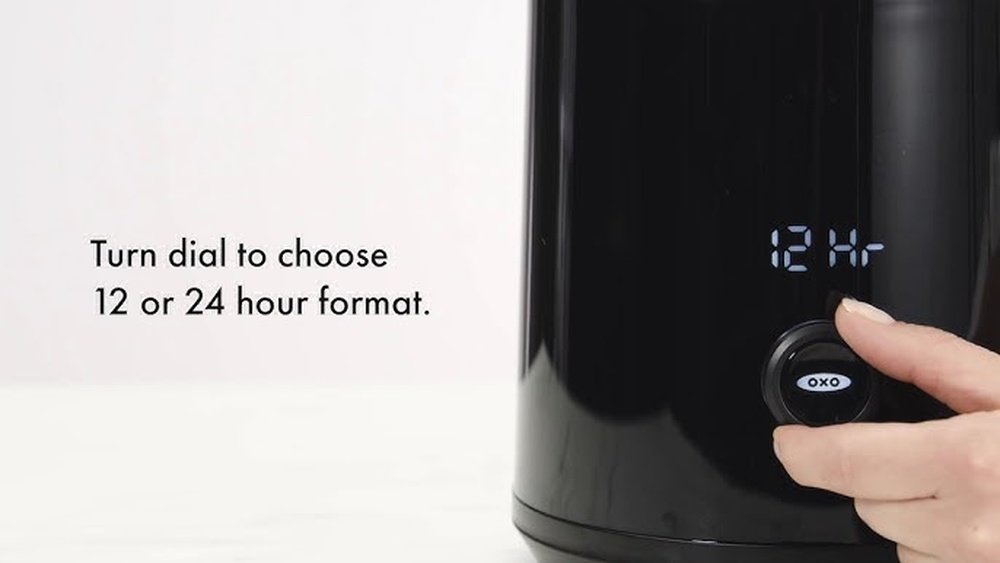
Setting the clock on your Oxo Coffee Maker might seem like a small detail, but it plays a big role in making your mornings smoother. If you wake up to the smell of fresh coffee or want your brew ready right on time, you need your coffee maker’s clock set correctly. Many people overlook this step or struggle with it due to unclear instructions or confusing buttons. This guide will walk you through everything you need to know about setting the clock on different Oxo models, provide troubleshooting tips, and share expert advice for a hassle-free experience. Whether you’re a new owner or just need a refresher, you’ll find actionable steps and useful insights here.
Why Setting The Clock Matters
You might wonder why you should bother setting the clock at all. The reality is, on the Oxo Coffee Maker, the clock is more than just a display. It’s the heart of all scheduled features. If the time is wrong, your auto-brew function will not work as expected. For people who value routine, even a few minutes off can throw off your morning. Also, if you experience a power outage or unplug your coffee maker, you’ll need to reset the clock to continue using timed brews.
Oxo Coffee Maker Models And Clock Features
Not every Oxo coffee maker has the same clock setting method. Let’s look at the most popular models with programmable clocks.
| Model Name | Clock Display | Programming Method | Auto-Brew |
|---|---|---|---|
| Oxo Brew 9-Cup Coffee Maker | Digital | Dial & Button | Yes |
| Oxo Brew 12-Cup Coffee Maker | Digital | Push Button | Yes |
| Oxo Brew 8-Cup Coffee Maker | No Clock | N/A | No |
| Oxo On Barista Brain 9-Cup | Digital | Dial & Button | Yes |
Important: The Oxo Brew 8-Cup Coffee Maker does not have a clock or auto-brew feature. If you own this model, you cannot set the time.
Credit: www.foodnetwork.com
Before You Begin: What You Need
Before setting the clock, make sure you have:
- Your Oxo Coffee Maker plugged in and on a flat surface.
- The user manual for your specific model (helpful, but not required).
- A working electrical outlet (if the clock is not showing, check your outlet first).
If your device recently lost power or was unplugged, the clock may blink or reset. That’s normal.
Step-by-step Guide: Setting The Clock On Oxo Coffee Makers
Setting the clock is not hard, but the steps can vary by model. Let’s break down the process for the most common Oxo coffee makers.
Oxo Brew 9-cup Coffee Maker
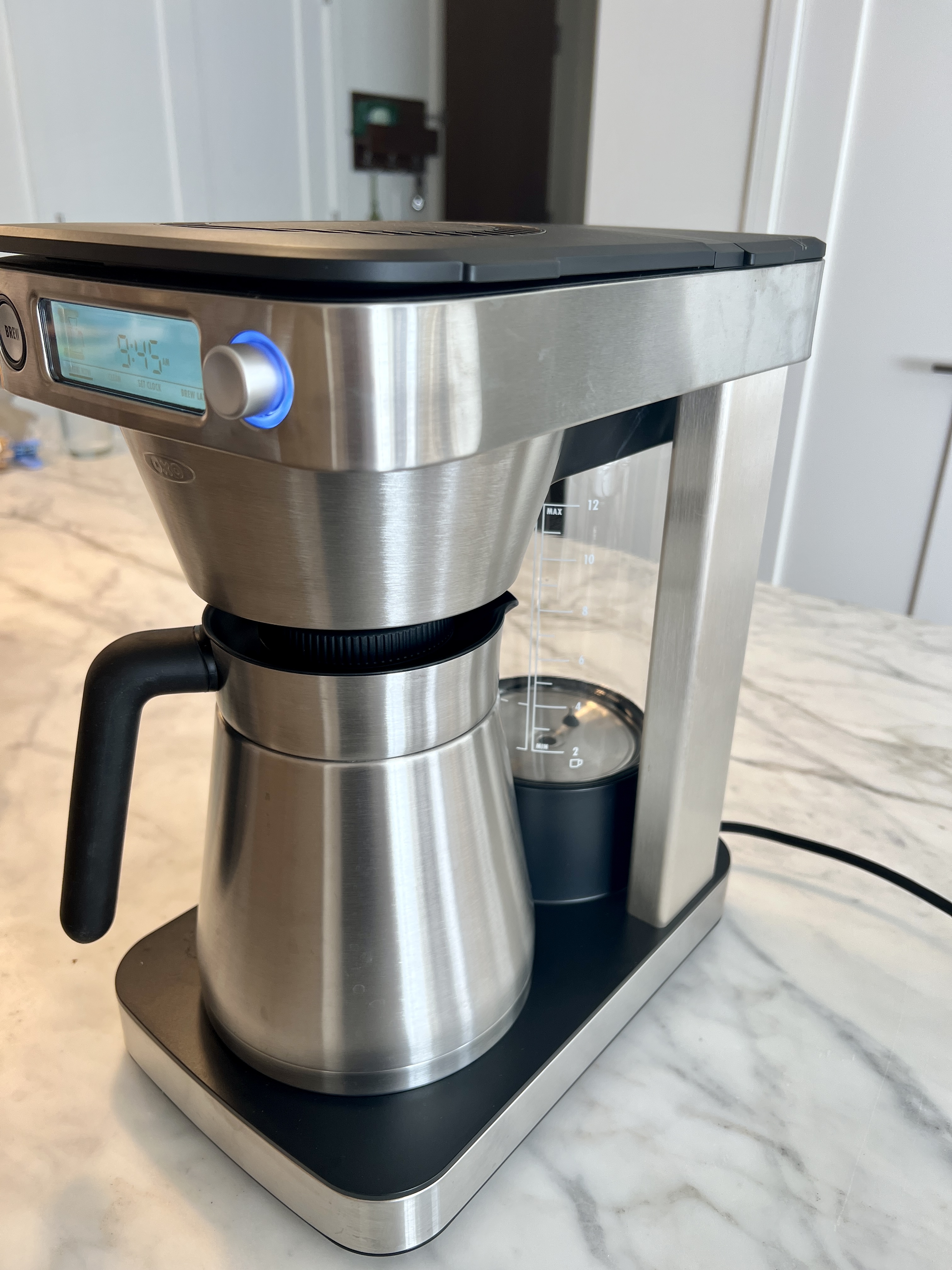
This is Oxo’s most popular programmable model. It features a dial and a single button for all settings.
- Plug in your coffee maker.
- The display will light up and might blink 12: 00 or 00:00.
- Find the dial/button.
- The main dial is at the bottom center under the display.
- Enter clock set mode.
- Press and hold the dial for about 3 seconds until the hour digit blinks.
- Set the hour.
- Turn the dial right or left to adjust the hour.
- Make sure AM/PM is correct. There is a small indicator on the screen.
- Confirm the hour.
- Press the dial once to set the hour and move to minutes.
- Set the minutes.
- Turn the dial to adjust the minutes.
- Confirm the minutes.
- Press the dial again to save the time.
- Exit clock setting.
- The display will stop blinking, and your clock is set.
Non-obvious insight: The clock uses a 12-hour format. AM/PM matters for auto-brew. If you set 7:00 PM instead of 7:00 AM, your morning brew won’t start at the right time.
Oxo Brew 12-cup Coffee Maker
This model uses buttons instead of a dial.
- Power up the machine.
- The display will show the time or blink 12: 00.
- Enter clock mode.
- Press and hold the “Hour” or “Clock” button (label varies) for 3 seconds.
- Adjust the hour.
- Tap the “Hour” button to set the hour. Watch the AM/PM indicator.
- Set the minutes.
- Press the “Minute” button to advance the minutes.
- Save the time.
- Wait about 5 seconds, or press “Clock” again to lock in your setting.
Non-obvious insight: If you pause for too long (over 10 seconds) during setting, the display will time out, and you’ll need to start again.
Oxo On Barista Brain 9-cup Coffee Maker
This premium model uses a dial and button system, similar to the 9-cup Brew.
- Plug in your machine.
- The clock will show 12: 00 or the last set time.
- Press and hold the dial.
- Hold until the hour digit blinks.
- Set the hour.
- Turn the dial to select the correct hour.
- Confirm hour and set minutes.
- Press the dial, then adjust minutes.
- Save and exit.
- Press the dial again to confirm.
Tip: The clock remains set after brief power interruptions but may need resetting after a long outage.
Setting The Auto-brew Timer
After you set the clock, you can program your coffee maker to start brewing at your desired time.
- Access the auto-brew setting.
- Usually, press the “Program” or “Auto” button.
- Set the brew time.
- Use the dial or hour/minute buttons as you did for setting the clock.
- Confirm and activate auto-brew.
- Press “Program” or “Auto” again, or let it auto-confirm after a few seconds.
- Look for a light or icon (often a small clock) to indicate it’s set.
Pro tip: Always check if there is water in the reservoir and coffee grounds in the filter before bedtime. The auto-brew will not warn you if it’s missing these.
What To Do After Power Loss
If your Oxo coffee maker loses power, the clock may reset. This is common after:
- Unplugging for cleaning
- Power outages
- Moving the machine
After power returns, your clock might flash or show “12:00.” Repeat the clock setting steps for your model. Some models keep the time for a few minutes thanks to a small battery, but most require manual resetting.
Common Problems And How To Fix Them
Many users face similar issues when setting the clock. Here’s how to address them:
The Clock Won’t Set
- Check the outlet. Plug another device in to confirm power.
- Firmly press buttons. Some buttons require a solid press.
- Wait for the display to blink. If it doesn’t, you’re not in set mode.
The Time Changes On Its Own
This usually means:
- The machine lost power.
- Someone accidentally pressed the clock buttons.
- There’s an internal fault (rare).
Am/pm Is Incorrect
- Always double-check the AM/PM indicator when setting the hour.
- If your coffee brews at the wrong time, reset the clock and timer.
Detailed Comparison: Oxo Vs. Other Brands
How does the Oxo’s clock and programming system compare to competitors?
| Brand & Model | Clock Setup | Auto-Brew Options | User Friendliness |
|---|---|---|---|
| Oxo Brew 9-Cup | Dial/Button | Yes | High |
| Cuisinart DCC-3200 | Button | Yes | Medium |
| Hamilton Beach 2-Way | Button | Yes | Medium |
| Keurig K-Elite | No Clock | No | High |
Oxo’s dial system is praised for its simplicity and accuracy compared to button-only models.
Advanced Tips For Reliable Clock Setting
Most users set the time once and forget it. But you can get more out of your Oxo’s clock with a few expert tips:
- Set your clock a few minutes fast. If you’re always running late, set the time 2-3 minutes ahead.
- Sync with your phone. Set the coffee maker’s clock to match your smartphone for consistency.
- Check after daylight saving changes. Many people forget to adjust their coffee makers in spring and fall.
- Test the auto-brew. Program a test run during the day to make sure the timing is correct. This avoids surprises in the morning.
- Clean buttons and dial. If the buttons are sticky or unresponsive, wipe them gently with a damp cloth.
Hidden detail: Sometimes, the clock may drift by a minute or two over several months. This is normal for most appliances without a backup battery.
Troubleshooting: When The Clock Still Won’t Work
If you’ve tried all the above and your Oxo clock still won’t set, consider these steps:
- Unplug for 60 seconds. Then plug back in and try again.
- Check for firmware updates. Rare, but some models can be updated (see the Oxo website).
- Contact customer service. A faulty clock mechanism is rare but possible.
- Try a different outlet. Power surges or faulty wiring may affect digital displays.
If your display is flickering or blank, it could be a deeper electrical issue.

Credit: www.youtube.com
When To Reset The Clock
You should reset your Oxo coffee maker’s clock if:
- You move to a new time zone.
- There’s a long power outage.
- The auto-brew is off by more than 5 minutes.
- After major cleaning or repairs.
Oxo Coffee Maker: What The Clock Can And Cannot Do
Can:
- Display current time
- Trigger auto-brew at a set time (if model supports)
- Adjust between AM and PM
Cannot:
- Automatically update for daylight saving time
- Sync with other devices (like your smartphone)
- Set multiple scheduled brew times
Practical Example: Setting Up Your Morning Routine
Imagine you wake up at 6:30 AM and want your coffee ready at 6:40 AM. Here’s how you’d use the clock and timer:
- Set the clock to the correct time.
- Program auto-brew for 6: 40 AM.
- Prepare the water and grounds before bed.
The next day, your coffee starts brewing automatically. If you set the clock wrong, your coffee will not be ready when you want.
Cleaning And Maintenance Tips
A clean clock display and controls make setting the time easier:
- Wipe the display with a soft, damp cloth. Avoid harsh cleaners.
- Keep buttons dry to prevent sticking.
- Check for dust around the dial.
A clean interface prevents misreading the numbers or mis-pressing buttons.
Understanding The Limitations
Some users expect smart features like Wi-Fi or automatic time sync. The current Oxo models do not support these. If you need remote programming or smartphone integration, you might want to consider a smart coffee maker from another brand.
Real User Experiences
Many Oxo owners share that the clock and auto-brew features are reliable and easy to use once you understand the steps. However, the most common complaint is confusion between AM and PM, especially for people who set the timer at night.
A few users mention the display can be hard to see in bright kitchens; placing the machine away from direct sunlight helps.
Comparing Clock Features: Oxo Brew 9-cup Vs. 12-cup
Here’s a quick look at how the clock setting process compares on Oxo’s two main programmable models:
| Feature | Oxo Brew 9-Cup | Oxo Brew 12-Cup |
|---|---|---|
| Clock Type | Digital, 12-hour | Digital, 12-hour |
| Set by | Dial | Buttons |
| AM/PM Indicator | Yes | Yes |
| Auto-Brew | Yes | Yes |
| Common Mistakes | AM/PM Confusion | Timeout During Set |
Both models are easy to set but have unique quirks, so know your machine.
Safety Tips
Setting the clock does not affect brewing safety, but always:
- Unplug before cleaning the control panel.
- Dry hands before touching buttons or dials.
- Keep the area around the display free from water.
Credit: www.homesandgardens.com
When To Call For Help
If you notice:
- The clock display is dim or not visible.
- Buttons don’t respond after cleaning.
- The time resets every few hours.
It may be time to contact Oxo customer service. Most models come with a 2-year warranty.
Manufacturer Resources
If you lose your manual or need a video tutorial, visit the official Oxo site. They offer downloadable manuals and how-to videos for each model. You can find these resources at Oxo’s official coffee maker page.
Frequently Asked Questions
How Do I Know If My Oxo Coffee Maker Has A Clock?
Most programmable Oxo coffee makers (9-cup and 12-cup models) have a digital clock on the display. If your machine has an “Auto” or “Program” feature, it likely has a clock. The Oxo Brew 8-Cup does not include a clock.
What Should I Do If The Display Is Blank?
Check if the machine is plugged in and the outlet is working. Try another device to rule out outlet issues. If the display stays blank, unplug for 60 seconds and try again. If still blank, contact Oxo support.
Can I Set The Clock For 24-hour (military) Time?
No. All Oxo coffee makers with clocks use a 12-hour format. The display will show AM or PM, but not 24-hour time.
Does The Oxo Clock Adjust For Daylight Saving Time Automatically?
No, you must manually adjust the clock for daylight saving changes. Press and hold the clock set button or dial, then update the hour as needed.
Why Does My Auto-brew Not Start At The Right Time?
Check that the clock is set with the correct AM/PM. Also, make sure the auto-brew time is set and activated. If the machine loses power, you’ll need to reset both the clock and timer.
Setting the clock on your Oxo Coffee Maker is simple once you follow the right steps. Understanding your model’s controls, checking the AM/PM setting, and avoiding common mistakes will ensure your coffee is ready exactly when you want it. For deeper troubleshooting or to download a manual, the official Oxo site offers excellent support. With your clock set correctly, you can relax and enjoy coffee that’s always on time.