
If you own a Galanz microwave, you know how convenient it is for heating food, defrosting ingredients, or making a quick snack. But sometimes, the clock on your microwave is not accurate, especially after a power outage or when you unplug the device. A correct clock is not just about knowing the time—it’s important for pre-set cooking programs and helps you manage your kitchen routine. Many people find setting the time confusing because microwave controls are not always simple. This guide will walk you through every detail of how to change the time on a Galanz microwave, share solutions for common problems, and offer expert tips to avoid mistakes. Whether you have an older model or a new smart microwave, you’ll find everything you need right here.
Why Setting The Correct Time On Your Galanz Microwave Matters
A microwave’s clock is not just a digital display. It’s a core part of your kitchen workflow. When you set the correct time, you can:
- Use auto-cook programs that require the right clock setting.
- Ensure the kitchen timer and delay start functions work properly.
- Quickly check the time during busy cooking moments.
- Avoid confusion, especially if your microwave doubles as the main kitchen clock.
Incorrect time can cause delayed meal prep, missed timings, or even failed recipes. For families with kids, a visible and correct clock helps keep everyone on schedule.
Understanding Galanz Microwave Models
Galanz has many microwave models, from basic single-knob units to advanced touch-screen versions. Most Galanz microwaves fall into these categories:
- Mechanical Dial Models – Usually do not have a digital clock.
- Keypad/Push Button Models – Classic digital display, with clear “Clock” or “Time” buttons.
- Touchscreen or Smart Models – Advanced features, app connectivity, or voice control.
Each type may have a different process for changing the time. Always check your model number, usually found inside the door frame, before you start.
Where To Find Your Model Number
Open the microwave door and look for a sticker around the edge or inside frame. The model number starts with letters like GL, GTH, or GMW. Write this number down before you proceed.

Credit: www.youtube.com
How To Change Time On Galanz Microwave: Step-by-step Instructions
Now, let’s look at the detailed steps for setting or changing the clock on most Galanz microwaves.
For Keypad/push Button Galanz Microwaves
Most Galanz microwaves with a digital keypad use a similar method to set the time.
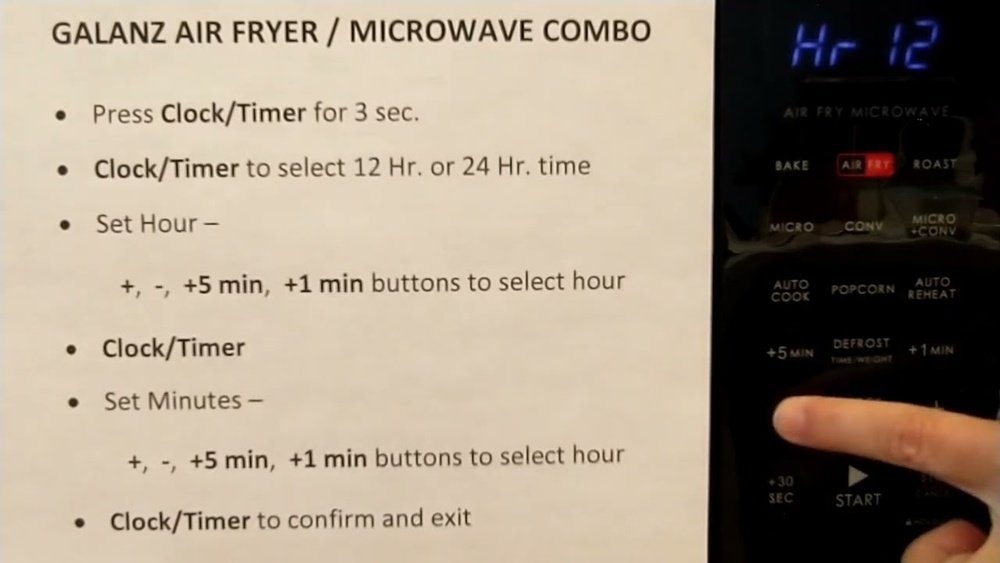
1. Press The “clock” Button
Look for a button labeled Clock or Time. Sometimes, this button is also used for the kitchen timer, so check the label carefully.
2. Select 12-hour Or 24-hour Format (if Available)
Some models let you choose between 12-hour (AM/PM) or 24-hour (military time) display. After pressing “Clock,” press it again or use the number pad to toggle the format.
3. Enter The Correct Time
Use the number pad to enter the time. For example, to set 3:30 PM, type 0330 or 1530 (for 24-hour format).
4. Confirm The Setting
Press the Clock or Start button again to confirm. Wait for the display to return to normal with the new time.
Example
If your current time is 8:45 AM and you want to set it:
- Press “Clock”
- Enter 0845
- Press “Clock” again to confirm
For Touchscreen Or Smart Galanz Microwaves
Newer Galanz models may use a touchscreen or even have a companion app.
1. Wake The Display
Tap the screen or press a home button to wake up the main menu.
2. Find “settings” Or “clock”
Look for a menu labeled Settings, then tap on Clock.
3. Set The Time
Use the on-screen number pad or scroll wheel to set the hour and minute.
4. Choose Am/pm Or 24-hour
Select your preferred time format, if prompted.
5. Save And Exit
Tap Save, OK, or similar to confirm. The display should now show the correct time.
Non-obvious Insight:
Some smart Galanz models can sync with your home WiFi and update the clock automatically. Check your manual or app for this feature—many users miss this option and struggle with manual time setting.
For Galanz Microwaves Without A Dedicated “clock” Button
Some older or budget models don’t have a separate “Clock” button. The time is set using the Stop/Cancel or Kitchen Timer buttons, sometimes in combination.
1. Press And Hold “stop/cancel” Or “kitchen Timer”
Hold for 3-5 seconds until the clock display blinks.
2. Enter The Time
Use the number pad as before.
3. Press “stop/cancel” Or “kitchen Timer” To Confirm
This saves the new time and returns the display to normal.
Common Variations
- Some Galanz microwaves require you to press “Start” after entering the time.
- On a few models, no confirmation button is needed—the clock sets automatically after a few seconds.
- If you make a mistake, press “Stop/Cancel” and start over.
Troubleshooting: When The Time Won’t Change
Even after following the steps, you might find the clock won’t update. Here’s how to handle common issues.
Power Outage Or Reset
If you lose power, the microwave’s clock returns to 00:00 or 12:00. Simply follow the steps above to reset.
Buttons Not Responding
If pressing the “Clock” button does nothing:
- Make sure child lock is off. On many models, holding Stop/Cancel for 3 seconds will disable the lock.
- Check if the keypad is clean and dry. Moisture or debris can cause buttons to fail.
- Unplug the microwave for 1 minute, then plug it back in. This resets the internal controls.
Display Stuck Or Flashing
A constantly flashing clock means the time needs to be set. If it won’t stop flashing after you set it, the microwave may need a hard reset (unplug for a few minutes).
Non-obvious Insight:
Some users forget that the kitchen timer function is separate from the clock. Setting the timer does not update the main clock, and vice versa. Always check you are in clock mode before entering the time.
Comparing Time Setting Methods Across Galanz Models
Choosing the correct steps can be confusing. Here’s a comparison of the three main types of Galanz microwaves and their time setting methods.
| Model Type | Time Setting Button | Time Entry Method | Confirmation Method |
|---|---|---|---|
| Keypad/Push Button | Clock or Time | Number Pad | Press Clock/Start Again |
| Touchscreen/Smart | Settings Menu | On-Screen Keypad | Tap Save/OK |
| No Dedicated Clock Button | Stop/Cancel or Kitchen Timer | Number Pad | Press Stop/Cancel Again |
Quick Reference: Typical Galanz Microwave Clock Setting Steps
For convenience, here’s a quick checklist for most models:
- Press the Clock or similar button.
- Enter time using the number pad.
- Confirm with Clock, Start, or Stop/Cancel.
If this does not work, check your manual for model-specific instructions.
Credit: www.consumerreports.org
Setting The Time After A Power Outage
Whenever your home loses power, your Galanz microwave clock will reset. Here’s how to quickly get back on track:
- Wait until power is fully restored.
- The display will usually blink 00: 00 or 12:00.
- Enter time setting mode using the correct button.
- Enter the current time and confirm.
Tip
If your area has frequent outages, keep a small sticky note with instructions on your fridge or inside a kitchen cabinet.
How To Change Time Format (12-hour Vs. 24-hour)
Some Galanz models let you switch between AM/PM and 24-hour time.
- Enter clock setting mode.
- Press “Clock” or “Time” again to toggle between formats.
- Enter time in your chosen format.
- Confirm.
Not all models have this feature. If you don’t see the option, your microwave may only use one format.
What If Your Galanz Microwave Clock Is Always Wrong?
Sometimes, the time drifts or resets even without a power cut. Possible reasons:
- Internal battery failure (rare in microwaves).
- Faulty control board.
- Electrical surges.
Try unplugging and plugging back in. If the problem continues, contact Galanz support or a qualified technician.
Real-world Example: Setting Time On Galanz Gth12a09a2bm
Let’s take a real Galanz model—the GTH12A09A2BM—and walk through setting the time.
- Press “Clock” once.
- Use the number pad to enter your current time (e.g., 0730 for 7: 30 AM).
- Press “Clock” again to confirm.
- The display will now show 7: 30.
This method applies to many similar Galanz models.
What To Do If You Lost The Manual
Many people misplace their microwave manual. If you need model-specific instructions:
- Visit the official Galanz support site and search for your model.
- Many manuals are available as free PDF downloads.
If your model isn’t listed, try using the general steps in this guide.
Table: Common Galanz Models And Their Time Setting Methods
To help further, here’s a summary of popular Galanz models and their time setting instructions:
| Model | Time Setting Button | Special Notes |
|---|---|---|
| GTH12A09A2BM | Clock | Press Clock again to confirm |
| GMWD12A1S2B | Settings (Touchscreen) | Save on-screen |
| GLCMKA07BER-07 | Stop/Cancel | Hold for 3 seconds to enter mode |
| GLCMKA07RDR-07 | Kitchen Timer | Some versions require Start to confirm |
| GLCMKA07BKR-07 | Clock | Standard method |
Mistakes To Avoid When Setting The Time
Mistakes are common, especially when you’re in a hurry. Here are errors to watch for:
1. Entering The Wrong Time Format
Double-check if your microwave is set to 12-hour or 24-hour mode.
2. Not Confirming The Entry
Always press the required button to save your setting.
3. Trying To Set Time During Cooking
Most Galanz microwaves require you to stop all cooking before changing the clock.
4. Confusing Timer And Clock Modes
Timer is for countdowns; clock is for real time.
5. Ignoring Button Labels
Look carefully—some buttons do double duty.
6. Forgetting About Child Lock
If buttons don’t work, check the control lock status.
How To Keep Your Galanz Microwave Clock Accurate
A few habits will keep your microwave clock reliable:
- Update the time after any power outage.
- Check the clock every few months and adjust for daylight saving time if needed.
- If your model supports it, use the auto-sync feature via WiFi or app.
Advanced Tip: Automatic Time Sync On Smart Galanz Microwaves
Some high-end Galanz models can connect to your WiFi and sync the clock automatically. This is especially useful in areas with frequent power cuts.
- Open the Galanz app on your phone.
- Connect your microwave to WiFi.
- Go to settings and enable Auto Clock Sync.
- The microwave will update the time whenever it connects to the internet.
Many users miss this feature and continue to set the clock manually—check your model for smart features.
When To Call For Help
If you’ve tried every step and the clock still won’t set:
- Contact Galanz support with your model number.
- Provide details: What you’ve tried, error messages, and symptoms.
- If the microwave is under warranty, do not attempt to open the unit.
Electrical problems can be dangerous—always call a professional if you suspect an internal fault.
Credit: www.manualslib.com
How Changing The Time Affects Cooking Programs
Some Galanz microwaves use the clock for delayed start or pre-set meal planning. If the clock is wrong:
- Your delayed cooking may start at the wrong time.
- Auto-cook programs may not work as expected.
- You might miss reminders or chimes.
Always check and set the time before using advanced features.
Table: Impact Of Incorrect Clock Setting
See how the wrong time can affect microwave operations:
| Feature | Effect of Incorrect Time | Solution |
|---|---|---|
| Delayed Start | Cooking starts at wrong time | Set correct time before programming |
| Auto-Cook Programs | May not function or give errors | Check and update clock as needed |
| Kitchen Timer | No effect; uses countdown | Use timer independently |
| Reminders/Chimes | Mis-timed alerts | Set accurate clock |
Extra Tips For Galanz Microwave Owners
- Keep your manual in a safe place or bookmark the online version.
- Clean your control panel regularly—dirt can block button signals.
- If your microwave is in a rental or shared kitchen, post a small instruction note nearby.
Why Some Galanz Microwaves Don’t Have A Clock
A few very basic or compact Galanz models skip the digital clock to save cost and space. If you don’t see a clock on the display, your model may not support this feature. In that case, use a wall clock or your phone for kitchen timing.
Frequently Asked Questions
How Do I Set The Clock On My Galanz Microwave If There Is No “clock” Button?
For models without a dedicated “Clock” button, try holding the Stop/Cancel or Kitchen Timer button for a few seconds until the display blinks. Enter the time with the number pad, then press the same button again to confirm. If this doesn’t work, check your manual or the Galanz support website.
Why Does My Galanz Microwave Clock Keep Resetting?
Usually, this happens after a power outage or if the microwave is unplugged. In rare cases, it could be due to a faulty control board. If your microwave loses time often, check your home’s power stability and ensure the plug is firmly in the socket.
Can I Change My Galanz Microwave To Show 24-hour Time Instead Of Am/pm?
Some models support both 12-hour and 24-hour formats. When setting the clock, press the “Clock” or “Time” button again to toggle between formats. If your model doesn’t change, it may only support one display type.
Is There A Way To Set The Clock From My Phone Or App?
Certain smart Galanz microwaves allow you to set the clock using the Galanz app if connected to WiFi. Go to settings in the app and look for Auto Clock Sync or manual time settings. Not all models have this feature.
Does Changing The Clock Erase My Cooking Presets Or Saved Programs?
No, changing the clock only updates the time. Cooking presets and memory programs are stored separately and won’t be lost when you set the time. However, a full reset (unplugging for a long period) may erase some memory features.
Setting the correct time on your Galanz microwave is simple once you know the steps for your model. A properly set clock keeps your cooking routine smooth and ensures advanced features work correctly. Refer to this guide whenever you need to change the time—whether after a power outage, daylight saving change, or just to keep things precise.
If in doubt, always check your manual or the official Galanz support resources for your exact model. With these tips, your microwave will stay reliable and ready for whatever your kitchen needs.