
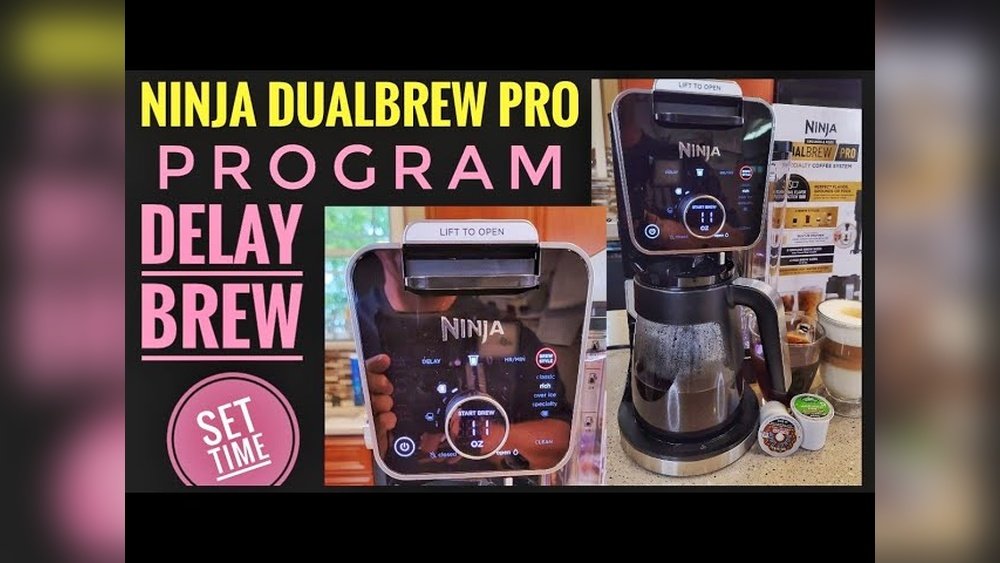
Setting the clock on your Ninja Dual Brew Pro may seem like a small detail, but it can make a big difference in your daily routine. If you rely on the programmable brew feature, an accurate clock is essential for waking up to fresh coffee. Many users find the time-setting process confusing at first, especially with a machine that combines both classic drip and single-serve brewing. But once you understand the steps, it’s straightforward and fast. This guide will walk you through everything you need to know, from the basics to troubleshooting and pro tips, so you’ll never miss your perfect cup.
Why Setting The Clock Matters
Some people skip setting the clock, thinking it’s not important if they brew manually. But the clock on your Ninja Dual Brew Pro does much more than show the time. It controls the Delay Brew function, which allows you to program the machine to start brewing at any time you want. If the clock is wrong, your coffee could start too early or too late. An accurate clock also helps with cleaning reminders and makes it easier to follow recipes that suggest specific timings. Setting the clock is a simple way to get the most from your coffee maker.
Understanding The Ninja Dual Brew Pro Control Panel
Before you start, it helps to get familiar with the control panel. The Ninja Dual Brew Pro has a digital display and a set of buttons below it. Here are the main buttons you’ll use to set the clock:
- Power: Turns the machine on or off.
- Hour and Minute: Used to adjust the time.
- Clock: Starts the clock-setting mode.
- Delay Brew: Programs a future brew time.
- Start/Cancel: Begins or ends a brewing cycle.
Knowing these buttons will make the process smoother. The display will show the current time when the machine is plugged in and not brewing.
Step-by-step Guide: How To Set The Clock On Ninja Dual Brew Pro
Setting the clock is not difficult, but following each step ensures you do it correctly. Let’s break down the process:
- Plug in your Ninja Dual Brew Pro. The digital display will light up and may flash “12: 00” if this is the first use or after a power outage.
- Press the “Clock” button. Hold it for 2-3 seconds until the display starts blinking. This tells you the machine is ready for a new time.
- Set the hour. Use the Hour button to move the time forward, one hour at a time. Hold the button down to scroll faster. Pay attention to the AM/PM indicator if your model has one.
- Set the minutes. Press the Minute button to move forward, one minute at a time. Again, holding the button will speed up the process.
- Confirm the time. Press the Clock button again, or just wait a few seconds. The display will stop blinking, and the clock is now set.
Example
Suppose you want to set the clock to 6:45 AM. Here’s how you’d do it:
- Press and hold “Clock” until the display blinks.
- Press “Hour” until you see “6 AM.”
- Press “Minute” until you reach “: 45.”
- Press “Clock” to confirm.
Your Ninja Dual Brew Pro now displays the correct time.
Common Mistakes And How To Avoid Them
Even with clear steps, users sometimes make mistakes. Here are the most common ones and how to avoid them:
- Not holding the Clock button long enough. If you just tap it, the time won’t change. Hold for 2-3 seconds.
- Skipping AM/PM. Some models have a small light or icon for AM/PM. Make sure you set the correct time of day, or your Delay Brew will run at the wrong hour.
- Forgetting to confirm. If you walk away before pressing “Clock” again, the time may not save.
- Mixing up Hour and Minute. The buttons are clearly labeled, but it’s easy to press the wrong one in a hurry.
A non-obvious tip: If you live in an area with frequent power outages, consider using a small uninterruptible power supply (UPS) to keep your clock accurate.
How The Clock Affects Delay Brew And Auto-start
The Delay Brew function relies on the clock to start brewing at a specific time. If your clock is off by even a few minutes, you might wake up before your coffee is ready—or find it’s been sitting too long and gone cold.
How To Set Delay Brew
After you’ve set the clock:
- Press “Delay Brew.”
- Use the Hour and Minute buttons to choose when you want your coffee to start.
- Press “Delay Brew” again to confirm. A light should appear to show it’s set.
With an accurate clock, you can trust your Ninja Dual Brew Pro to have fresh coffee ready when you want it.
Dealing With Power Outages And Clock Resets
One challenge with the Ninja Dual Brew Pro (and many coffee makers) is that a power outage can reset the clock. If the clock flashes “12:00” or the time is wrong, you’ll need to set it again. Here’s what to do:
- Always check the clock after plugging in the machine or after a storm.
- If you have programmed Delay Brew, reset the time and the brew schedule.
Some users place a reminder sticker near the machine, so they remember to check after outages.
24-hour Vs. 12-hour Clock Formats
Most Ninja Dual Brew Pro models use a 12-hour clock with AM/PM indicators. However, some newer versions allow switching to a 24-hour format. Check your user manual to see if this is available for your model.
How To Switch Clock Formats
If your machine allows it:
- Unplug the coffee maker.
- Hold down both the Hour and Minute buttons while plugging it back in.
- Continue holding until the display changes format.
If not, you’ll need to use the default 12-hour setting.
Tips For Accurate And Long-lasting Timekeeping
The clock in the Ninja Dual Brew Pro is digital, but it can drift a few minutes over time. To keep it accurate:
- Check the clock monthly. Adjust if you notice it’s off.
- Avoid plugging into outlets with heavy appliances that may cause voltage drops.
- Use a surge protector to prevent resets after small power surges.
Some users synchronize the machine’s clock with their phone or kitchen wall clock for consistency.
Ninja Dual Brew Pro Clock Vs. Other Coffee Makers
How does the clock on the Ninja Dual Brew Pro compare with other popular machines? Here’s a quick look.
| Brand/Model | Clock Setting Method | Delay Brew Feature | Power Outage Memory |
|---|---|---|---|
| Ninja Dual Brew Pro | Manual, button press | Yes | No |
| Keurig K-Duo | Manual, button press | Yes | No |
| Hamilton Beach FlexBrew | Manual, button press | Yes | No |
| Braun BrewSense | Manual, dial + button | Yes | Yes (short-term) |
Most machines require manual clock setting and lose the time when unplugged. Only a few premium models have short-term power memory.
Troubleshooting: Clock Won’t Set Or Keeps Resetting
If you have trouble setting the clock, don’t worry. Here are practical solutions:
- Buttons not responding: Make sure the machine is plugged in and powered on. Try pressing the buttons firmly and holding as needed.
- Display won’t blink: You may not be holding the “Clock” button long enough. Hold for at least 2 seconds.
- Clock resets randomly: This usually means a power issue. Check your outlet and avoid extension cords. Try a different plug.
- Delay Brew not working: Confirm the clock is accurate and AM/PM is set correctly.
A less obvious insight: If your home wiring is old, even brief flickers can reset the clock. Consider using a surge protector with battery backup if this happens often.
Useful Features Related To The Clock
The clock is not just for telling time. Here are a few extra features tied to the clock on the Ninja Dual Brew Pro:
- Cleaning reminders: Some models use the clock to count days and remind you to run a cleaning cycle.
- Energy-saving modes: The machine can turn off automatically after a set time, using the internal clock.
- Recipe timing: If you use recipes that recommend letting coffee bloom or rest for a certain time, an accurate clock helps keep your timing precise.
User Experiences: Real-world Insights
Many users share their experiences in online forums and reviews. Here are some real-world insights:
- People who set the clock and use Delay Brew say it transforms their mornings, saving time and reducing stress.
- Some users find the buttons a bit stiff but get used to them quickly.
- A few owners mention the clock drifts a few minutes per month, so they adjust it as needed.
- For households with multiple coffee drinkers, setting the clock helps coordinate schedules, especially if you alternate who makes the first cup.
One detail beginners often miss: If you set Delay Brew but forget to replace the carafe, the coffee will brew onto the warming plate. Always double-check before bedtime.
Best Practices For Consistent Performance
To get the most from your Ninja Dual Brew Pro’s clock:
- Always set the clock after moving the machine or after power interruptions.
- Synchronize with your main kitchen clock or phone for accuracy.
- Check the time monthly, especially if you rely on scheduled brewing.
- Use a surge protector to protect against resets.
- Review the user manual for any model-specific features or differences.
Ninja Dual Brew Pro Clock Setting: Visual Reference
Many users prefer seeing the steps in action. While this guide is text-based, the official Ninja Kitchen website has short videos and diagrams showing the clock-setting process. If you’re a visual learner, visiting their support page can help.
For additional support, you can check the official Ninja Kitchen help resources at Ninja Kitchen Support.
Comparison: Manual Clock Vs. Smart Coffee Makers
Some newer coffee makers have Wi-Fi or Bluetooth and set their clocks automatically. How does the Ninja Dual Brew Pro compare?
| Feature | Ninja Dual Brew Pro | Smart Coffee Maker |
|---|---|---|
| Clock Setting | Manual | Auto sync with phone/app |
| Delay Brew | Yes, manual time | Yes, app schedule |
| Power Outage Memory | No | Usually yes |
| Price | $$ | $$$ |
Manual clock-setting takes a minute but offers good control. Smart machines are more expensive and need Wi-Fi, but they remember the time after power outages.
Ninja Dual Brew Pro: Clock Setting For Different Models
While the basic steps are the same, some Dual Brew Pro models may have small differences. Here’s what to watch for:
- Model CFP201: Standard clock, 12-hour format, AM/PM light.
- Model CFP301: Similar, but buttons may be labeled slightly differently.
- Model CFP301CO: May offer 24-hour time (military time) in some regions.
- Older models: May use a “Prog” button instead of “Clock.”
Always check your exact model number on the bottom of the machine, then refer to the user manual for any differences.

Credit: www.youtube.com
The Clock And Daylight Saving Time
Don’t forget to update your clock for Daylight Saving Time if your area uses it. Ninja Dual Brew Pro does not adjust automatically.
- In spring: Move the clock one hour forward.
- In fall: Move one hour back.
Setting a reminder in your phone calendar can help you remember.
What To Do If The Display Is Not Working
Rarely, the display may go blank or show random numbers. Here’s what you can try:
- Unplug the machine for 60 seconds, then plug it back in.
- Check the outlet with another appliance to ensure it’s working.
- If the display is still blank, contact Ninja customer support.
A non-obvious insight: Sometimes, high humidity or kitchen steam can affect electronics. Keep the machine dry and avoid placing it directly under cabinets where steam rises.
Cleaning And Maintenance: Why The Clock Still Matters
Proper cleaning helps the clock and electronics last longer. Dust and coffee grounds can get into buttons and make them less responsive.
- Wipe the control panel with a dry or slightly damp cloth (never wet).
- Avoid harsh cleaners that can damage the display.
- Regularly check that buttons don’t stick, which can affect clock setting.
A well-maintained machine is easier to operate and more reliable.
Setting The Clock For Multiple Users
If several people use the Ninja Dual Brew Pro, here are some tips:
- Agree on whether to use AM/PM or 24-hour time (if available).
- Post a quick instruction note nearby for guests or family.
- If you rotate brew times, check the clock daily so everyone gets their coffee when needed.
Some families even use a shared kitchen whiteboard to track who sets the Delay Brew each day.

Credit: manuals.plus
How Accurate Is The Ninja Dual Brew Pro Clock?
Most users find the clock stays accurate within 1-2 minutes per month. This is good enough for most households, but if you need exact timing, check and adjust monthly.
A less-known fact: Digital clocks in appliances can drift if your home has fluctuating voltage. If accuracy is critical, use the clock on your phone as your main reference.
When To Contact Support About Clock Issues
If you’ve tried all troubleshooting steps and the clock still doesn’t work, it’s time to reach out for help. Ninja offers customer service by phone and online. Have your model and serial number ready for faster assistance.
For more details, you can also check the manufacturer’s page at Ninja Kitchen Official Support.
Quick Reference: Clock Setting Steps
For those who want a summary:
- Plug in the machine.
- Press and hold the “Clock” button until the display blinks.
- Use “Hour” and “Minute” to set the time.
- Press “Clock” to confirm, or wait for the blinking to stop.
That’s all you need for daily use.
Frequently Asked Questions
How Often Should I Reset The Clock On My Ninja Dual Brew Pro?
You should check the clock once a month and after any power outage or if you unplug the machine. The clock may drift a few minutes over several weeks, so regular checks help keep it accurate.
What Should I Do If My Clock Keeps Losing Time?
If the clock loses time often, check for power fluctuations in your home or try plugging the machine into a different outlet. Using a surge protector can reduce resets caused by small power surges.
Can I Use The Ninja Dual Brew Pro Without Setting The Clock?
Yes, you can brew coffee manually without setting the clock. However, the Delay Brew and cleaning reminder features will not work correctly unless the clock is set.
Is There A Battery Backup For The Clock?
No, the Ninja Dual Brew Pro does not have a battery backup for the clock. Any power loss will reset the time, and you’ll need to set it again.
Where Can I Find A Video On Setting The Clock?
You can find helpful videos and step-by-step guides on the official Ninja Kitchen support site at Ninja Kitchen Support.
Getting the clock right on your Ninja Dual Brew Pro is a small task that brings big rewards. With this guide, you can set, adjust, and troubleshoot your coffee maker’s clock with confidence—ensuring your coffee is always ready when you are.
Credit: www.odpbusiness.com