
Setting the clock on a Samsung microwave may seem like a small task, but it’s something many people struggle with—especially if you’ve just bought a new model or lost your user manual. A correctly set clock is useful for time-sensitive cooking, coordinating meal prep, and simply keeping your kitchen routine on track. Yet, Samsung offers many microwave models, each with unique features and button layouts. This can make the process confusing.
If you’re wondering how to set the clock on your Samsung microwave, you’re not alone. This guide will walk you through every step, no matter which Samsung model you own. You’ll also learn why an accurate microwave clock matters, what to do when the buttons don’t work, and how to troubleshoot common issues.
Even if you’ve never set a microwave clock before, you’ll find clear instructions and helpful tips here. By the end, you’ll feel confident about handling your Samsung microwave’s clock—no guessing, no frustration.
Why Setting The Clock On Your Samsung Microwave Matters
Most people see the clock as a minor feature, but it plays a bigger role in your kitchen than you might think. Here’s why keeping the microwave clock accurate is important:
- Time Management: Cooking often requires precise timing. If your microwave’s clock is correct, you can better coordinate multiple dishes or avoid burning your food.
- Scheduled Cooking: Many Samsung microwaves have a Delay Start or Auto Cook function. These features rely on the internal clock to begin cooking at a set time.
- Energy Saving: Some advanced models use the clock for power-saving modes. An accurate clock helps these features work as intended.
- Family Routines: If you share your kitchen, a set clock helps everyone stay on schedule, whether it’s for breakfast, after-school snacks, or late-night meals.
- Device Synchronization: In modern smart homes, having all your kitchen appliances on the same time can help with automation and voice assistants.
Neglecting to set the clock can lead to confusing errors, missed cooking times, or features that don’t work as expected.
Understanding Your Samsung Microwave Model
Before you start, it’s important to know your microwave model number. Samsung makes a wide range, including:
- Countertop microwaves
- Over-the-range (OTR) microwaves
- Built-in wall microwaves
- Smart microwaves with Wi-Fi
You’ll usually find the model number on a sticker inside the microwave door or on the back. It will look something like ME19R7041FS or MS14K6000AS. Knowing your model helps you find the correct method and instructions, as button layouts and menus can vary.
Here’s a comparison of common Samsung microwave model types:
| Model Type | Typical Features | Clock Setting Method |
|---|---|---|
| Countertop | Simple control panel, basic clock | Manual button press |
| Over-the-range (OTR) | Ventilation, more presets | Special “Clock” button |
| Smart/Wi-Fi | Touchscreen, app control | Via app or touchscreen |
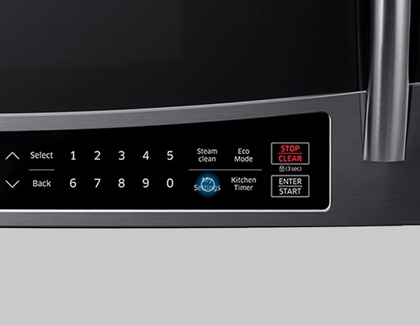
Non-obvious tip: Some Samsung microwaves have a hidden “Options” or “Settings” menu for the clock, which many users miss. Always check your model’s manual if you get stuck.
Credit: www.samsung.com
Basic Steps: How To Set The Clock On Most Samsung Microwaves
Most Samsung microwaves follow a similar pattern for clock setting, but the exact buttons may be labeled differently. Here’s a step-by-step guide that covers the majority of models:
1. Locate The Clock Button
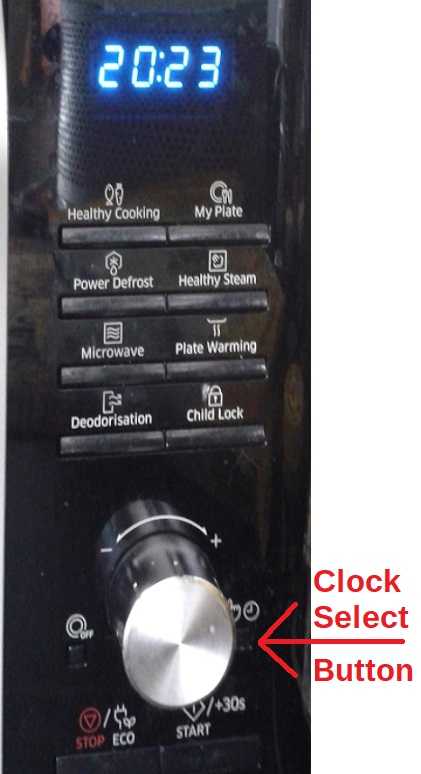
Look for a button labeled Clock, Kitchen Timer, or Options. This is usually on the control panel, near the number pad.
2. Press The Clock Button
Press the button once. On some models, you may need to hold it for 2-3 seconds. The display should start blinking or show “0:00.”
3. Select 12-hour Or 24-hour Format
Some models will ask you to choose between 12-hour (AM/PM) or 24-hour time. Use the number pad to select (usually 1 for 12-hour, 2 for 24-hour).
4. Enter The Time
Use the number pad to type the current time. For example, to set 3:45, press 3, 4, and 5 in order. If the microwave asks for AM/PM, press the appropriate button.
5. Confirm The Time
Press the Clock button again, or press Start/Enter to finish. The display should now show the correct time.
Pro tip: Some models require you to press Start instead of Clock to confirm. If you see an error or the time doesn’t set, double-check your button sequence.
Setting The Clock On Samsung Over-the-range Microwaves
Over-the-range (OTR) models are popular in the US and have extra features like fans and lights. Their clock setting process can be slightly different:
1. Open The Microwave Door
This wakes up the control panel and makes the buttons more responsive.
2. Press The Clock Button
It might say Clock, Time, or be a symbol (like a clock face).
3. Choose Am Or Pm
On some OTR models, you must select AM or PM before entering the time.
4. Enter The Time Using Number Pad
For example, 07:30 for 7:30 AM.
5. Press The Clock Button Again To Save
If the display returns to the main screen, the time is set.
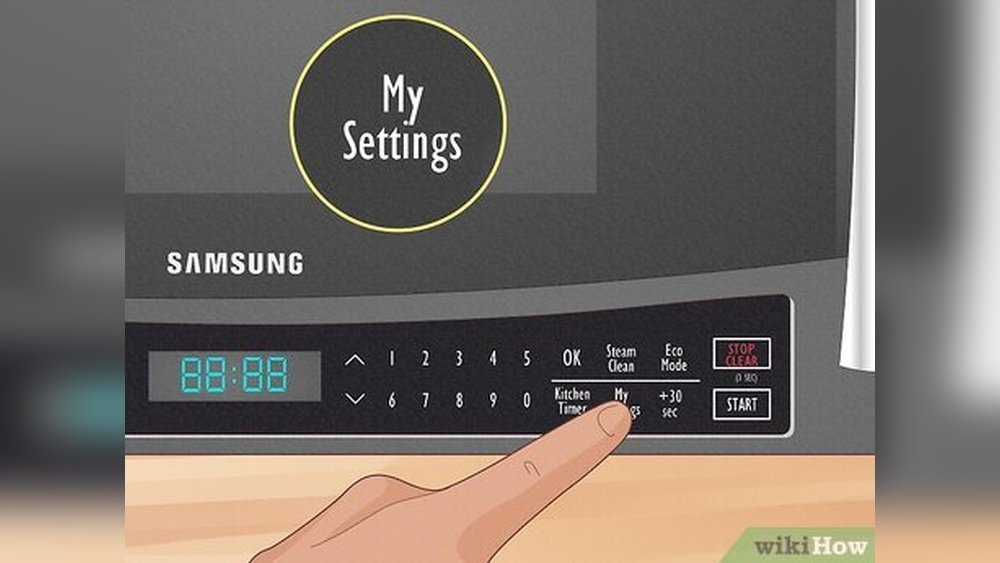
Non-obvious insight: If your OTR microwave has a “My Settings” or “Options” button, you may need to enter that menu first, then select “Clock.”
How To Set The Clock On Samsung Microwaves With No Clock Button
Some Samsung microwaves, especially older or basic models, do not have a dedicated Clock button. Here’s how to handle those:
1. Press And Hold The “start” Or “stop/clear” Button
Hold for 3-5 seconds. The display should blink or reset.
2. Use The Number Pad To Enter Time
Enter the time as normal.
3. Press “start” Or “stop/clear” Again To Confirm
The clock should now show the correct time.
If this doesn’t work, look for a button labeled Options, Settings, or Menu. Many users overlook these, but they often contain the clock setup.
Setting The Clock On Touchscreen Or Smart Samsung Microwaves
The latest Samsung models include touchscreen panels or Wi-Fi connectivity. Here’s how to set the clock on these advanced microwaves:
1. Wake The Display
Touch the screen or press any button to wake up the panel.
2. Find The Settings Icon
Usually a gear symbol on the home screen.
3. Select Clock Settings
Scroll or tap through the menu to find “Clock” or “Time. ”
4. Adjust Time And Format
Use the plus/minus buttons or direct input to set the time. Select 12-hour or 24-hour display as needed.
5. Save Changes
Tap “OK” or “Save. ” The new time should show immediately.
Example: For a Samsung Smart OTR microwave, you can also set the clock using the SmartThings app. Open the app, select your microwave, and go to “Settings” → “Clock.” This is useful if the panel is hard to read or you’re away from the kitchen.
Common Problems And How To Fix Them
Even with clear steps, problems can happen. Here are some of the most common issues and solutions:
The Clock Won’t Set
- Check Child Lock: If the Child Lock is enabled, the clock (and other functions) will not respond. Look for a lock symbol or a message on the display.
- Solution: Hold the “Stop/Clear” button for 3-5 seconds to turn off Child Lock.
Buttons Don’t Work
- Possible Cause: The microwave may be in Demo Mode (used in stores).
- Solution: Consult your manual for the exit sequence—often “Stop/Clear” followed by “Start” for several seconds.
The Display Is Dim Or Blank
- Check Power Supply: Unplug the microwave for 1 minute, then plug back in. This resets the electronics.
- Check Brightness Settings: Some models allow you to adjust display brightness in the “Options” menu.
Clock Resets After Power Outage
- Normal Behavior: Most Samsung microwaves do not have a battery backup for the clock.
- Solution: You’ll need to reset the time after every outage. If this happens often, consider a surge protector.
Can’t Find The Correct Buttons
- Try All Menus: If there’s no “Clock” button, try “Settings,” “Options,” or even holding “Start” or “Stop/Clear.”
- Check Manual or Model Online: Search for your model’s manual on the Samsung website.
How Samsung Microwave Clock Settings Differ By Region
Not all Samsung microwaves are made for the same country. US models, for example, may have different menus from European or Asian models.
- US Models: Usually 12-hour format with AM/PM
- European Models: Often default to 24-hour format
- Asian Models: May include extra language or region settings
If your microwave shows time in a format you don’t expect, check the settings menu for “Time Format” or “Clock Format. ” If you want to change from 24-hour to 12-hour time, you may need to reset the clock and choose the format at the first step.
Why The Clock May Not Stay Set
Sometimes, users report that their Samsung microwave clock keeps resetting. Here are possible reasons:
- Power Interruptions: Even brief power outages will reset the clock on most models.
- Loose Power Cord: A loose connection can cause momentary power loss.
- Old Electronics: On very old models, the control board may be failing.
- Overloaded Outlets: If your microwave shares an outlet with other high-power devices, power surges may occur.
Pro tip: For frequent resets, plug the microwave into a dedicated outlet or use a high-quality surge protector.
Using The Clock For Advanced Features
A correctly set microwave clock enables features you may not have tried yet. Here are some useful examples:
- Delay Start: Program your microwave to start cooking later. Great for thawing or preparing food for when you get home.
- Cooking Programs: Some models have “Auto Cook” that uses the clock to time meals perfectly.
- Power Saving Modes: The microwave may dim the display or go into standby to save energy, based on the clock.
- Kitchen Timer: Use your microwave as a backup timer for the rest of your cooking.
What To Do If You’ve Lost Your User Manual
Misplacing the manual is common. Here’s how to find instructions for your exact model:
- Search Online: Visit the official Samsung support page. Enter your model number to download a PDF manual.
- YouTube Tutorials: Many appliance experts post step-by-step videos for popular models.
- Customer Support: Samsung’s support team can email you instructions or walk you through the process.
External reference: For official manuals and troubleshooting, visit the Samsung Support website.
How To Reset The Clock After A Power Outage
After a power cut, you’ll need to set the clock again. Here’s a quick way to do it:
- Wait for Power to Restore: The display will usually blink or show “0:00.”
- Follow the Normal Clock-Setting Steps: Use the guide for your model above.
- Double-Check the Time: Power surges can sometimes cause the clock to run fast or slow. Re-enter the time if it looks wrong.
Non-obvious insight: Some smart microwaves reconnect to Wi-Fi after a power outage and automatically set the clock using internet time. If yours supports this, make sure it’s connected to your home network.
Special Situations: Setting The Clock With A Broken Or Faded Display
If your microwave’s display is very dim, missing pixels, or unreadable, setting the clock can be tricky.
- Try in a Dark Room: Sometimes, the display is easier to see with the kitchen lights off.
- Use Your Phone’s Flashlight: Shine light at different angles to improve visibility.
- Listen for Beeps: Most Samsung microwaves beep once per button press. Count the beeps as you follow the sequence.
- Contact Support: If the display is completely dead, you may need a repair or replacement.
How To Change The Time Format (12-hour Vs. 24-hour)
Many Samsung microwaves allow you to choose between 12-hour and 24-hour clock formats. Here’s how to change it:
1. Press The Clock Button
Hold for 3 seconds until the display flashes.
2. Choose Format
Press 1 for 12-hour or 2 for 24-hour (may vary by model).
3. Set The Time
Enter the time as usual.
4. Confirm
Press Clock or Start to finish.
Example: If you want 2:30 PM in 24-hour format, set the clock to 14:30.
Safety Tips When Setting The Clock
- Don’t Press Too Hard: Microwave control panels are sensitive. Firm but gentle pressure works best.
- Avoid Wet Hands: Water can damage the panel or cause false inputs.
- Unplug for Repairs: If you need to open the microwave to check for issues, always unplug it first.
- Don’t Use Metal Objects: Never use keys, knives, or other objects to press buttons.
Samsung Microwave Clock Setting: Quick Reference Table
Here’s a summary of clock setting methods for various Samsung microwave types:
| Model | Clock Button? | Alternative Method | Smart Control |
|---|---|---|---|
| Basic Countertop | Yes | Hold Start/Stop | No |
| Over-the-Range (OTR) | Yes | Options Menu | Sometimes |
| Touchscreen/Smart | Touchscreen | App Control | Yes |
| Old Models | No | Hold Start/Stop | No |
Credit: www.satsig.net
When To Contact Samsung Support
If you’ve followed all the steps and the clock still won’t set, it’s time to reach out to Samsung Support. Issues that may require help include:
- The display stays blank, even with power.
- Buttons don’t respond after unplugging and resetting.
- Error messages that won’t go away.
- The clock loses time every day, not just after outages.
Pro tip: Have your model number and serial number ready when you call or chat for faster service.
Frequently Asked Questions
How Do I Set The Clock On A Samsung Microwave If There’s No Clock Button?
For most models without a Clock button, try holding the Start or Stop/Clear button for 3-5 seconds. The display should blink, allowing you to enter the time with the number pad. Press Start or Stop/Clear again to confirm. If this doesn’t work, consult your model’s manual or check for a button labeled Options or Settings.
Why Does My Samsung Microwave Clock Reset After A Power Outage?
This is normal for most Samsung microwaves. They do not have a battery backup for the clock, so any power interruption—even for a second—will reset the time. You’ll need to set the clock again after the power returns. Some smart models with Wi-Fi may update automatically if connected.
Can I Set The Clock On My Samsung Microwave Using My Phone?
Yes, but only on certain Smart Samsung microwaves that support the SmartThings app. Open the app, select your microwave, go to Settings, then Clock. This is convenient if you find the panel hard to use or want to sync multiple devices.
My Microwave’s Clock Is Dim Or Unreadable. What Can I Do?
Try adjusting the brightness in the Settings or Options menu. If the display is very dim or missing segments, try viewing it in a dark room or with a flashlight. If the problem continues, you may need to contact Samsung Support for repair or replacement.
Does The Samsung Microwave Clock Affect Cooking Or Timer Functions?
Yes, for certain features. Delay Start and Auto Cook use the internal clock to begin cooking at the right time. If the clock is not set, these features may not work or could cause errors. The kitchen timer works independently but having the correct time helps you coordinate all your kitchen tasks.
A well-set clock makes your Samsung microwave easier to use and more reliable. Whether you have a basic countertop model or the latest smart microwave, following these steps ensures your appliance is ready for everything from busy mornings to late-night snacks. If you ever get stuck, Samsung’s support resources and community forums can offer extra help. Enjoy your kitchen with perfect timing!

Credit: www.wikihow.com