
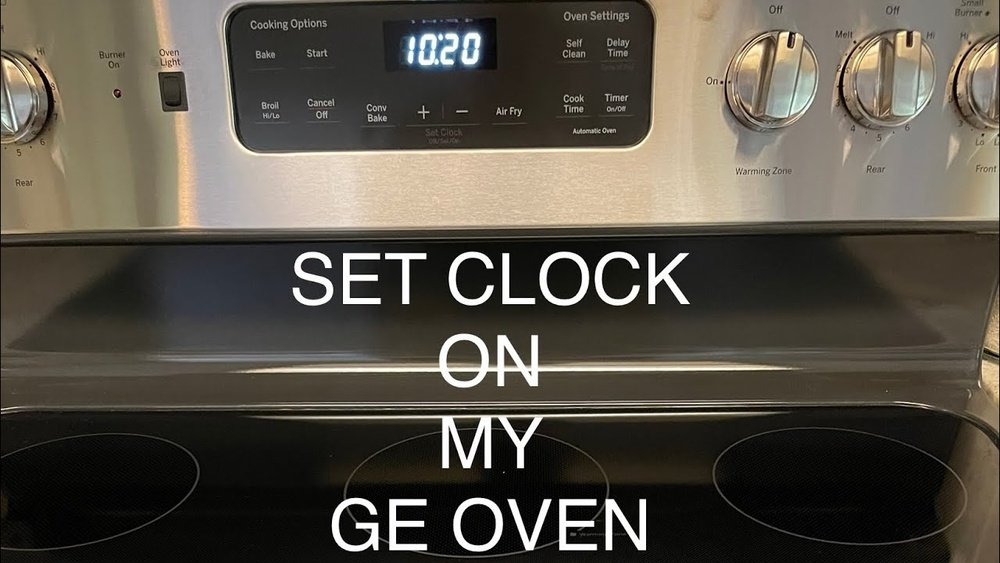
If you own a GE double oven, knowing how to set the clock is one of the first things you’ll need to master. A correct clock is crucial for using timed cooking features, making sure your baked goods turn out right, and simply keeping your kitchen routine smooth. Yet, many users find themselves confused by the different control panels and steps. Don’t worry—setting the clock is easier than you think when you understand your oven’s features and follow the right steps.
This guide is designed for anyone, even if you’re not confident with technology or English is your second language. We’ll break down the process, step by step, for every common GE double oven model. You’ll also learn how to handle daylight saving changes, troubleshoot problems, and avoid common mistakes.
Let’s make sure you never miss baking time again.
Understanding Your Ge Double Oven’s Controls
Before you set the clock, it’s important to know your oven’s control panel. GE double ovens come in several types, each with different buttons and displays. The most common types include:
- Electronic touch pads (flat panels with buttons you tap)
- Knob or dial controls (usually on older models)
- LCD or digital displays (newer, often with more features)
Check your oven to see which type you have. If you’re unsure, look for the model number, usually inside the oven door or on a label at the front. You can search this number online to find your exact manual.
Some newer models may have a combination of touch and dial controls, or even touch screens, which can be a bit confusing at first. If you ever feel overwhelmed by too many buttons or options, remember that most clock settings require only one or two main buttons.
Take a moment to look carefully at the display—often, the clock symbol is easy to spot.
Why Control Panel Types Matter
Not every GE double oven uses the same clock setting method. Newer models often use a SET CLOCK button, while older ones may require holding down another button. Understanding your panel helps you avoid pressing the wrong buttons and saves time.
Knowing your control panel type also helps you avoid accidentally activating other features, such as the kitchen timer, oven light, or even self-cleaning mode. For example, some people press the timer button instead of the clock button and wonder why the time doesn’t change.
Familiarizing yourself with the panel layout helps prevent these errors.
Pro tip: Take a photo of your control panel or write down the button labels. This makes it easier to follow instructions and troubleshoot if something goes wrong. If you ever need to ask for help, sharing a photo with a friend or technician can also speed up the solution.
Step-by-step Guide: How To Set The Clock On Most Ge Double Ovens
Let’s go through the main methods, so you’ll know what to do for your specific oven.
Method 1: Ovens With A “set Clock” Or “clock” Button
This is the most common method on newer GE double ovens.
- Find the “Set Clock” or “Clock” button.
- Look for a button labeled “Set Clock”, “Clock”, or just a clock icon. Sometimes, the button may be shared with another function, so look closely.
- Press the “Set Clock” button.
- If the display beeps or flashes, you’re ready to enter the time. On some models, the numbers may blink to show you can enter a new time.
- Enter the correct time.
- Use the number pads to type the current time. For example, for 3: 45, press 3-4-5. If your oven uses a 24-hour clock, remember to enter 15:45 instead of 3:45 for the afternoon.
- Confirm the time.
- Press “Start” or “Enter” to save. Some ovens require you to press “Set Clock” again. Wait for the display to stop blinking—this means the time is set.
- Check the display.
- The correct time should now show on your oven. If it’s wrong, repeat the steps slowly.
Quick Example:
If it’s 2:30 PM, you would press:
“set Clock” → 2-3-0 → “start”
If your oven uses a 24-hour format, enter 14-3-0 for 2:30 PM.
Method 2: Ovens Without A “set Clock” Button
Some models use the “Start” or “Bake” button to set the clock.
- Press and hold “Bake” or “Start” for 5 seconds.
- The display should blink or show “Set Clock”. If nothing happens, try holding the button longer, or check if you need to hold both “Bake” and “Broil” together.
- Enter the time.
- Use the number pads as above. Double-check the time before confirming.
- Press “Start” to finish.
- The new time should appear on the display. If you make a mistake, simply repeat the process.
Method 3: Ovens With Knob Or Dial Controls
Older GE double ovens sometimes use a mechanical dial.
- Turn the clock knob.
- Usually, there’s a small dial labeled “Clock” or with a clock icon. Some may be slightly stiff due to age, so turn slowly.
- Set the correct time.
- Gently turn the knob until the hands point to the right time. There’s no need to force it—if the knob doesn’t move easily, check for any lock or button that needs to be pressed.
Note:
These mechanical clocks do not have AM/PM; just set the hour and minutes. If you’re unsure, compare with another clock in your kitchen.
Extra tip: If your oven has a push-pull knob (you push in before turning), make sure to use the right technique. This prevents damage to older mechanisms.

Credit: www.ebay.com
Table: Common Ge Double Oven Clock Setting Buttons
Here’s a quick look at popular models and their clock setting buttons:
| Model Series | Clock Button Label | Typical Method |
|---|---|---|
| GE Profile Series | Set Clock | Press “Set Clock”, enter time, press “Start” |
| GE Café Series | Clock | Press “Clock”, set time, press “Start” |
| GE Classic Models | Bake/Start | Hold “Bake” or “Start”, enter time |
| Older Analog Models | Clock Knob | Turn knob to set time |
Insight:
Always check your manual. Even within the same series, some models use different methods. If you buy a used oven or move into a new home, don’t assume the method is the same as your previous model.
Setting The Clock For Daylight Saving Time
Twice a year, you need to adjust your oven’s clock for daylight saving time. GE ovens do not change automatically unless they are Wi-Fi connected.
Adjusting for daylight saving is essential, especially if you rely on your oven’s timer for early morning or late evening cooking. A one-hour error can lead to overcooked or undercooked meals, especially for recipes that need precise timing, like cakes or casseroles.
How To Adjust For Daylight Saving
- In the spring: Set the clock forward one hour.
- In the fall: Set the clock back one hour.
Just repeat the steps for your oven type. Don’t forget! Many people bake or cook at the wrong time after the time change.
If you live in a region that doesn’t observe daylight saving, you can skip this step. If you travel or have family in different time zones, make sure your oven clock matches your local time to avoid confusion during holidays or special events.
Tip:
Set a reminder on your phone to change your oven clock at the same time as your wall clocks. You can even make it a family routine—change all clocks together for consistency.
Extra detail:
Some smart ovens will remind you through the app to adjust the clock. Check your app notifications around the daylight saving dates.
What To Do If Your Clock Won’t Set
Sometimes, you may find the clock won’t change, or the display stays blank.
Common Problems And Solutions
- Oven is in Sabbath Mode
- Many GE ovens have a Sabbath mode for religious reasons, which disables the clock.
- Turn off Sabbath mode by holding “Bake” and “Broil” (or check your manual).
- On some models, you may need to hold the “Bake” and “Start” buttons together for several seconds.
- Power Outage Reset
- After a power outage, you must reset the clock. If the display says “PF” (power failure), follow the clock setting steps.
- If your oven keeps losing power, check the plug, outlet, and home wiring.
- Control Lock
- Some models have a lock feature. Hold “Lock Controls” for 3 seconds to unlock.
- If your oven has a “Control Lock” light, make sure it’s off before trying to set the clock.
- Display Not Working
- If nothing shows, check your circuit breaker or call a technician.
- Sometimes, the display can fail due to a blown fuse or worn-out display board.
Non-obvious insight:
If your clock resets often, check for loose power connections or faulty wiring. Repeated resets might also signal issues with your home’s power supply, so it’s worth checking other appliances too.
Extra troubleshooting tip:
Try unplugging your oven for 30 seconds and plugging it back in. This can reset the electronics and solve minor glitches.
Using The Ge Oven App And Wi-fi Features
Newer GE double ovens can connect to your home Wi-Fi and the SmartHQ app. This allows you to set and change the clock from your phone.
How To Set The Clock With Smarthq
- Download the SmartHQ app from the App Store or Google Play.
- Connect your oven following the app’s steps. Make sure Wi-Fi is working and you have your oven’s serial number ready.
- Open the app, select your oven, and look for “Settings”.
- Tap “Set Clock” and enter the correct time.
This is helpful if your oven is in a hard-to-reach spot or you have vision issues. The app can also send you alerts for preheating, timer completion, or even maintenance reminders.
Pro tip:
Wi-Fi models can sync with your phone to change for daylight saving automatically. If you move or travel, you can update the oven’s time zone easily through the app.
Non-obvious insight:
If you change your Wi-Fi network name or password, you may need to reconnect the oven to keep remote features working. Don’t forget to check for software updates, as these can improve clock accuracy and add new features.

Credit: www.youtube.com
Table: Manual Vs. App Clock Setting Features
Here’s how manual and app methods compare:
| Feature | Manual Setting | App/Wi-Fi Setting |
|---|---|---|
| Speed | About 1 minute | Less than 1 minute |
| Remote Control | No | Yes |
| Automatic Daylight Saving | No | Yes |
| Works During Power Outage | No | No |
| Needs Internet | No | Yes |
Insight:
Manual is always available, but app control adds convenience if you travel or manage several ovens. If you have multiple ovens in different locations, the app lets you check and adjust all clocks from one place.
Tips For Accurate Time Setting
A small mistake can throw off your baking or dinner schedule. Here’s how to avoid common errors:
1. Check Am/pm Carefully.
Many ovens show a 12-hour clock. Accidentally setting 7:00 PM instead of 7:00 AM is a common mistake.
- For 24-hour clocks, always add 12 for afternoon/evening times.
- Wait for confirmation.
Always press “Start” or “Enter” at the end, or the time won’t save. Don’t assume the time is set if the display is still blinking.
3. Double-check After Power Outages.
The time may reset to 12:00 or blink, meaning you must re-set.
4. Use A Reference Clock.
Set the oven clock using your phone or an atomic clock for accuracy. Oven clocks can drift over time, so it’s good to check every month or two.
5. Don’t Rush.
If you go too fast, you may skip a step. Slow and steady works best.
Non-obvious insight:
If you’re interrupted while setting the time, start over. Many models cancel the process if you wait too long between steps.
Extra tip:
Some oven timers are separate from the clock. Make sure you’re adjusting the correct setting—look for a label or check your manual if you’re unsure.

Credit: www.reddit.com
Special Features: 24-hour And 12-hour Format
Some GE double ovens let you choose between a 12-hour or 24-hour (military time) clock.
How To Change The Clock Format
- Press “Set Clock” or “Settings” until you see “12Hr” or “24Hr”.
- Use the number pad or arrows to switch.
- Press “Start” to confirm.
Most users prefer 12-hour for home use, but 24-hour can help avoid AM/PM mistakes. If you grew up with the 24-hour clock or work in a job that uses it, this feature can make life easier.
Extra detail:
If your oven does not display the format option, it may not support switching. Check your manual or the GE website for your exact model’s features.
Troubleshooting: When The Clock Keeps Losing Time
If your oven clock falls behind or speeds up, this can signal an internal problem.
Causes
- Unstable power supply
- Faulty control board
- Loose connections
Sometimes, clocks run slow because the oven shares power with other heavy appliances. Frequent small power interruptions can also cause the clock to drift.
What You Can Do
- Try unplugging the oven for 1 minute, then plug it back in.
- If the problem returns, call GE customer service or a licensed technician.
- Keep a log of how much time the clock loses each week—this helps the technician diagnose the problem faster.
Example:
Some users report the clock slows down by 2–3 minutes a week. This is not normal and usually needs repair.
Non-obvious insight:
If your whole kitchen loses time (microwave, oven, etc. ), your home’s wiring may need inspection.
Table: Common Clock Setting Problems And Solutions
Here’s a quick reference for issues and what to do:
| Problem | Possible Cause | Solution |
|---|---|---|
| Clock won’t set | Oven in Sabbath mode | Turn off Sabbath mode |
| Display blank | Power issue or control lock | Check breaker, unlock controls |
| Time resets after outage | Not backed up | Reset clock manually each time |
| Time drifts/loses minutes | Control board problem | Contact service |
Extra tip:
If the problem is new (the clock worked fine before), think about any recent changes—power surges, kitchen remodels, or moving the oven.
Safety Considerations When Setting Your Oven Clock
You may wonder if there are any risks when changing the clock. Usually, it’s very safe, but keep these points in mind:
- Avoid wet hands: Water and electronics don’t mix. Dry your hands before touching controls.
- Don’t force knobs: If your oven uses a dial, turn it gently.
- Watch for hot surfaces: If the oven is in use, avoid touching hot areas near the controls.
- Use the correct buttons: Pressing random buttons quickly can start self-clean or other cycles by accident.
Practical tip:
If you’re unsure, ask another adult for help the first time you set the clock.
Extra detail:
If you have children, show them which buttons are safe to touch and which are not. This helps prevent accidents or settings from being changed by curious fingers.
How Clock Settings Affect Cooking And Baking
Setting the oven clock is not just for looks. It affects:
- Automatic timers: Many GE ovens let you delay start or set a stop time for baking. An incorrect clock means your food won’t start or stop at the right time.
- Sabbath mode: Some recipes require the oven to stay on for many hours—clock settings affect how long your oven will run.
- Kitchen coordination: If you use the oven for big family meals or holidays, a wrong clock can cause confusion.
Example:
If you plan to bake bread at 2:00 PM, but your oven clock is 15 minutes slow, your bread could burn or be undercooked.
Non-obvious insight:
Many ovens use the clock for preheating reminders or to automatically turn off after a set time. If the clock is wrong, these features may not work as expected.
Maintaining Your Oven’s Clock For Years
Long-term, a reliable clock helps your oven last and keeps your kitchen routine smooth.
- Update after power surges: Always check after storms or outages.
- Clean the panel gently: Use a soft cloth, not harsh cleaners, to keep buttons readable.
- Avoid sticky fingers: Food residue can cause buttons to stick or stop working.
- Check for software updates: If you have a smart oven, updates can fix bugs with the clock.
- Test the clock monthly: Compare with your phone or wall clock to catch slow drifts early.
Real-world tip:
Many users ignore software updates, but these can actually prevent clock or timer glitches. If you have a smart oven, enable automatic updates in your app.
Extra tip:
If you move your oven to a new home, always reset the clock and check all features work in the new location.
When To Call For Help
Most clock problems are easy to fix. But call a professional if:
- The display is totally dead after you check the breaker.
- The clock changes by itself with no power outage.
- Buttons are stuck, broken, or missing.
- You see error codes (like “F1” or “F7”) when trying to set the clock.
Don’t try to open the oven’s control panel yourself, as this can void your warranty or cause further damage.
Resource:
Find official manuals and support on the GE Appliances Support page.
Frequently Asked Questions
How Do I Set The Clock On My Ge Double Oven If There Is No “set Clock” Button?
If your oven doesn’t have a “Set Clock” button, try pressing and holding the “Bake” or “Start” button for 5 seconds until the display blinks. Then enter the time using the number pads and press “Start” again. If this doesn’t work, check your manual for the exact method.
On some older models, the clock knob might be hidden on the side of the control panel.
Why Does My Ge Double Oven Clock Keep Resetting After A Power Outage?
GE double ovens do not have a backup battery for the clock. After a power loss, the clock will reset to 12:00 or blink. You must set the clock manually each time power is restored. If outages are frequent, consider using a surge protector for your oven if the model allows.
Can I Set My Ge Oven Clock Using My Phone?
Yes, if your GE oven has Wi-Fi and is connected to the SmartHQ app, you can set the clock from your phone. Download the app, connect your oven, and follow the on-screen instructions in the “Settings” menu. This is especially useful for people with limited mobility or vision.
What Should I Do If The Oven Clock Is Running Slow Or Fast?
If your clock drifts by several minutes each week, this usually means a problem with the control board or power supply. Unplug the oven for a minute and reset the time. If the issue continues, contact a GE technician for repair.
Keeping a record of when the problem started can help the technician diagnose it faster.
Is It Safe To Set The Clock While The Oven Is Hot Or In Use?
Yes, you can set the clock while the oven is running. Just be careful not to touch hot surfaces near the control panel. Use dry hands and avoid pressing multiple buttons quickly, as this can interrupt cooking cycles or activate other features by accident.
Getting the clock right on your GE double oven is a simple but essential task. With these clear steps and tips, you’ll always know the real time and keep your kitchen running smoothly. If you run into trouble, remember that your manual or official support is just a click away. Happy cooking!