
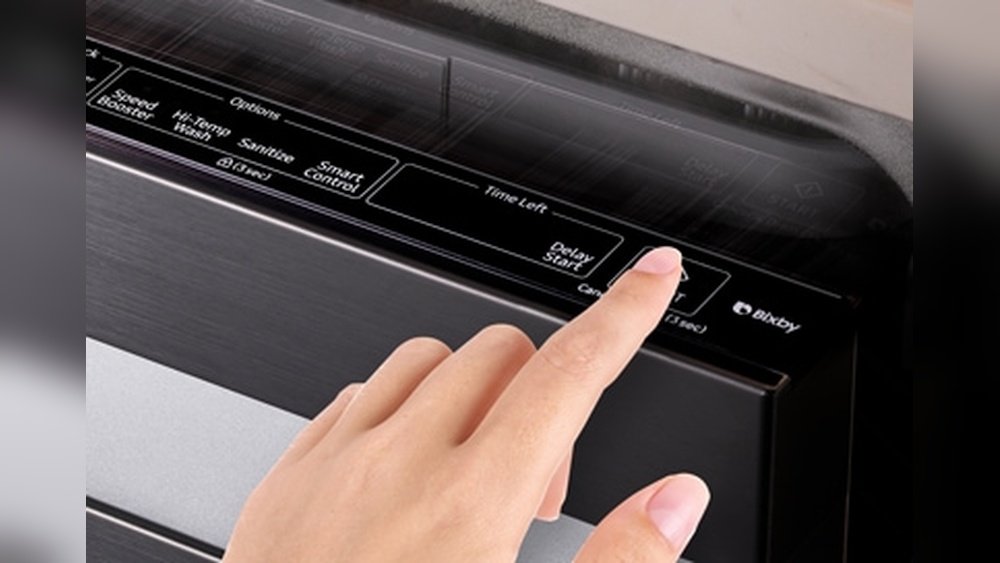
If your Samsung dishwasher stops working or starts acting strangely, it can be frustrating and confusing. Many people immediately think their dishwasher needs expensive repairs, but often, a simple reset is all it takes to get things back on track. Learning how to reset your Samsung dishwasher is a practical skill that can save you time, money, and stress. This article will guide you step by step through the process, explain why resets are sometimes needed, and share expert tips for troubleshooting common problems. You’ll also discover what to do when a reset doesn’t solve the issue, and how to avoid mistakes that can make things worse.
You don’t have to be an appliance expert to reset your dishwasher. With clear instructions, helpful examples, and real-world advice, you’ll gain the confidence to handle many issues yourself. Whether your dishwasher won’t start, displays an error code, or just doesn’t clean well, this guide will help you understand what’s happening and how to fix it.
Let’s dive in and get your Samsung dishwasher running smoothly again.
Why You Might Need To Reset Your Samsung Dishwasher
Many dishwashers, including Samsung models, rely on computer boards and sensors to operate. Sometimes, these parts can become confused or stuck because of power surges, minor glitches, or even after a cycle interruption. A reset is like giving your dishwasher a fresh start, clearing away temporary errors or memory problems.
Common reasons to reset:
- Error codes appear on the display panel
- The dishwasher won’t start or respond
- Unusual noises or flashing lights
- Cycle won’t finish or gets stuck
- Door won’t unlock after a wash
Resetting is often the first troubleshooting step recommended by both Samsung and appliance technicians. It’s safe, doesn’t require tools, and can solve many everyday problems.
What A Reset Actually Does
When you reset your dishwasher, you’re telling the internal computer to clear its current instructions. This doesn’t erase saved settings or break anything; it simply stops whatever the dishwasher is doing and prepares it to start fresh. Think of it like restarting your phone or computer—it wipes away temporary confusion.
Different Types Of Samsung Dishwasher Resets
Not all issues require the same reset. The best method depends on your dishwasher’s model and the problem you’re facing. There are three main ways to reset a Samsung dishwasher:
- Soft Reset
- Hard Reset (Power Cycle)
- Factory Reset
Let’s look at each method, when to use it, and how it works.
Soft Reset
A soft reset is the quickest and easiest. This is often enough for small glitches or minor error codes.
How to do a soft reset:
- Press and hold the Start/Reset button for about 3 seconds.
- Wait for the display to turn off or the beeping to stop.
- Release the button.
- Wait a few minutes for the dishwasher to reset itself.
This method works for most recent Samsung models. If your dishwasher doesn’t respond or the error remains, move on to a hard reset.
Hard Reset (power Cycle)
A hard reset, also called a power cycle, is more powerful. It completely cuts power to the dishwasher, forcing the computer to forget everything.
Steps for a hard reset:
- Turn off the dishwasher using the power button.
- Unplug the dishwasher from the wall outlet. If you can’t reach the plug, turn off the circuit breaker that powers the dishwasher.
- Wait at least 2-5 minutes. This gives the control board time to clear its memory.
- Plug the dishwasher back in or switch the breaker on.
- Turn the dishwasher on and see if the problem is gone.
A hard reset is safe for all Samsung dishwashers, old and new. It’s especially helpful for error codes, stuck buttons, or unresponsive touch panels.
Factory Reset
Some newer Samsung dishwashers have a factory reset feature. This restores all settings to the way they were when the dishwasher left the factory.
Factory reset steps:
- Find the Settings or Options menu on your control panel.
- Look for an option called “Factory Reset” or “Reset All Settings.”
- Press and hold the button as directed in your manual (usually 3-10 seconds).
- Confirm the reset if prompted.
Not all models have this feature. If yours does, use it only if other resets don’t work. A factory reset erases all custom settings, so you’ll need to reprogram any favorites or timers.
Credit: www.samsung.com
Step-by-step Guide: How To Reset Your Samsung Dishwasher
Let’s get practical. Here’s how to reset most Samsung dishwashers, using both soft and hard reset methods.
Basic Soft Reset
- Open the dishwasher door.
- Press and hold the Start/Reset button for 3 seconds.
- The dishwasher should beep or display a message.
- Wait for the lights or display to turn off.
- Close the door and wait 1-2 minutes.
- Try starting a new cycle.
If everything works, you’re done! If not, try a hard reset.
Power Cycle (hard Reset) Instructions
- Make sure the dishwasher is empty and not running.
- Turn off the dishwasher (if there is a power button).
- Unplug the power cord from the wall outlet.
- If you can’t reach the plug (built-in models), go to your home’s electrical panel.
- Flip the circuit breaker that powers the dishwasher to “off.”
- Wait 2-5 minutes. This step is important—don’t rush it.
- Plug the dishwasher back in or flip the breaker to “on.”
- Turn the dishwasher on.
- Try a test cycle to see if the problem is fixed.
This method often clears most temporary errors and gets your dishwasher working again.
Model-specific Reset Buttons
Some Samsung models have a dedicated reset button or use different button combinations. Always check your user manual for details. If you don’t have the manual, you can usually find it on the Samsung support website by searching your model number.
Examples of model-specific resets:
- Some models use a Smart Control button for resets.
- Others require pressing Start and Cancel/Drain together.
- For Wi-Fi-enabled models, resets may involve app settings.
If you’re unsure, try the general steps above first. Never force the panel or use sharp objects to press buttons.
Common Error Codes And What A Reset Can Fix
Samsung dishwashers show error codes when something goes wrong. Many of these codes can be cleared with a reset. Here are some typical codes, what they mean, and when a reset helps.
| Error Code | What It Means | Reset Helpful? |
|---|---|---|
| 4C / 4E | Water supply issue | Sometimes |
| 5C / 5E | Drainage problem | Yes, try reset |
| LC / LE | Leak detected | Sometimes |
| HE | Heater issue | Sometimes |
| PE | Pressure switch error | Yes |
| CE | Communication error | Yes, reset needed |
Important: If the same error returns after a reset, there may be a real mechanical or electrical problem. Don’t keep resetting—find and fix the cause.
When A Reset Won’t Fix The Problem
A reset is not magic. If your Samsung dishwasher has a broken part, water leak, or major electrical fault, a reset won’t solve it. Here’s how to know when you need more than a reset:
- Error code returns every time you try to run a cycle.
- Water remains in the bottom after running a drain.
- Dishwasher makes loud noises or smells like burning plastic.
- Door won’t latch or won’t unlock, even after resetting.
- No power at all (no lights, no sounds).
In these cases, check for blockages, leaks, or call a qualified technician. Resetting over and over can sometimes make things worse or mask a bigger problem.
How To Find Your Samsung Dishwasher Model Number
Knowing your model number is important for the right reset instructions and error code meanings. Here’s how to find it:
- Open the dishwasher door.
- Look for a sticker or metal plate on the inside edge, usually near the door or frame.
- The model number will look like DW80K5050US, DD81-01629A, etc.
You can use this number to find your manual online or get help from Samsung support.
Resetting Vs. Troubleshooting: What’s The Difference?
Resetting is just the first step. Real troubleshooting means checking for real problems. Here’s how they compare:
| Resetting | Troubleshooting |
|---|---|
| Clears temporary errors | Finds and fixes real problems |
| Quick and easy | Takes more time |
| Safe for most issues | May require tools or parts |
| Done by anyone | Sometimes needs a pro |
If a reset doesn’t solve your problem, move on to basic troubleshooting: check water lines, clean filters, and examine the door latch.
Common Mistakes When Resetting Your Dishwasher
Even simple resets can go wrong if you’re not careful. Avoid these mistakes:
- Skipping the wait time during a hard reset. Don’t plug it back in too soon.
- Forcing buttons or using sharp objects on the control panel.
- Resetting too often without fixing the real issue.
- Ignoring leaks or burning smells—these are serious signs.
- Not checking the manual for your specific model.
Expert tip: If your dishwasher is still under warranty, avoid too many resets. Repeated failed resets can complicate warranty claims.

Credit: www.youtube.com
Advanced Tips: Smart And Wi-fi Enabled Samsung Dishwashers
Many new Samsung dishwashers connect to Wi-Fi and the SmartThings app. These models offer extra ways to reset and diagnose problems.
Using The Smartthings App
- Open the SmartThings app on your phone.
- Select your dishwasher from the device list.
- Look for a “Reset” or “Diagnose” feature in the app menu.
- Follow the on-screen steps to reset or send a self-diagnosis.
Some smart models can send you alerts when there’s a problem, and sometimes a reset can be triggered remotely.
Special Reset Codes
Occasionally, Samsung releases special reset codes or software updates for smart dishwashers. Check the official Samsung website for updates, especially if your machine is still under warranty.
Comparing Samsung Dishwasher Reset Methods
Choosing the right reset method depends on your situation. Here’s a quick comparison.
| Method | Best For | Time Needed | Model Types |
|---|---|---|---|
| Soft Reset | Minor glitches, simple errors | 1-2 minutes | All models |
| Hard Reset | Major errors, unresponsive controls | 5-7 minutes | All models |
| Factory Reset | Big problems, custom settings issues | 5-10 minutes | Newer Wi-Fi models |
Always start with the easiest reset, and only use advanced methods if needed.
When To Call A Technician
If you’ve tried all reset methods and your dishwasher still doesn’t work, it’s time to call a certified technician. Here’s when you should get help:
- Persistent or repeating error codes (like LC, HE, or CE)
- Water leaks under or inside the dishwasher
- No power, even after checking your home’s circuit breaker
- Loud noises, burning smells, or smoke
- Buttons or display panel are physically broken
Trying to fix electrical or water problems without the right training can be dangerous. Samsung’s official website has a locator to find authorized service providers. If your dishwasher is still under warranty, service calls may be free or discounted.
Preventing Future Problems
Resetting your dishwasher is helpful, but prevention is better. Here’s how to avoid common issues:
- Clean filters every month to prevent clogs.
- Check water inlet and drain hoses for kinks or blockages.
- Use the right detergent—only dishwasher-safe products.
- Don’t overload trays or block the spray arms.
- Run hot water at the sink before starting a wash cycle.
- Wipe the door seal clean to prevent leaks.
Most Samsung dishwasher problems are caused by dirty filters, blocked drains, or power surges. Regular maintenance keeps your machine running smoothly.
Real-world Example: Resetting A Samsung Dishwasher After A Power Outage
Imagine you had a power outage while your Samsung dishwasher was running. After the power returns, the dishwasher won’t start, and the display flashes random lights.
Here’s what you should do:
- Try a soft reset: Hold the Start/Reset button for 3 seconds.
- If it doesn’t work, do a hard reset: Unplug the dishwasher or flip the circuit breaker off for 5 minutes.
- Plug it back in or turn the breaker on.
- Start a short cycle to test.
Most of the time, this fixes the issue. If not, check your manual for specific codes or call for help.
What Beginners Often Miss
Many first-time users forget to check the circuit breaker if the dishwasher has no power. Sometimes, the breaker trips even if it looks “on”—try flipping it off and back on.
Another common oversight: not waiting long enough during a hard reset. The control board needs a few minutes without power to fully clear. Rushing this step can cause the same problem to return.
Also, people often reset again and again without cleaning the drain filter or checking for blocked spray arms. Basic cleaning can prevent many problems a reset alone won’t fix.
Where To Find More Help
If you’ve tried everything and still need help, visit the Samsung Support Center for manuals, troubleshooting guides, and authorized service bookings. Always use your real model number for the best advice.
Frequently Asked Questions
How Do I Reset My Samsung Dishwasher If It Won’t Start?
If your Samsung dishwasher won’t start, first try a soft reset. Hold the Start/Reset button for 3 seconds. If it still won’t start, do a hard reset by unplugging the dishwasher or turning off the circuit breaker for 5 minutes. Plug it back in and try again. If the problem continues, check for door latch issues or error codes.
What Should I Do If The Error Code Returns After A Reset?
If the same error code comes back after a reset, it means there’s a real issue that needs fixing. Check your user manual for what the code means. Common causes are blocked filters, water supply problems, or leaks. Fix these issues, then reset again.
If you can’t find the problem, call a technician.
Can I Reset My Samsung Dishwasher With The Smartthings App?
Yes, if your Samsung dishwasher is Wi-Fi enabled, you can use the SmartThings app to run diagnostics or perform a reset. Open the app, select your dishwasher, and look for reset or troubleshoot options. Follow the instructions on your phone.
Is It Safe To Reset My Dishwasher Often?
Resetting your Samsung dishwasher is safe if done as a troubleshooting step. However, if you need to reset frequently, there’s likely a deeper problem. Too many resets without fixing the cause can make things worse. Find and fix the real issue or get professional help.
Where Can I Find The Manual Or Support For My Samsung Dishwasher?
You can download the manual and get support from the Samsung Support Center. Enter your model number for the most accurate instructions, troubleshooting tips, and service options.
When you know how to reset your Samsung dishwasher correctly, you can solve many common problems without waiting for a repair visit. With these step-by-step instructions, helpful tables, and expert tips, you’re ready to handle most issues with confidence and keep your kitchen running smoothly.

Credit: www.youtube.com