
Microwaves are part of daily life in many kitchens. They make cooking and reheating food fast and easy. But sometimes, you might see your microwave stuck in something called Demo Mode. It can be frustrating, especially when you want to warm up your meal, but the microwave only shows lights or plays sounds without actually heating. If you’ve ever wondered why this happens and, more importantly, how to turn off Demo Mode on your microwave, you’re in the right place.
Many people do not realize that Demo Mode is not a malfunction. It’s a special setting used in stores to show how the microwave works without using real power to heat. This is useful for retailers, but not for users at home.
You may have activated Demo Mode by accident or received a unit with Demo Mode still on. The good news is, you can turn it off, but the steps are not always the same for every brand. This guide will walk you through the process, offer expert tips, and help you avoid common mistakes.
You will learn what Demo Mode is, why it exists, and how to disable it on most popular microwave brands. We will also discuss what to do if the usual methods do not work and when you should contact support.
By the end, you will have all the knowledge you need to get your microwave working again, plus answers to common questions that trip up beginners.
What Is Demo Mode And Why Does It Exist?
Most people are surprised the first time they see Demo Mode. Suddenly, the microwave lights up, buttons beep, and the turntable spins, but nothing heats up. This mode is designed for showrooms and stores. It lets sales staff show how the microwave works without wasting energy or risking accidents.
Demo Mode is usually set at the factory or by the retailer. It can also be turned on by accident if certain button combinations are pressed. Once active, the microwave acts normal except for one thing—it will not generate heat.
This helps prevent burns and damage during demonstrations.
Many brands call it Retail Mode or Store Mode. Sometimes, the microwave display will say “DEMO” or flash a related message. Other times, there is no clear sign, and users only notice when their food stays cold. Knowing about Demo Mode helps you avoid confusion and fix the problem quickly.
How Do You Know If Your Microwave Is In Demo Mode?
Recognizing Demo Mode saves time. Here are signs your microwave may be in Demo Mode:
- Food does not heat: The main symptom is food stays cold or lukewarm.
- Display reads “DEMO” or “RETAIL”: Some models show these words on the screen.
- No microwave humming sound: The usual hum from the magnetron is missing.
- Turntable spins, lights and buttons work: The microwave appears to function, but does not cook.
- Short beep or message after starting: Some brands give a hint with a sound or quick message.
If you see these signs, do not panic. Your microwave is not broken. You simply need to exit Demo Mode.
Main Brands And Their Demo Mode Deactivation Methods
Microwave brands use different methods to turn off Demo Mode. Below, you’ll find step-by-step guides for major brands. If your brand is not listed, you can still find useful tips in the next sections.
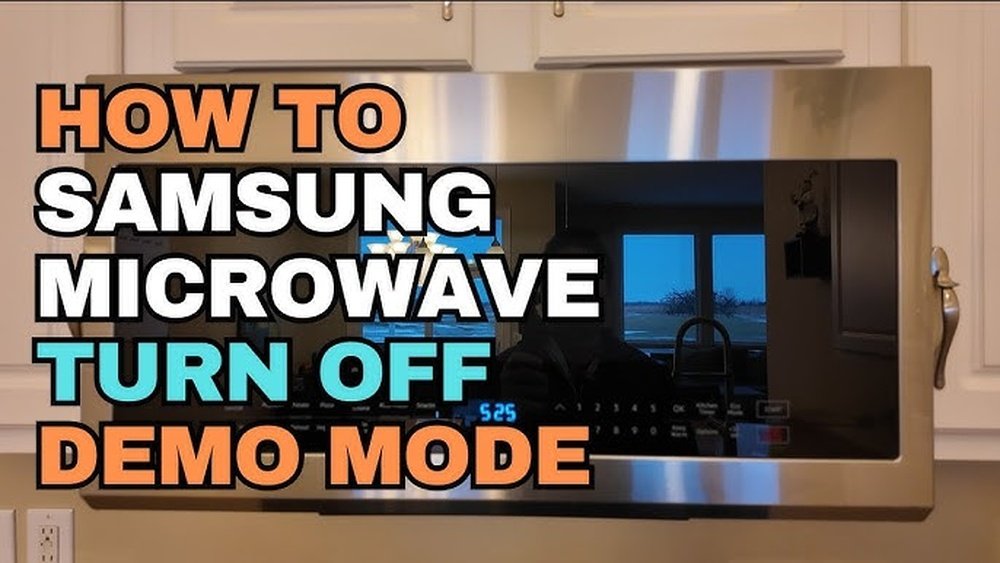
1. Samsung Microwaves
Samsung is a popular brand with clear Demo Mode options.
- What to look for: Display may show “DEMO” or “DEMO MODE”.
- How to turn off:
- Make sure the microwave is plugged in.
- Press and hold the Stop/Cancel button for 4 seconds.
- If that does not work, try pressing Eco Mode or Options and use the dial or number pad to find “DEMO OFF”.
- Select and confirm.
- Extra Tip: Some newer Samsung models require you to press 1 and Start together for several seconds.
2. Panasonic Microwaves
Panasonic uses Demo Mode for both countertop and over-the-range models.
- What to look for: No heating, but normal lights and sounds.
- How to turn off:
- Open the microwave door.
- Press and hold the Stop/Reset button for 3 seconds.
- You may hear a beep or see “DEMO OFF” on the screen.
- If not, unplug for 60 seconds and retry.
3. Ge (general Electric) Microwaves
GE appliances have a specific way to exit Demo Mode.
- What to look for: “DEMO” on display, no heating.
- How to turn off:
- Press the Settings or Options button.
- Use the number pad to enter the Demo Mode option (often “6” or “7”).
- Press Start to toggle Demo Mode off.
- If you see “DEMO OFF”, you’re done.
4. Lg Microwaves
LG models also feature Demo or Display Mode.
- How to turn off:
- Press Stop/Clear for 4 seconds.
- If that does not work, press Custom Set, enter “2”, and press Start.
5. Whirlpool Microwaves
Whirlpool microwaves may use a combination of buttons.
- How to turn off:
- Press Options/Clock.
- Use arrows or number pad to find Demo Mode.
- Select “Off” and confirm with Start.
6. Sharp Microwaves
Sharp ovens often use a “Demo” key combination.
- How to turn off:
- Press and hold Stop and Start together for 3 seconds.
- If this fails, unplug the microwave for a minute and try again.
7. Toshiba Microwaves
Toshiba models are less common, but some have Demo Mode.
- How to turn off:
- Press Stop/Cancel for 3 seconds.
- Look for a beep or display change.
8. Kitchenaid Microwaves
KitchenAid often uses menu settings.
- How to turn off:
- Press Menu/Settings.
- Scroll to “Demo Mode”.
- Select “Off” and press Start.
9. Emerson Microwaves
Emerson is a budget brand found in many homes.
- How to turn off:
- Unplug the unit for 1 minute.
- Reconnect and check if heating is restored.
- If not, press Stop/Clear and Start together for 3 seconds.
10. Frigidaire Microwaves
Frigidaire models sometimes hide Demo Mode in setup.
- How to turn off:
- Press Clock/Settings.
- Use the dial to find Demo Mode.
- Set to “Off”, confirm with Start.
11. Breville Microwaves
Breville has a unique interface.
- How to turn off:
- Press A Bit More and Stop together for 5 seconds.
- Wait for a beep.
12. Hamilton Beach Microwaves
Hamilton Beach is simple but may have Demo Mode.
- How to turn off:
- Unplug for 60 seconds.
- Press Stop/Clear for 3 seconds.
13. Smeg Microwaves
Smeg uses menu-driven settings.
- How to turn off:
- Press Menu.
- Select “Demo Mode” and set to “Off”.
14. Haier Microwaves
Haier is popular in Asia and some US stores.
- How to turn off:
- Press Settings.
- Scroll to Demo Mode, turn “Off”, and confirm.
15. Daewoo Microwaves
Daewoo’s Demo Mode is often activated in stores.
- How to turn off:
- Press Stop and Start together for 4 seconds.
16. Midea Microwaves
Midea is a large manufacturer, often rebranded by others.
- How to turn off:
- Press and hold Stop/Cancel for 5 seconds.
17. Galanz Microwaves
Galanz is another major budget brand.
- How to turn off:
- Unplug for 1 minute.
- Press Stop/Clear for 4 seconds.
18. Magic Chef Microwaves
Magic Chef is sold in many discount stores.
- How to turn off:
- Press Options and use arrows to “Demo Mode”.
- Set to “Off”.
19. Avanti Microwaves
Avanti is common in small apartments or dorms.
- How to turn off:
- Press Stop/Clear and Start together for 3 seconds.
20. Black+decker Microwaves
Black+Decker models use simple controls.
- How to turn off:
- Unplug for 1 minute.
- Press Stop/Cancel for 4 seconds.
Comparison Of Demo Mode Deactivation Methods
To make it easier to compare, here’s a table showing the most common Demo Mode turn-off methods for top brands.
| Brand | Common Method | Backup Method |
|---|---|---|
| Samsung | Hold Stop/Cancel | Press 1 + Start |
| Panasonic | Hold Stop/Reset | Unplug and retry |
| GE | Settings > Demo Mode | Number pad entry |
| LG | Hold Stop/Clear | Custom Set > 2 > Start |
| Whirlpool | Options/Clock > Demo Off | Unplug and reset |
| Sharp | Hold Stop + Start | Unplug for 1 min |

Credit: www.youtube.com
Why Do Users Accidentally Activate Demo Mode?
It’s not always clear how Demo Mode gets turned on at home. Here are some common reasons:
- Button combination pressed by mistake: Some microwaves use easy-to-press combos.
- Power surge or outage: After a blackout, the microwave may reset into Demo Mode.
- Factory setting not cleared: Sometimes, the retailer forgets to exit Demo Mode before shipping.
- Child lock confusion: On some models, Demo Mode and child lock use similar buttons.
Key Insight: Many users do not realize that holding certain buttons for just a few seconds can trigger Demo Mode. This is why it’s important to read your microwave’s manual if something unusual happens.
What To Do If Standard Methods Don’t Work
Sometimes, the steps above might not solve the problem. Here’s what you should try next:
- Check the manual: Every microwave model is a bit different. Look for Demo Mode, Retail Mode, or Store Mode in the manual.
- Unplug and reset: Disconnect the microwave from power for at least 1 minute. This resets most electronics.
- Try different button combos: If your model is not listed, try holding Stop/Clear, Start, or both together for 3-5 seconds.
- Contact customer support: If nothing works, call or email the brand’s support line. They can give you the correct steps for your model.
- Check for firmware updates: Some smart microwaves may need a software update to exit Demo Mode.
Example Of A Troubleshooting Call
Let’s say you have a Samsung microwave and none of the above steps work. You call Samsung support and provide your model number. The technician might guide you to a hidden service menu or advise you to check for a stuck button.
This is rare, but it happens.
Demo Mode Vs. Child Lock: What’s The Difference?
Many users confuse Demo Mode with Child Lock. Both limit the microwave, but in different ways.
| Feature | Demo Mode | Child Lock |
|---|---|---|
| Main Purpose | Showroom display without heating | Prevent children from using microwave |
| Heating Function | Does not heat | Cannot start at all |
| How to Exit | Settings or button combo | Usually Stop/Clear for 3-5 seconds |
| Display Message | Sometimes “DEMO” or blank | Often “LOCK” or padlock symbol |
Practical Tip: If your microwave does not respond to any buttons, it’s likely in Child Lock, not Demo Mode.
Real-world Example: Fixing A Demo Mode Issue
Let’s look at a common situation.
Sarah buys a new LG microwave. At home, she plugs it in and tries to heat soup. The turntable spins, the light is on, but the soup stays cold. She checks the manual and sees nothing about Demo Mode.
Sarah searches online and learns that holding Stop/Clear for 4 seconds exits Demo Mode. She tries it and hears a beep. The next time she heats her soup, it works.
Lesson: Sometimes, solutions are not in the manual. User forums and articles like this can save time.
Common Mistakes When Turning Off Demo Mode
It’s easy to make errors if you’re frustrated. Here’s what to watch for:
- Pressing buttons too quickly: Most microwaves need you to hold buttons for 3-5 seconds.
- Not confirming the change: Some models require you to press “Start” after selecting “Demo Off”.
- Not unplugging long enough: A quick unplug (less than 10 seconds) may not reset the system.
- Confusing Demo Mode with other settings: For example, Eco Mode or Child Lock.
- Ignoring the display: If the display changes, it’s a sign you’re doing it right.
Non-obvious Insight: When a method does not work, always pause for a few seconds before trying again. Some microwaves need time to process changes.
Why Demo Mode Won’t Turn Off: Advanced Issues
Most Demo Mode problems are easy to fix. But sometimes, there are deeper issues:
- Faulty control board: If the control panel is damaged, it may “think” Demo Mode is stuck.
- Firmware bug: On smart microwaves, software problems can make Demo Mode persistent.
- Stuck buttons: Physical dirt or broken buttons can send false signals.
If you suspect these problems, it’s best to call a certified technician. Trying to fix electronics yourself can be dangerous.

Credit: www.reddit.com
How To Avoid Demo Mode Problems In The Future
Here are ways to prevent Demo Mode confusion:
- Read the manual when unboxing: This helps you spot Demo Mode before using.
- Avoid pressing random button combos: Especially when cleaning or moving the microwave.
- After a power outage, check settings: Some microwaves reset to Demo Mode after power loss.
- Label tricky buttons: If you have kids, put a small sticker on buttons that trigger Demo Mode.
- Keep the manual handy: Or download a PDF version from the brand’s website.
Bonus Tip: If you move to a new home, always check the microwave’s settings after reconnecting power.
When To Call For Help
Most Demo Mode problems are easy to fix at home. But call for help if:
- You’ve tried all listed steps and the microwave still won’t heat.
- The display is blank or shows error codes.
- Buttons are unresponsive.
- You hear unusual noises.
Expert Advice: If your microwave is under warranty, do not open it yourself. Let a technician handle repairs. This keeps your warranty valid.

Credit: manuals.plus
Special Cases: Commercial And Smart Microwaves
Some commercial or smart microwaves have more complex Demo Modes.
- Commercial microwaves: May need a service code or technician-only steps.
- Smart microwaves: Check the app for Demo Mode settings. Sometimes you need to update firmware or reset via the app.
If your microwave connects to Wi-Fi or has a touchscreen, check the brand’s support website for detailed instructions. For example, Samsung Support is a helpful place for smart models.
Understanding Microwave Safety While Troubleshooting
Always put safety first when working with appliances:
- Unplug before cleaning buttons or display: This prevents electric shock.
- Do not use sharp objects: Avoid poking buttons with knives or tools.
- Wait after unplugging: Electronics need a few seconds to discharge.
- Do not open the case: High-voltage parts can cause injury even when unplugged.
If you feel uncertain, call a professional.
How Manufacturers Update Demo Mode Features
Manufacturers often change Demo Mode settings with new models. Older microwaves may have simple button combos, while newer ones use touchscreens or apps. Always check for:
- New features: Touch or voice control may add steps.
- Updated manuals: Download the latest manual from the brand’s site.
- Online forums: Users often share up-to-date tips.
Non-obvious Insight: Some microwaves sold in big-box stores have different firmware than online models. This means Demo Mode steps may vary even within the same brand.
Summary Of Key Steps To Turn Off Demo Mode
- Identify your microwave brand and model.
- Try the common button combination (Stop/Cancel, Start, or both).
- Check the display for “DEMO” or similar messages.
- Use menu settings if available.
- Unplug for 1 minute if buttons do not work.
- Consult the manual or brand’s support site.
- Call support if all else fails.
Taking these steps will solve Demo Mode for almost all microwaves.
Frequently Asked Questions
What Is The Main Purpose Of Demo Mode On A Microwave?
Demo Mode is designed for store displays. It lets sales staff show how the microwave works—lights, buttons, and turntable—without using real heat. This saves energy and prevents accidents in showrooms.
Will Resetting My Microwave Turn Off Demo Mode?
A simple reset (unplugging for 1 minute) often works, especially for budget brands. However, some models need a special button combination or menu setting to fully exit Demo Mode.
Is Demo Mode The Same As Child Lock?
No, they are different. Demo Mode lets you use buttons but does not heat. Child Lock blocks all buttons to stop children from using the microwave. Each has its own way to turn off.
Can Demo Mode Damage My Microwave?
No. Demo Mode is safe and does not harm your microwave. It simply disables heating. You can use it as normal once Demo Mode is turned off.
Where Can I Find My Microwave’s Manual If I Lost It?
Most manufacturers offer free manuals online. Visit the brand’s official website, search for your model, and download the PDF manual. This is helpful for finding Demo Mode instructions.
Solving Demo Mode is not as hard as it seems. With the right steps, you can get your microwave working again and enjoy hot meals without stress. Remember, knowledge is power—especially in the kitchen.