
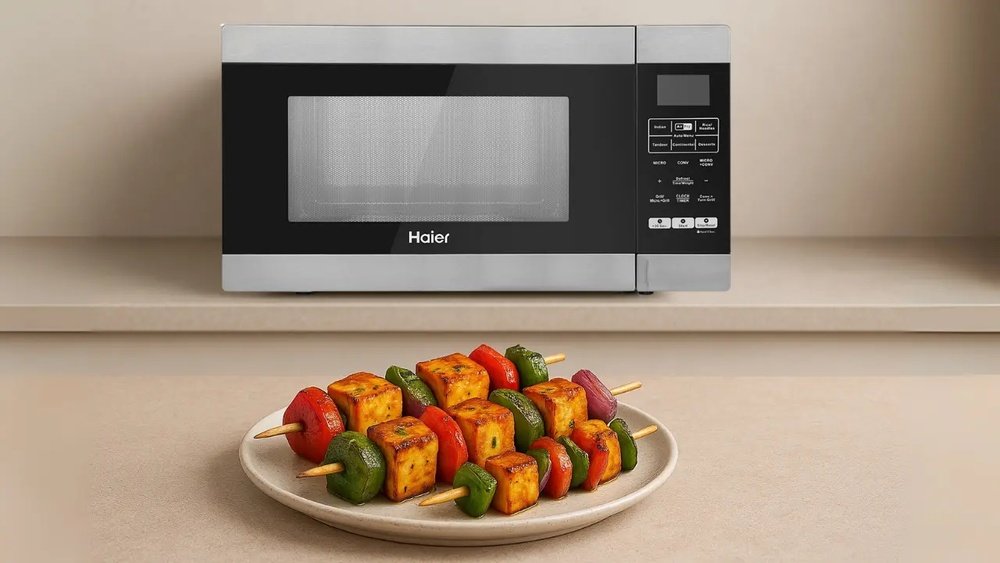
Setting the clock on your Haier microwave oven combo may sound like a simple task, but for many users, it can be confusing—especially if you’re dealing with a new model or have lost the manual. A correctly set clock not only keeps your kitchen routine organized, but is also essential for using preset cooking programs, delay start, and other advanced features. When the time is accurate, you get more from your microwave and avoid mistakes like overcooking or missed meal timings. This guide walks you through everything you need to know, step by step, for all common Haier microwave oven combos. Whether you’re setting the clock for the first time, correcting after a power outage, or troubleshooting issues, you’ll find clear answers here.
Understanding Your Haier Microwave Oven Combo
Before you start with the clock setting, it’s helpful to know what makes a microwave oven combo different from a standard microwave. Haier, as a brand, offers a variety of models. Some combine a microwave with convection, grilling, or even air-fry capabilities. The combo feature means there are extra functions and possibly more buttons or digital displays than a typical microwave.
Most Haier combos have:
- Digital control panels with LED or LCD displays
- Preset programs that require accurate time
- Touch-sensitive buttons or dials
- Backup memory for the clock (in some models)
- Power-saving features that may reset the clock after an outage
Knowing these features helps you understand why clock setup is sometimes more involved than just pressing a “clock” button.
Why Setting The Clock Matters
Many people underestimate the importance of the microwave clock beyond just telling time. Here’s why it’s more important than you might think:
- Preset Programs: Many combo ovens have delayed start or timed cooking features. If the clock is wrong, your meal may start or end at the wrong time.
- Power Saving: Some Haier combos enter a low-energy mode if the clock isn’t set, limiting functions.
- Child Lock Safety: Setting the clock is sometimes required to activate or deactivate child lock features.
- Kitchen Coordination: If you use multiple appliances, a correct microwave clock helps keep everything in sync.
- Error Prevention: Some error codes are linked to clock issues.
A non-obvious tip: Some Haier combos won’t allow advanced features like fermentation, proofing, or multi-stage cooking unless the clock is set. This step is not just about convenience—it unlocks your oven’s full potential.
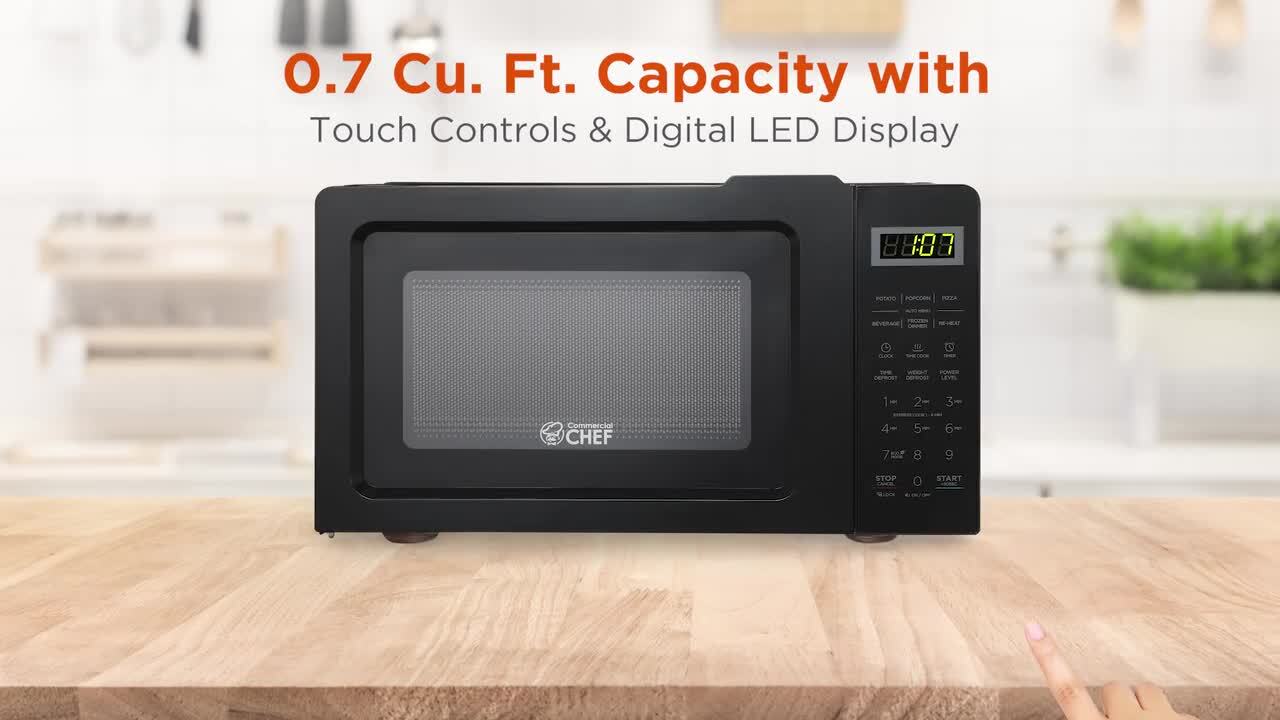
Credit: www.homedepot.com
Getting Ready: What To Check Before Setting The Clock
Before you start, take a few minutes to check these points:
- Model Number: Find your microwave’s model number, usually on a sticker inside the door or on the back.
- User Manual: If available, have your manual nearby. If not, Haier’s official site offers free digital copies.
- Power Connection: Plug in your microwave and make sure it’s not in demo or energy-saving mode.
- Keypad Cleanliness: Wipe the control panel—dirt or grease can make touch sensors less responsive.
- Display Status: If the display is blank, check your power outlet and the microwave’s fuse.
Starting with these checks saves frustration later, especially if you’re troubleshooting.
Step-by-step Guide: How To Set The Clock On A Haier Microwave Oven Combo
Setting the clock is simple once you know the process, but Haier uses slightly different methods across models. Below are the most common approaches. Read through all steps before starting. If you’re unsure which applies, start with Method 1.
Method 1: Standard Button-control Models
This method suits most Haier combos with a Clock or Time button.
- Press the “Clock” Button: On the control panel, find and press the “Clock” or “Time” button. The display may flash “00:00” or “12:00.”
- Select 12 or 24 Hour Format: Some models prompt you to choose between 12-hour (AM/PM) or 24-hour (military) time. Use the number keys to select. For example, press “1” for 12-hour, “2” for 24-hour.
- Enter the Current Time: Use the number pad to enter the time. For example, for 8:30 AM, press “0830.” If your model uses a dial, turn to set hours, press to confirm, then set minutes.
- Confirm: Press the “Clock” or “Start” button again to save. The time will stop flashing.
- Check: The clock should now display the correct time.
Pro tip: If you make a mistake, press “Stop/Cancel” and repeat the steps.
Method 2: Touchscreen Or Sensor Control Models
For newer Haier combos with touchscreens or minimal buttons, the process is similar but with on-screen prompts.
- Wake the Display: Touch the screen or open the door to light up the panel.
- Find the Clock Icon: Tap the clock symbol or locate “Settings.”
- Access Time Settings: Follow on-screen instructions to enter time setup mode.
- Input Time: Slide or tap numbers as requested.
- Save: Tap “OK,” “Start,” or another confirm button.
Non-obvious insight: Some models lock settings after 1 minute of inactivity—move quickly, or you’ll have to start again.
Method 3: Dials Or Knob-only Models
Older or basic Haier combos may use a rotary dial instead of a number pad.
- Press and Hold the Dial: Hold until the display blinks.
- Set Hours: Turn the dial to set the hour, then press to confirm.
- Set Minutes: Turn for minutes, then press to finish.
- Confirm: Wait a few seconds—the clock will set automatically.
This method is less common but still found in some Haier ovens.
Method 4: Models Without A Clock Button
If your combo lacks a clear clock button, try this:
- Press “Stop/Cancel” Twice: This resets some models to clock-setting mode.
- Use Number Keys or Dial: Enter the time.
- Confirm with “Start” or “OK.”
If this doesn’t work, check your manual or the official Haier support page.
Comparing Clock Setting Methods
Here’s a comparison of the main methods for setting the clock across Haier models:
| Method | Control Type | Typical Models | Steps | Extra Features |
|---|---|---|---|---|
| Standard Button | Buttons/Keypad | HMC925SESS, HMC900BEBB | Press Clock, enter time, confirm | 12/24 hr format, preset programs |
| Touchscreen | Touch panel | HMCB25STSS, HMCV45TSS | Tap settings, input time, save | On-screen prompts, child lock |
| Dial | Rotary dial | HMC20M1, HMC30M2 | Hold dial, turn to set, confirm | Simple display, no presets |
| No Clock Button | Minimal controls | HMC720S, HMC820S | Press Stop/Cancel, enter time | Basic timer only |
Common Problems When Setting The Clock
Even with clear instructions, you may run into trouble. Here are the most frequent issues and how to solve them:
Problem 1: Buttons Don’t Respond
If the clock button or number pad doesn’t react, try these:
- Unplug the microwave for 2 minutes, then plug back in.
- Clean the panel with a soft, damp cloth.
- Check if child lock is enabled (look for a padlock symbol).
If still unresponsive, the panel may need servicing.
Problem 2: Display Flashes Or Won’t Hold Time
A flashing display usually means:
- Power was interrupted (outage, unplugging)
- The clock wasn’t confirmed (missed the last step)
- Internal memory battery is failing (rare)
Try repeating the setup steps. If the problem persists, contact Haier support.
Problem 3: Can’t Change From 24-hour To 12-hour Format
Not all Haier models let you switch time formats. If you can’t find the option, check your manual. Forcing a format (by entering “1300” for 1 PM, for example) can cause errors.
Problem 4: Clock Loses Time Overnight
If your microwave clock resets to 0:00 or 12:00 often:
- There may be an unstable power supply.
- Some older models lose time when unplugged (no backup battery).
- Try plugging into a different outlet or using a surge protector.
Problem 5: No Clock Display
Some Haier combos (especially energy-saving models) turn off the display when not in use. Try pressing any button or opening the door to wake up the clock.
Advanced Features Linked To Clock Setting
Haier microwave oven combos often have smart features that depend on a correctly set clock. Here’s how accurate time improves your experience:
Delayed Start And End
Many models let you set a delayed start—for example, start baking at 7:30 AM. If the clock is wrong, your food may not be ready when you expect.
Multi-stage Cooking
Multi-stage cooking lets you program several steps (defrost, cook, grill). The oven uses its clock to change stages automatically. A wrong clock may skip or mistime steps.
Child Lock And Safety
Some combos require the clock to be set before you can use or unlock the child lock. This keeps kids safe, but can be confusing if you miss the step.
Maintenance Reminders
A few Haier models use the clock to remind you when to clean filters or check the oven cavity. If the clock is never set, you’ll miss these alerts.
Non-obvious insight: If you use the “Power Save” function, the clock may disappear from view, but continues running in the background. When you press any button, it reappears—don’t assume the clock has reset.
How Clock Setting Differs On Popular Haier Models
Not all Haier microwaves use the same method. Here’s a quick look at how clock setting differs among their best-selling combos:
| Model | Clock Setting Method | Unique Features |
|---|---|---|
| HMC925SESS | Clock button + Number pad | 12/24 hr, presets, multi-stage cooking |
| HMCB25STSS | Touchscreen, tap clock icon | On-screen help, child lock |
| HMC20M1 | Dial, hold to set | Simple timer, basic display |
| HMC900BEBB | Clock/Time button, enter time | Preset programs, grill function |
| HMCV45TSS | Touchscreen, settings menu | Convection, delay start |
Tips For Keeping Your Haier Microwave Clock Accurate
- Avoid unplugging: If possible, keep your microwave plugged in. Frequent power loss causes clock resets.
- Use a surge protector: Fluctuations in current can cause resets or errors.
- Check after outages: Always set the clock again after a blackout.
- Regular cleaning: Keep the control panel clean for better button response.
- Read the manual: Each model may have unique steps or hidden features.
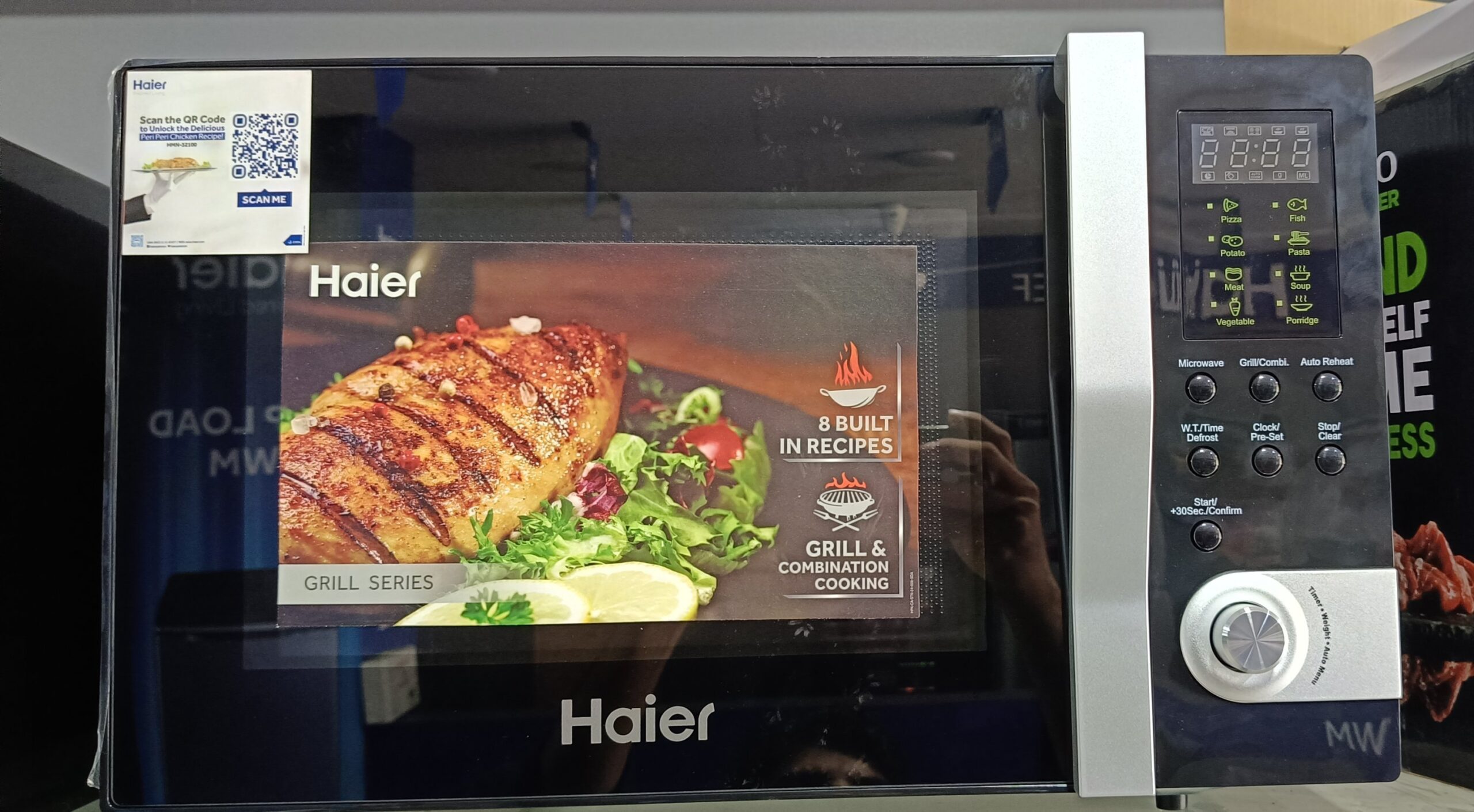
Credit: lahorelectronics.com
What To Do If You Lose The Manual
Lost your Haier microwave oven combo manual? Don’t worry. Most user guides are available for free online. Just search for “Haier [model number] manual” or visit the official Haier website.
If you’re unsure of your model, look inside the microwave door or on the back for the sticker with the model code.
When To Contact Haier Support
If you’ve tried all the steps and your clock still won’t set, it’s time to call Haier support or your local service center. Common reasons to seek help include:
- Buttons or display are completely unresponsive
- Clock resets immediately after setting
- You see error codes like “E3” or “F2” (refer to your manual for meanings)
- The display is cracked or damaged
Haier’s customer service can be reached through their official site or your local distributor. For complicated repairs, always use authorized service to keep your warranty valid.
Real-world Example: Setting The Clock On The Haier Hmc925sess
Let’s walk through a real example with one of the most popular Haier combos.
- Plug in the microwave. The display reads “00: 00.”
- Press the “Clock” button. The display blinks.
- Choose 12-hour format. Press “1.”
- Enter the time. For 7: 45 PM, press “1945.”
- Press “Clock” again to confirm. The display now shows “19: 45.”
- Ready to cook!
If you accidentally pressed the wrong numbers, just hit “Stop/Cancel” and start over.
Mistakes To Avoid When Setting The Clock
- Skipping the Confirm Step: Many users enter the time but forget to press “Clock” or “Start” to save. The display will continue to blink and not save the time.
- Wrong Time Format: Entering “1300” in 12-hour mode gives an error. Always match the format to your model.
- Rushing: Touch panels sometimes need a slow, firm press, not a quick tap.
- Ignoring Power Issues: If your microwave resets often, check your electrical outlet or use a different one to rule out problems.
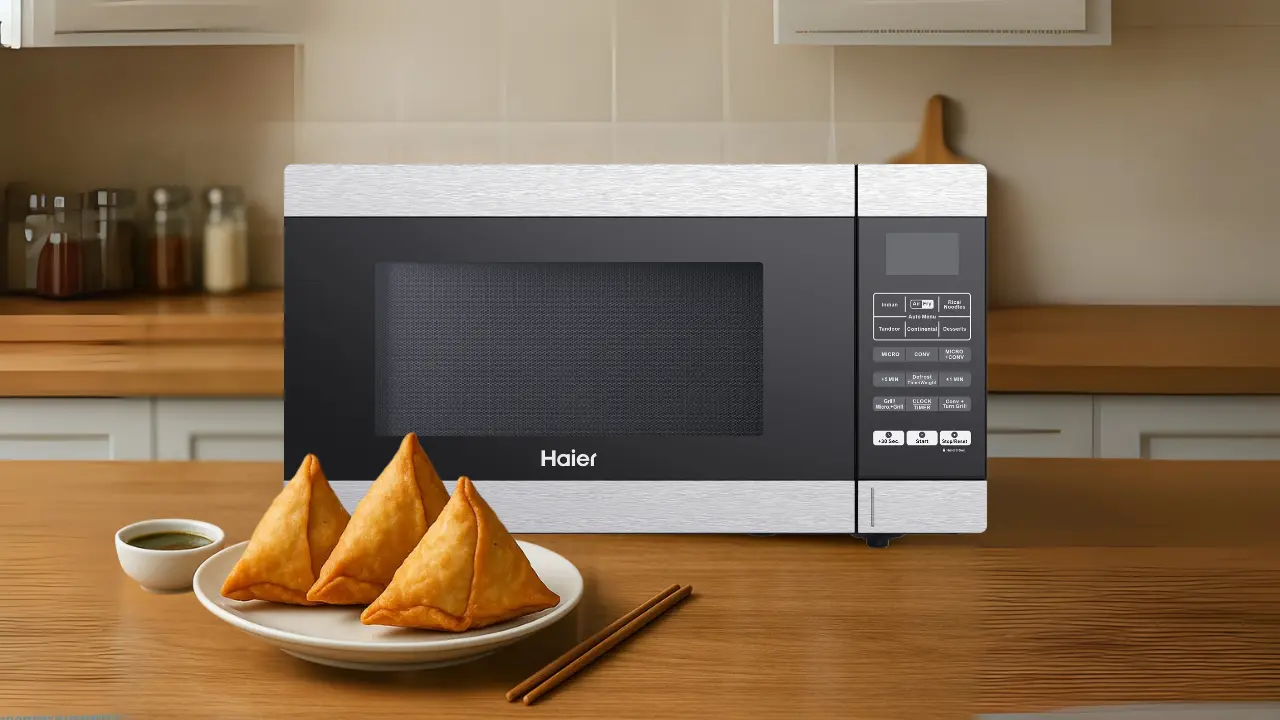
Credit: shop.haierindia.com
How Clock Setting Affects Preset Programs
Preset programs depend on an accurate clock. For example, the “Breakfast” function on some Haier combos only works if the clock is correct. If you set a timer for morning eggs but your clock is off, you might get cold food.
Non-obvious tip: Some Haier models let you adjust the clock forward or backward by a few minutes, so you can “cheat” the start time to match your schedule.
The Role Of The Clock In Power Saving And Child Lock
Many Haier combos come with an energy-saving mode. When this is active, the clock may disappear, but the oven is not off. Press any button to reactivate the display. For child lock, some models require you to set the clock before locking or unlocking. If the clock is not set, the child lock may not work.
If you see a padlock symbol, consult your manual for the exact steps. Usually, it involves holding a specific button for three seconds.
Troubleshooting Unusual Issues
If your clock behaves strangely—like showing the wrong time after cooking, freezing, or random resets—try these advanced steps:
- Factory Reset: Some Haier microwaves allow a factory reset by holding “Stop/Cancel” for 10 seconds. This erases all settings, including the clock.
- Check for Firmware Updates: Some high-end models support USB firmware updates. This is rare but can fix software glitches.
- Surge Protection: Power surges can cause memory errors. Use a surge protector to prevent future problems.
If these don’t help, professional repair is needed.
Setting The Clock After A Power Outage
Whenever your home loses power, your microwave’s clock will likely reset. After the outage:
- Wait for Stable Power: Don’t set the clock immediately if your power is flickering.
- Repeat the Setting Steps: Use the same method as your model requires.
- Check Other Settings: Some models lose all settings (presets, child lock) after an outage. Reset these as needed.
Comparing Haier With Other Brands: Clock Setting Experience
How does Haier stack up against other brands like LG, Panasonic, or Samsung? In general:
- Haier’s methods are simple but vary more between models.
- Samsung and LG often use a universal method for all models (easier for multi-brand households).
- Panasonic often hides clock setting under “Settings,” which can be confusing.
Haier’s advantage is usually a clear “Clock” button and a straightforward process for each model, but you must know your model’s method.
Useful Resources For Haier Microwave Owners
If you need more help:
- Visit the official Haier Appliances Support page for manuals and troubleshooting.
- Search for “Haier [your model] clock setting” on YouTube for video guides.
- Community forums often have quick answers from other users.
Frequently Asked Questions
How Do I Set The Clock On My Haier Microwave If There Is No Clock Button?
Some Haier models don’t have a dedicated clock button. In these cases, try pressing “Stop/Cancel” twice, then use the number pad to enter the time and press “Start” or “OK” to confirm. If this doesn’t work, check your user manual or the official Haier support site for model-specific instructions.
Why Does My Haier Microwave Clock Keep Resetting?
The most common reasons are power interruptions (outages, unplugging), using a faulty power outlet, or a failing internal memory battery. Try plugging your microwave into a different outlet and avoid frequent unplugging. If the problem continues, contact Haier support.
Can I Switch Between 12-hour And 24-hour Clock Formats?
This depends on your Haier microwave model. Some allow you to choose between 12-hour and 24-hour formats during clock setup, while others are fixed to one style. Check your user manual for your model’s options. Forcing a format (like entering “1300” for 1 PM in 12-hour mode) will not work and may cause errors.
Does The Clock Need To Be Set For The Microwave To Work?
Basic heating and manual operation don’t require the clock to be set. However, many features—like delayed start, preset programs, or child lock—need an accurate clock. It’s best to set the clock for full functionality.
My Microwave Display Is Blank. Is The Clock Lost?
Not necessarily. Many Haier microwaves go into power-saving mode, turning off the display. Press any button or open the door to wake the display. If the clock is still blank after this, check your power connection.
Setting the clock on your Haier microwave oven combo is a small but essential step for getting the best from your appliance. With the right method for your model, you can enjoy all the advanced features, avoid kitchen mishaps, and keep your cooking on track. If you ever get stuck, remember that help is easy to find—through the manual, online resources, or Haier’s support team. With your clock correctly set, your Haier microwave will be ready to make your daily routine smoother and more efficient.