
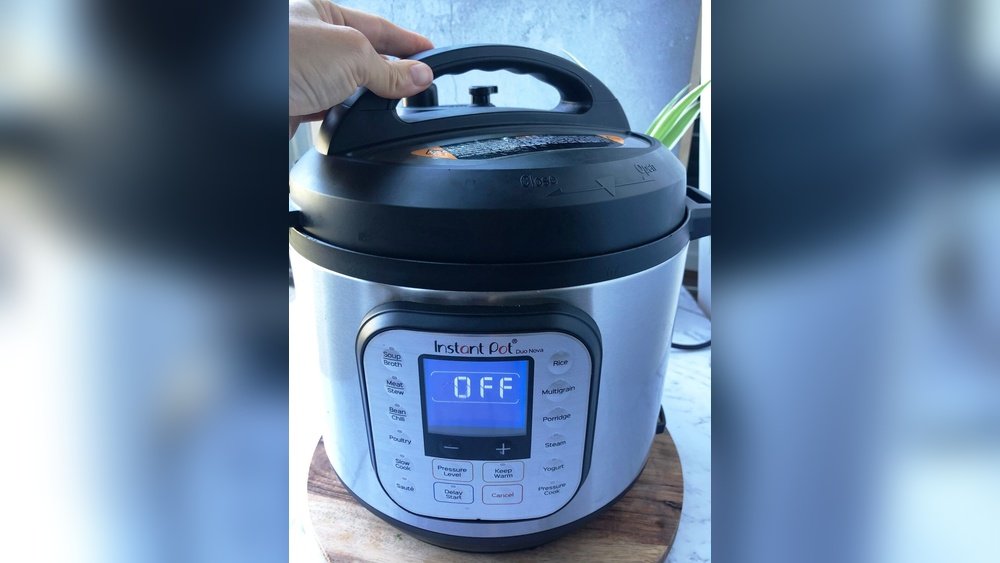
If you own an Instant Pot, you probably love how it makes cooking easier and faster. But sometimes, this smart cooker can act up. Maybe it’s not responding, keeps showing an error code, or just won’t start. In these moments, knowing how to reset your Instant Pot can save your dinner plans and your mood.
Resetting isn’t just for when things go wrong—it’s also useful if you want to clear previous cooking programs, fix time settings, or get your device back to its factory settings.
This guide will walk you through everything you need to know about resetting an Instant Pot. You’ll learn step-by-step methods, understand why and when to reset, and discover solutions for common issues. Whether you’re new to Instant Pot or have used it for years, these tips will help you solve problems quickly. We’ll also cover what to do if a simple reset doesn’t work, and how to protect your cooker from future troubles. By the end, you’ll feel confident handling almost any Instant Pot issue.
Why You Might Need To Reset Your Instant Pot
Most Instant Pot owners use the reset option only when something goes wrong. But there are several reasons why you might need to reset:
- The display shows an error code or is stuck.
- The buttons or touch screen do not respond.
- The cooking program is not working as expected.
- You want to clear custom settings and go back to factory defaults.
- The timer or clock is showing the wrong time.
- You plan to sell or give away your Instant Pot.
Some problems are simple and only need a quick reset, while others need more steps. Resetting can fix software glitches, but it won’t solve hardware problems like a broken lid or faulty heating element.
Different Types Of Reset For Instant Pot
Before you try to reset, it’s important to know there are three main types:
- Soft Reset: Restarting or unplugging the unit.
- Program Reset: Clearing custom programs or saved settings.
- Factory Reset: Returning everything to original factory state.
Each Instant Pot model may have slightly different methods. Understanding which reset you need saves time and avoids unnecessary steps.

Credit: www.youtube.com
Safety First: Preparing To Reset
Before touching any buttons, make sure your Instant Pot is safe to handle:
- Always unplug your cooker from the wall when not in use or before cleaning.
- Make sure the lid is not locked and there is no pressure inside. Use the pressure release valve if needed.
- Let the cooker cool down for a few minutes if it was running recently.
Ignoring these steps can result in burns or electric shock.
How To Do A Soft Reset (basic Restart)
A soft reset is the simplest way to solve minor glitches. Think of it like restarting your phone or computer. Here’s how:
- Turn off your Instant Pot by pressing the Cancel or Keep Warm/Cancel button.
- Unplug the power cord from the wall outlet.
- Wait for 1-2 minutes. This gives the cooker time to clear memory.
- Plug it back in and turn it on again.
This method helps with small errors, frozen screens, or when buttons do not respond. It does not erase custom programs or recipes.
Common Signs A Soft Reset Is Needed
- The display is frozen or blank.
- The cooker won’t start or stop.
- Error codes like “C6” or “C1” appear randomly.
If a soft reset doesn’t help, try the next method.
Resetting Cooking Programs And Custom Settings
Many Instant Pots let you save your favorite settings, like cooking time or temperature. Sometimes, these settings can get mixed up or you want to clear them. Here’s how to reset cooking programs:
For Most Instant Pot Models
- Select the program (e.g., Rice, Soup, Meat).
- Press and hold the Adjust or +/- button for about 3 seconds.
- The program will go back to its default time and temperature.
For Duo Evo Plus, Ultra, And Newer Models
These models have a dial or touch screen:
- Select the cooking program.
- Press and hold the Cancel or Start button for 3-5 seconds.
- The Instant Pot resets to the factory default for that program.
What This Changes
- Clears any saved custom time or temperature.
- Does not affect other programs or system settings.
Tip: If your Instant Pot cooks rice too soft or beans too hard, resetting individual programs can help.
How To Do A Factory Reset
A factory reset will erase all custom settings and restore the Instant Pot to the way it was when new. This is useful if:
- You have many custom programs and want a clean slate.
- You plan to give away or sell your Instant Pot.
- Persistent errors won’t go away with other resets.
Factory Reset Steps For Popular Models
Instant Pot Duo, Lux, And Viva
- Unplug the device.
- Hold down the Cancel button.
- While holding Cancel, plug in the power cord.
- Wait until you hear a beep (about 5 seconds), then release Cancel.
Instant Pot Ultra, Duo Evo Plus, Max, Or Smart Wifi
- Open the main menu (usually by pressing “Settings” or using the dial).
- Scroll to Factory Reset or “Reset” option.
- Press and hold the Start or Select button.
- Wait for confirmation (beep or message).
For Models Without A Reset Button
Some older or basic models don’t have a reset feature. In this case, unplugging for 5-10 minutes is the best you can do.
What Gets Erased
- All saved cooking programs
- Custom time and temperature
- WiFi or Bluetooth connections (for smart models)
- Clock and timer settings
Important: You can’t undo a factory reset. All customizations are lost.
Resetting Smart Instant Pot Models (wifi/bluetooth)
If you have a Smart WiFi or Bluetooth Instant Pot, resetting can fix connection issues.
Steps To Reset Wifi Settings
- Open the Instant Pot mobile app.
- Go to Settings > Device Management.
- Select your Instant Pot and choose Remove Device or “Forget Device”.
- On the Instant Pot, go to Settings and select Reset Network or “Factory Reset”.
- Reconnect the cooker as a new device.
When To Reset Wifi
- The app can’t find your Instant Pot.
- You change your home WiFi password or router.
- The cooker is connecting to the wrong network.
What To Do If Reset Does Not Work
Sometimes, even after several resets, your Instant Pot keeps showing errors or won’t work. Here’s what you can try:
- Check the power outlet: Plug another appliance to make sure the outlet works.
- Look for visible damage: Broken lid, loose wires, or burnt smell.
- Examine the inner pot and sealing ring: Make sure they are clean and correctly placed.
- Update the app: For smart models, update to the latest version.
- Contact customer support: If the problem continues, your Instant Pot may need professional repair.
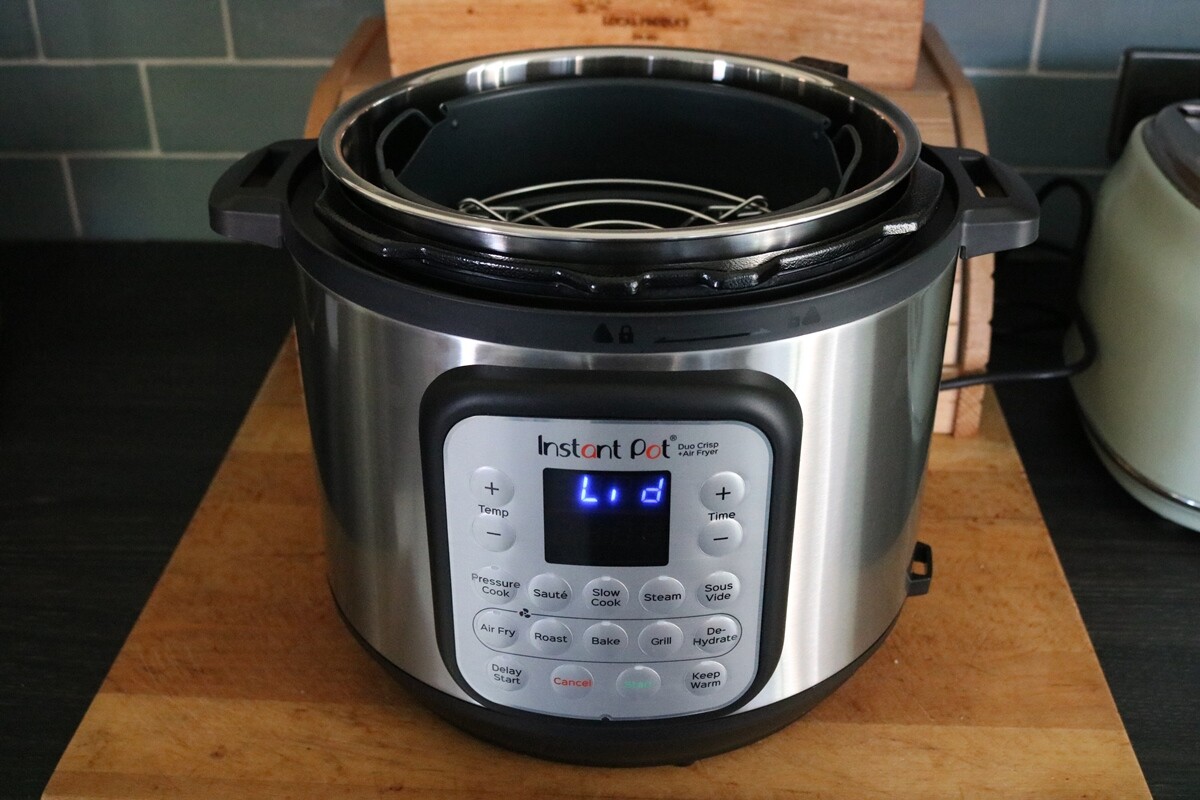
Credit: instantpoteats.com
Common Error Codes And What A Reset Can Fix
Instant Pot has several error codes. Some can be fixed by resetting, others need extra steps.
| Error Code | Meaning | Reset Fixes? | Additional Action |
|---|---|---|---|
| C1, C2 | Sensor error | Sometimes | Check wiring or contact support |
| C5 | Not enough water | Yes | Add water, clean pot |
| C6 | Faulty sensor | Rarely | Contact support |
| OvHt | Overheat | Yes | Clean heating plate, add liquid |
| PrSE | Pressure sensor error | Sometimes | Check for blockages |
Tip: Always check the Instant Pot manual for your model’s error codes. Some errors mean a part needs to be replaced.
How To Reset The Timer And Clock
If your Instant Pot shows the wrong time or timer, here’s how to reset it:
- Press Timer or Clock on the control panel.
- Use the +/- buttons or dial to adjust hours and minutes.
- Press Start or Set to save.
Note: On some models, the timer only sets delayed start time, not the clock.
Resetting After A Power Outage
A power outage can confuse your Instant Pot. If your home loses power, the cooker may not remember where it left off.
- Unplug and wait 2 minutes before plugging back in.
- Restart your cooking program.
- If it still does not work, do a factory reset.
Differences In Resetting Various Instant Pot Models
Not all Instant Pots are the same. Here’s a comparison:
| Model | Soft Reset | Program Reset | Factory Reset | WiFi/Bluetooth Reset |
|---|---|---|---|---|
| Duo | Yes | Yes | Yes | No |
| Ultra | Yes | Yes | Yes | No |
| Smart WiFi | Yes | Yes | Yes | Yes |
| Lux | Yes | Yes | Limited | No |
| Max | Yes | Yes | Yes | No |
Insight: Some entry-level models, like Lux, only allow basic resets and do not support advanced features.
Common Mistakes To Avoid When Resetting
Many Instant Pot users make small mistakes that can cause frustration:
- Not unplugging before resetting: This can cause errors to stay in memory.
- Resetting the wrong program: Each cooking function must be reset separately.
- Not checking for software updates: For smart models, updates fix many bugs.
- Ignoring error codes: Some errors mean a part is broken, not just a software issue.
- Resetting too often: Constant resets may signal a bigger problem.
Resetting For Performance And Troubleshooting
Resetting doesn’t just fix problems—it can improve performance. Over time, saved custom programs or minor glitches can make your cooker less reliable. A reset clears memory and makes the Instant Pot act like new.
When To Reset For Better Performance
- Cooking times are always off.
- Food is undercooked or overcooked even with the same recipe.
- Smart features (WiFi, Bluetooth) are unstable.
If you notice these signs, a reset can help.
How To Maintain Your Instant Pot To Avoid Frequent Resets
While resets are useful, it’s better not to need them often. Proper care can keep your Instant Pot running smoothly.
- Clean the lid, sealing ring, and steam release valve after each use.
- Check the float valve and anti-block shield for food bits.
- Wipe the heating plate and make sure the inner pot fits snugly.
- Avoid using metal utensils that can damage sensors.
- Do not store with the lid locked; this can trap smells and moisture.
Regular cleaning prevents sensor errors and overheating issues.
Examples: When A Reset Saved The Day
Sometimes, real-life examples are more helpful than instructions. Here are two common situations:
Example 1: Frozen Touch Screen
Maria’s Instant Pot Ultra stopped responding during setup. The touch screen was frozen, and no buttons worked. She tried unplugging the unit for 2 minutes, then plugged it back in. The screen was normal again. A simple soft reset fixed the issue.
Example 2: Stuck On Error “ovht”
John was making chili and saw the “OvHt” (overheat) code. He unplugged the cooker, checked for burnt food at the bottom, cleaned it, and did a soft reset. The error disappeared, and he finished cooking.
These stories show that many Instant Pot problems are solved with the right reset method.
When You Should Not Reset Your Instant Pot
Resetting is not the answer to every problem. You should avoid resetting if:
- There is a physical issue: Broken parts, leaking water, or sparks.
- You hear strange noises: Clicking or buzzing.
- The display shows the same error even after several resets.
In these cases, stop using your Instant Pot and contact customer service.
What To Do Before Contacting Customer Support
Before you call or email support, it helps to:
- Write down the model number and serial number.
- List the error codes you see.
- Note what steps you tried (unplug, reset, clean).
- Take a photo of the display or problem area.
Having this information ready speeds up the repair or replacement process.
How Resets Affect Warranty And Repairs
Most Instant Pot warranties cover 1 year from purchase. Resetting your cooker does not void the warranty. However, opening the base or trying to fix wiring yourself can void it. Always try resets and cleaning first, then call support if needed.
Advanced: Resetting Firmware (for Tech-savvy Users)
Some smart models allow firmware updates or resets. This is a higher-level reset that reloads the device’s software.
- Visit the official Instant Pot site for firmware files and instructions.
- Only update firmware if the manual says to, or if support recommends it.
- Incorrect firmware updates can damage your cooker.
For most users, standard resets are enough.
Comparing Instant Pot Resets To Other Brands
If you own pressure cookers from other brands, the reset process may be similar but not always the same.
| Brand | Soft Reset | Program Reset | Factory Reset |
|---|---|---|---|
| Instant Pot | Yes | Yes | Yes |
| Ninja Foodi | Yes | No | No |
| Crock-Pot Express | Yes | No | No |
| Power Pressure Cooker XL | Yes | No | No |
Insight: Instant Pot offers more reset options compared to competitors. This makes it easier to fix software issues at home.
Key Takeaways For Resetting Your Instant Pot
- Use a soft reset for minor glitches and frozen screens.
- Reset individual programs if only one function is acting up.
- Do a factory reset for major problems or before selling.
- Always unplug and let the cooker cool before resetting.
- Avoid constant resets—check for deeper problems if errors repeat.
- Clean and maintain your Instant Pot to reduce errors.
For official guidance, check the Instant Pot website or your user manual. This ensures you follow steps correct for your model. For more details, you can also visit the official Instant Pot support page.
Taking the time to learn reset methods can save you money, stress, and even your dinner. With these steps, you’re prepared for almost any Instant Pot challenge.
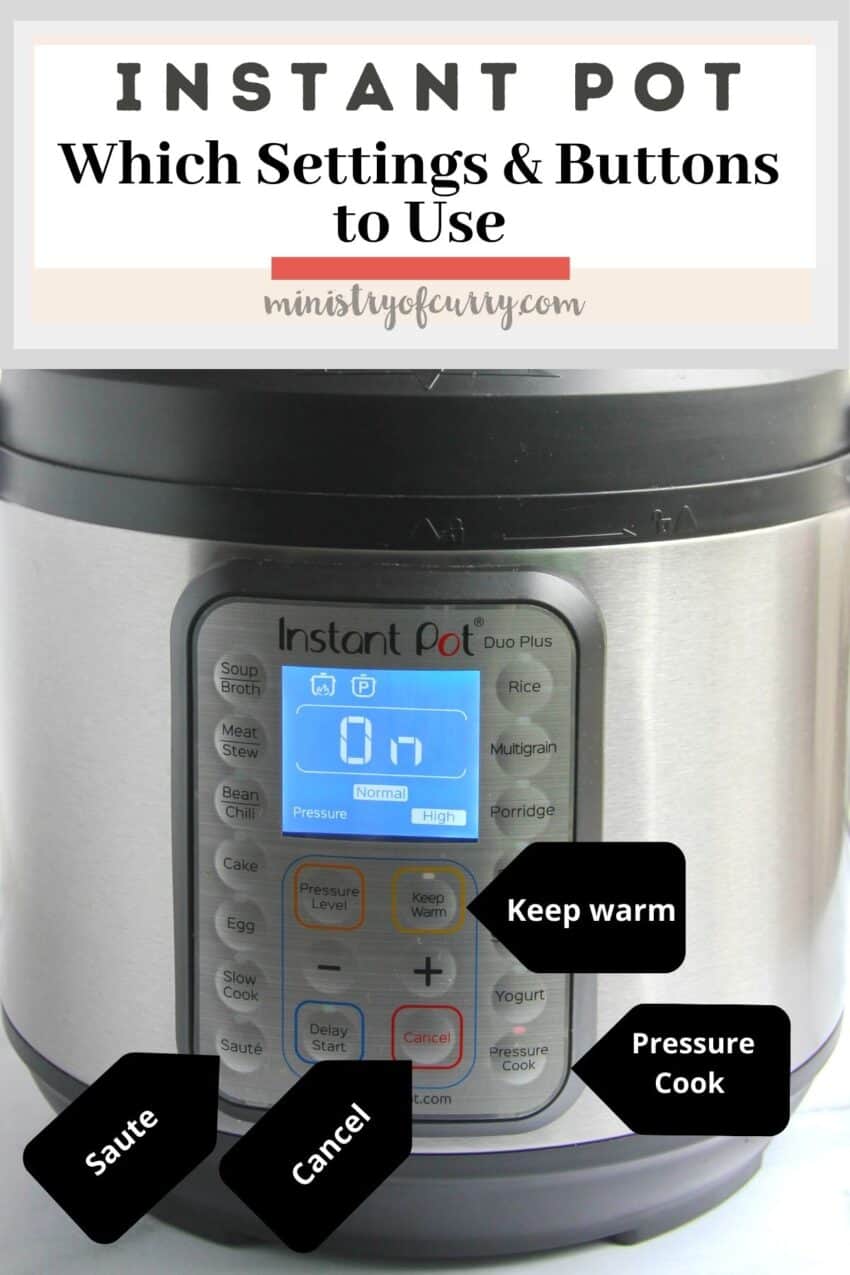
Credit: ministryofcurry.com
Frequently Asked Questions
How Do I Know If My Instant Pot Needs A Reset?
If your Instant Pot’s display is frozen, shows error codes, or does not respond to buttons, it may need a reset. Unusual cooking results or lost WiFi connection are also signs.
Will A Factory Reset Delete My Custom Recipes?
Yes, a factory reset erases all custom settings and stored recipes. Write down your favorites before resetting if you want to use them again.
Can I Reset My Instant Pot If It’s Still Hot?
It is best to let your Instant Pot cool before resetting. This avoids burns and makes it safe to handle, especially if you need to check inside.
Why Does My Instant Pot Keep Asking For A Reset?
Frequent reset requests can mean a bigger issue, like a faulty sensor or power supply. Try a factory reset once, but if errors return, contact customer support.
Is It Safe To Reset My Instant Pot Often?
Occasional resets are safe and normal. If you need to reset often, clean the cooker and check for hardware problems. Too many resets in a short time might hide a deeper issue.
With these steps and tips, you’re now ready to handle almost any Instant Pot reset situation. Happy cooking!