
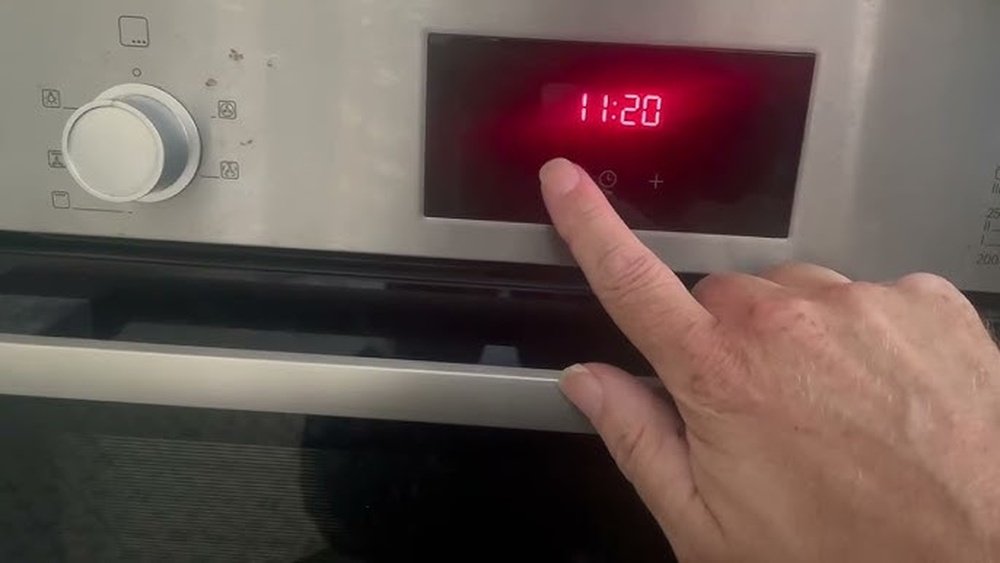
Bosch ovens are known for their reliability, smart features, and modern design. But like all appliances, sometimes things go wrong. Maybe your oven is not heating, the display is frozen, or you see a confusing error code. In these moments, knowing how to reset a Bosch oven can save you time, money, and stress.
Resetting your oven can fix minor glitches, clear error codes, and sometimes restore normal function after a power outage or a program crash. But Bosch ovens have many models and features, so the reset process is not always obvious. This guide will walk you through every method step by step.
You’ll learn how to reset different Bosch oven models, understand what each reset does, handle common error codes, and know when a reset is not enough. You’ll also discover tips most beginners miss and see how Bosch ovens compare to other brands when it comes to troubleshooting.
Let’s get started and make sure your Bosch oven is back to working as it should.
Why You Might Need To Reset Your Bosch Oven
Many people think resetting an oven is only for when it completely stops working. But in reality, there are several situations where a reset is helpful or even necessary.
- Error codes: Bosch ovens display codes when they detect a problem. Some errors can be cleared by a simple reset.
- Frozen display or controls: Sometimes, the oven’s display or touch controls become unresponsive.
- After a power outage: Power cuts can confuse the oven’s internal computer. A reset often returns things to normal.
- Oven not heating: If your Bosch oven won’t heat, a reset can sometimes fix it, especially after an interruption.
- Self-clean cycle issues: If your oven is stuck in a self-clean mode or won’t unlock, a reset might help.
- Wi-Fi or smart feature problems: For smart Bosch ovens, network or software glitches can usually be fixed with a reset.
It’s important to know that a reset is not a magic fix for every problem. If your oven has a hardware issue, like a broken heating element, a reset won’t help. But for many common glitches, a reset is the first and easiest thing to try.
Understanding Bosch Oven Models And Control Types
Before you reset, you need to know which Bosch oven model you have. Bosch makes different series, and each has its own control panel style. The most common are:
- Series 2 and 4: Simple, mechanical or basic digital controls
- Series 6 and 8: Advanced touch screens, smart features, and more complex error codes
- Built-in wall ovens: Usually have more digital features
- Freestanding ovens and ranges: May combine Bosch oven with a Bosch cooktop
Check the sticker inside your oven door or the user manual for your exact model. This will help you follow the right reset steps.
Tip: Not all Bosch ovens have the same reset button or menu. If your model is not covered here, look up the user manual online or contact Bosch support.
The Simple Power Cycle: The Easiest Reset
For most Bosch ovens, the easiest way to reset is a power cycle—turning the oven off and on again at the main power supply.
Steps For A Power Cycle Reset
- Turn off the oven using the control panel. If the panel is frozen, skip this step.
- Locate your home’s circuit breaker or fuse box. Find the switch labeled for the oven.
- Switch off the breaker (or remove the fuse) for the oven. Wait at least 60 seconds. For built-in ovens, this is usually needed because they are hard-wired.
- Turn the breaker back on. You may hear a beep or see the display light up.
- Wait for the oven to reboot. This takes 1–2 minutes for most models.
- Check the display. If error codes or problems are gone, the reset worked.
This method clears most temporary glitches. It is safe and does not erase your saved settings or smart features.
Common mistake: Some people only turn the oven off at the control panel, which does not cut power to the main computer. Always use the breaker for a true reset.
Factory Reset: Restoring Original Settings
If you want to return your Bosch oven to its factory settings—erasing any custom programs, timers, or Wi-Fi networks—a factory reset is the way to go. This is sometimes called a “hard reset.”
How To Perform A Factory Reset
For touch control models (Series 6, 8, and newer):
- Press the Menu or Settings button on your oven’s touchscreen.
- Scroll to “Factory Settings” or “Reset All Settings.”
- Select this option and confirm. The oven will ask “Are you sure?” Press “Yes” or “OK.”
- Wait for the oven to reboot. This may take up to 2 minutes.
- Set up the oven again as you did when it was new. You’ll need to set the clock and reconnect Wi-Fi if you use app features.
For older or basic digital models:
- There may not be a menu option for factory reset. In this case, a full power cycle (as described above) is your best bet.
- If the user manual mentions a specific button sequence, follow that. Otherwise, contact Bosch support.
Insight: Factory reset is not always needed for minor errors. Only use it if you want to erase all custom settings or if a regular reset doesn’t fix the problem.
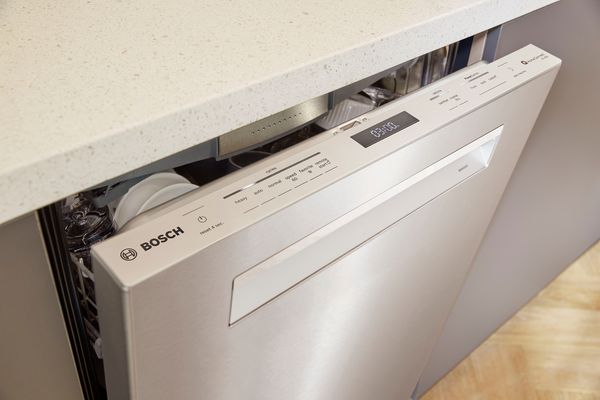
Credit: www.bosch-home.com
Resetting After Error Codes
Bosch ovens display error codes when something goes wrong. Some codes (like E011 or E115) mean a button is stuck, while others (like E305) relate to internal sensors. Not all codes clear with a reset, but many do.
Common Bosch Oven Error Codes And Solutions
Here’s a quick look at what different codes mean and if a reset will help:
| Error Code | What It Means | Reset Fixes? |
|---|---|---|
| E011 | Button or key stuck | Yes, try power cycle |
| E115 | Temperature sensor issue | Sometimes, try reset |
| E305 | Internal control fault | Often, full reset needed |
| E512 | Wi-Fi module error | Yes, reset can help |
| E601 | Door lock problem | Maybe, try reset |
Steps to clear an error code:
- Write down the code before you reset, in case you need to tell a technician later.
- Try a power cycle reset as described above.
- If the code returns, try a factory reset if your model supports it.
- If problems continue, contact Bosch support. Persistent codes can mean a real hardware problem.
Not obvious: Some error codes only appear after a self-clean cycle. In these cases, wait for the oven to cool completely before trying a reset.
Resetting The Clock And Timers
When you reset or power cycle your Bosch oven, you may need to reset the clock and any custom timers.
- Press the “Clock” button or the symbol that looks like a clock.
- Use the + and – or arrows to set the correct time.
- Press “OK” or “Start” to confirm.
For ovens with a touch screen, you may find the clock under “Settings” or a similar menu.
Tip: If the oven won’t let you set the clock, make sure the child lock is off.
Resetting Smart Features And Wi-fi
Many modern Bosch ovens connect to your home Wi-Fi and the Home Connect app. If you change routers, passwords, or have trouble with the app, you may need to reset Wi-Fi settings.
Resetting Wi-fi On Bosch Ovens
- Go to the oven’s Settings menu on the display.
- Find “Wi-Fi” or “Network” settings.
- Select “Reset Network” or “Forget Network.”
- Confirm your choice. The oven will disconnect from Wi-Fi.
- Reconnect by selecting your network and entering the password again.
Insight: Many people only reset the main oven, not realizing the Wi-Fi module is separate. Always reset both if you have smart features.
Dealing With Child Lock And Control Lock
Bosch ovens have child lock or control lock functions to prevent accidental use. Sometimes people think the oven is broken when only the lock is on.
How To Reset Or Turn Off Child Lock
- Find the lock symbol on your control panel.
- Press and hold the lock button for 4–5 seconds until you hear a beep or see the lock symbol disappear.
- If your oven has a touchscreen, go to Settings > Child Lock, and turn it off.
Mistake to avoid: Don’t unplug the oven to remove child lock. Use the right button sequence instead.
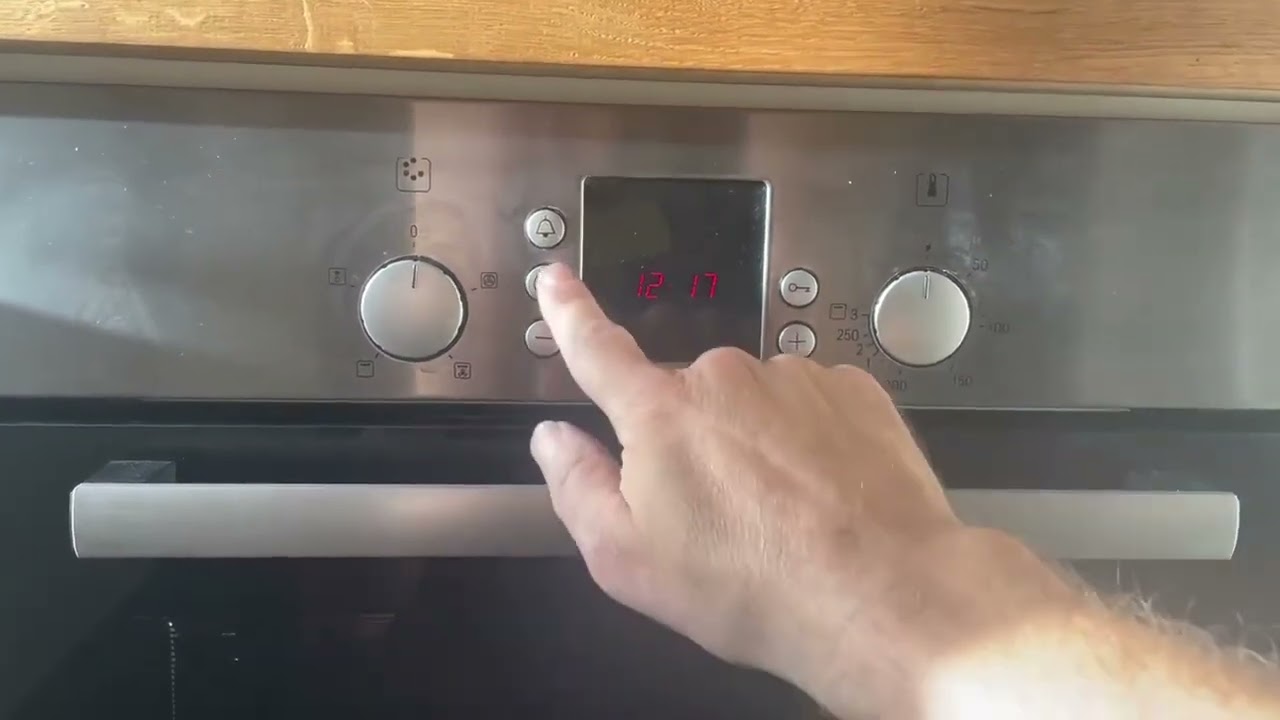
Credit: www.youtube.com
Resetting After Self-cleaning Cycle
If your oven is stuck after a self-clean cycle (door won’t open, display frozen), a reset can help.
- Wait for the oven to cool down fully. This can take 30–90 minutes.
- Try a power cycle reset at the breaker.
- When power is restored, check if the door unlocks and the display works.
If the door still won’t open, look for a manual release lever inside the oven vent or under the control panel (check the manual for your model).
Insight: Never force the oven door open. This can break the lock and void your warranty.
What To Do If Reset Doesn’t Fix The Problem
Not all oven problems can be fixed by a reset. Here’s when you should seek help:
- No power at all: Could be a tripped breaker or faulty wiring.
- Repeated error codes: Some errors mean parts need replacing.
- Oven heats unevenly or not at all: Could be a broken heating element or thermostat.
- Display is blank after reset: Main control board may be faulty.
In these cases, call a qualified Bosch technician or use Bosch’s official support. Attempting repairs yourself can be dangerous and may void your warranty.
Comparing Bosch Oven Reset Methods To Other Brands
How does resetting a Bosch oven compare to other major brands like GE, Samsung, or Whirlpool? Here’s a quick comparison:
| Brand | Reset Method | Factory Reset Option? | Notes |
|---|---|---|---|
| Bosch | Power cycle or menu reset | Yes, on newer models | Wi-Fi and smart features often have own reset |
| GE | Power cycle, button sequence | Rarely | Most errors clear with power cycle |
| Samsung | Power cycle, menu reset | Yes | App controls can complicate reset |
| Whirlpool | Power cycle, menu reset | Sometimes | Older models may need unplugging for longer |
Bosch stands out because of its detailed error codes and the ability to reset smart features separately. However, the need to use the circuit breaker for a full power cycle is similar across brands.
Preventing The Need For Frequent Resets
You can reduce the number of times you need to reset your Bosch oven with some simple habits:
- Keep firmware updated: For smart ovens, update through the Home Connect app when notified.
- Avoid power surges: Use a surge protector if possible. Power spikes can confuse the oven’s computer.
- Don’t push random buttons: If the oven freezes, don’t press all buttons quickly. This can make things worse.
- Clean control panel gently: Wipe with a soft, damp cloth. Water inside the panel can cause glitches.
- Follow the user manual: Each model has its own quirks. Reading the guide once can save a lot of trouble.
Non-obvious insight: If your oven resets itself often (for example, after every power outage), you might have a wiring issue in your kitchen. Have an electrician check for loose connections.
When To Call Bosch Support
If you’ve tried all the reset methods and your Bosch oven still isn’t working right, it’s time to contact the experts. Here’s when to call:
- Error code won’t clear after reset
- Oven will not power on at all
- Display or touch screen is cracked or not lighting up
- Oven heats too high or too low, even after reset
- You hear unusual noises from inside the oven
You can reach Bosch customer support through their official website or your local authorized repair center. Having your model number and error code ready speeds up the process.
Real-life Examples: Resetting Different Bosch Ovens
Let’s look at a few real-world scenarios to make things clearer.
Example 1: Basic Bosch Oven (mechanical + Digital)
Anna’s Bosch HBN331E2B oven stopped responding after a power cut. The display was blank, and no buttons worked.
What she did:
- Switched off the oven at the breaker for 2 minutes.
- Turned the breaker back on.
- The display came back, and the oven worked normally.
Lesson: For basic models, a power cycle is usually enough.
Example 2: Bosch Series 8 Smart Oven
Michael’s Bosch Series 8 oven showed error code E512 (Wi-Fi module error) after changing his router.
What he did:
- Went to Settings > Wi-Fi > Reset Network.
- Reconnected the oven to the new Wi-Fi.
- The error disappeared, and smart features worked again.
Lesson: Wi-Fi errors need a separate network reset.
Example 3: Bosch Oven Stuck After Self-clean
Sara ran a self-clean cycle. The door wouldn’t unlock even after cooling.
What she did:
- Tried a power cycle at the breaker.
- Waited 5 minutes after restoring power.
- The door unlocked, and the oven worked.
Lesson: For self-clean lockouts, wait for cooling, then reset power.

Credit: www.reddit.com
Bosch Ovens: Resetting Vs. Repairing
It’s important to know when a reset is enough and when you need real repairs. Here’s a summary:
- Reset is enough for: Display glitches, minor error codes, network issues, child lock.
- Repair is needed for: Broken parts, repeated errors, no power, or physical damage.
If you’re ever unsure, err on the side of safety. Ovens use high voltage and heat, so don’t take risks.
Bosch Oven Reset: Troubleshooting Tips Most People Miss
- Check for software updates before resetting. Sometimes, a new update fixes bugs that cause glitches.
- Try a “soft reset”—just turning the oven off at the control panel, waiting 5 minutes, then back on—before going for the full power cycle.
- If you have two ovens (double wall models), reset both together. Sometimes, a problem in one oven can affect the other’s controls.
- Don’t panic if the display blinks after reset. This is normal as the oven reboots.
- Always note down your custom settings (like favorite programs or temperature preferences) before a factory reset. You’ll need to enter them again.
Frequently Asked Questions
How Do I Reset My Bosch Oven If The Display Is Completely Blank?
If your Bosch oven display is blank, try a full power cycle. Switch off the oven at the circuit breaker for at least 60 seconds, then switch it back on. If the display stays blank, the main control board or fuse may be faulty, and you should contact Bosch support.
Will Resetting My Bosch Oven Erase All My Settings And Recipes?
A simple power cycle will not erase your custom settings or recipes. Only a factory reset (using the menu option “Reset All Settings” or “Factory Settings”) will erase personal data and return the oven to its original state.
How Do I Reset The Child Lock On My Bosch Oven?
Press and hold the lock symbol (or the button with a key icon) on the control panel for 4–5 seconds. The lock will turn off, and you can use the oven again. For touch screen models, check the Settings menu for “Child Lock.
”
What Should I Do If My Bosch Oven Keeps Showing The Same Error Code After A Reset?
If an error code returns after you try a power cycle and a factory reset, this often means there is a hardware problem. Write down the error code and contact Bosch customer service with your model number for further help.
Can I Reset My Bosch Oven Using The Home Connect App?
For some Bosch smart ovens, you can reset network settings or update software from the Home Connect app. However, a full power cycle or factory reset must usually be done at the oven itself. Check your user manual or the official Bosch support page for details.
Getting to know your Bosch oven’s reset options can save you time and keep your kitchen running smoothly. Whether you’re dealing with error codes, frozen displays, or Wi-Fi issues, following the right steps means you’re rarely stuck for long. If a reset doesn’t solve the problem, don’t hesitate to call in the experts.
With a bit of patience and the right guidance, your Bosch oven will be back in action, ready for your next meal.